
Artificial Intelligence (AI) is revolutionizing IT management by automating troubleshooting, analyzing issues faster, and providing intelligent insights.MPA Tools leveragesAzure OpenAI to integrate AI-driven assistance into IT support workflows, enhancing how IT professionals diagnose and resolve issues.
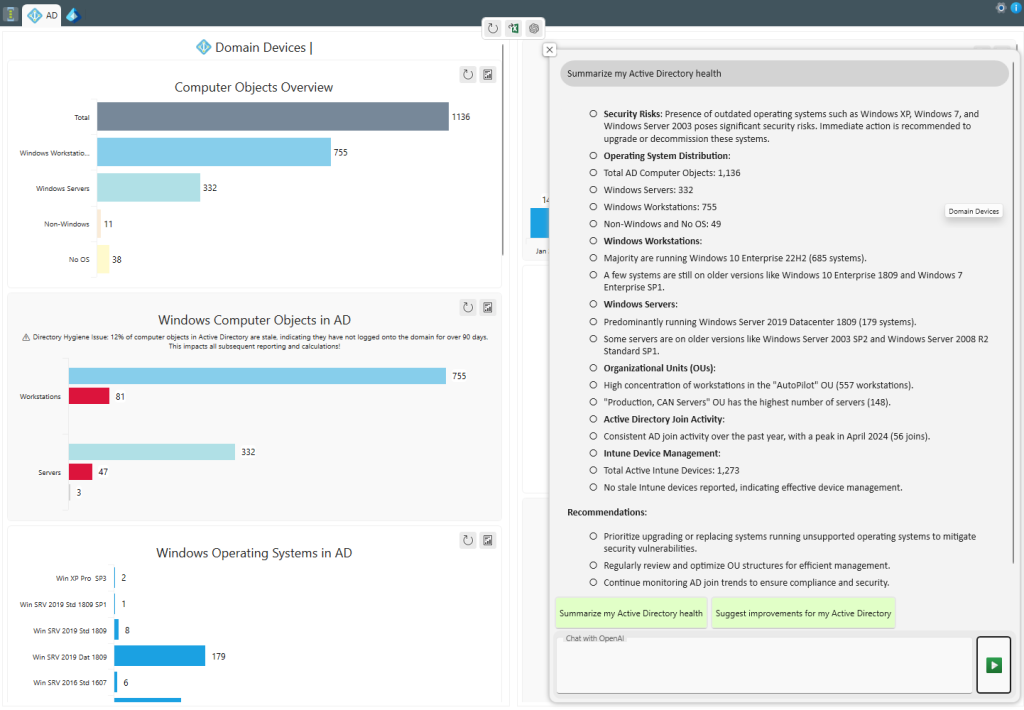
Check out the screenshot to see MPA Tools in action! It streamlines troubleshooting and Windows device management while leveraging AI to provide valuable insights. In the example below, MPA Tools has already discovered all components across the domain. Now, through ourNatural Language Processing (NLP) capabilities, only the necessary data is passed to yourAzure OpenAI instance for summarization. You can then take it further by interacting with the OpenAI model to investigate issues, identify inconsistencies, or generate a detailed summary reports.
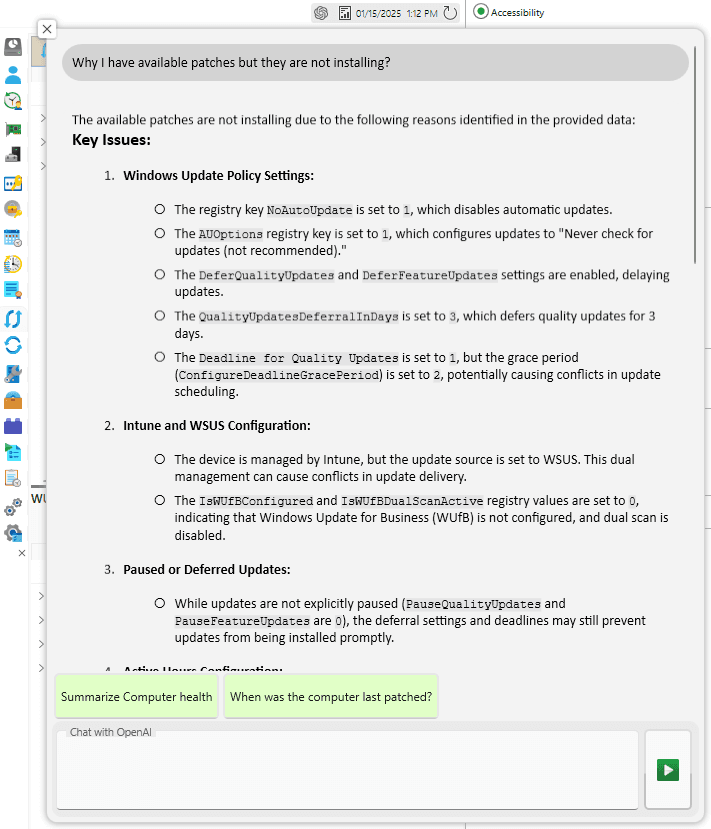
Another example is when an administrator needs to troubleshoot why patches aren’t applying to a single computer or multiple devices. When managing systems throughMPA Tools, the tool continuously gathers and assesses all relevant data in real-time.
For patching-related issues, MPA Tools examines installed applications, patching components, and system configurations—including registry settings that control patch deployment. With this comprehensive dataset, MPA Tools intelligently analyzes the information and, based on the administrator’s request, compiles only the relevant data into a structuredOpenAI payload. This enables AI-driven insights for faster, more effective troubleshooting.
The image below highlights a key insight: theAUOptions registry key is set to1, which isn't immediately obvious as the cause of Windows Update failing to check for new updates. Normally, identifying this root cause (RCA) could take an administratorhours of manual troubleshooting. However, withMPA Tools, the issue is detected and analyzed inunder a minute, providing instant clarity and saving valuable time.
So Why Use OpenAI with MPA Tools?
MPA Tools integrates OpenAI to provide:
✔Automated Troubleshooting – Get AI-driven suggestions based on system data.✔Quick Issue Resolution – AI assists in diagnosing errors faster.✔Enhanced IT Support – Use AI to generate recommendations for common IT issues.
To enable these features, you need to configure eitherAzure OpenAI (for enterprise users) orOpenAI API (for general use).
This guide will walk you through setting up anAzure OpenAI instance, obtaining anOpenAI API key, and configuring MPA Tools to use AI for IT troubleshooting and automation.
1. Setting Up an Azure OpenAI Instance
Azure OpenAI providesenterprise-grade AI with security, compliance, and governance features. Follow these steps to configure it:
Step 1: Create an Azure OpenAI Resource
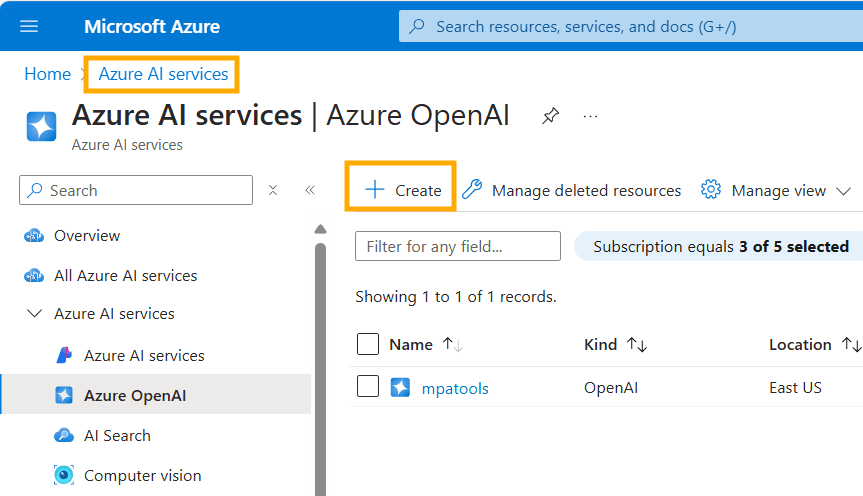
1.Sign in to theAzure Portal.
2.Search forAzure OpenAI.
3.SelectAzure OpenAI and clickCreate.
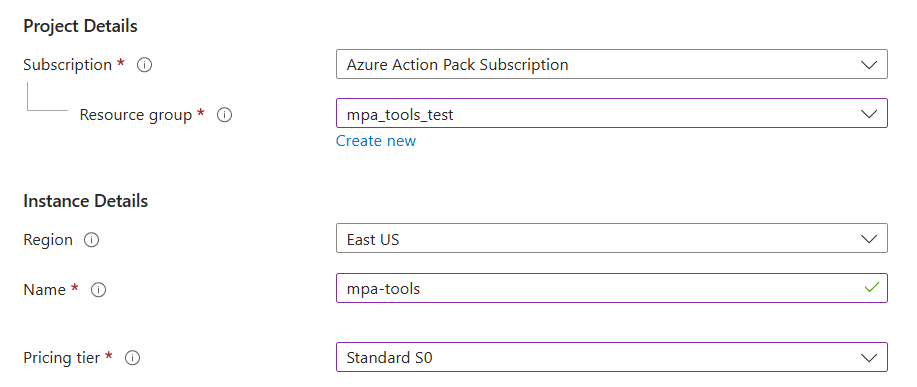
4.Choose aSubscription andResource Group (or create a new one).
5.Select theRegion (availability depends on your location).
6.Set thePricing Tier based on your usage.
7.ClickReview +Create, thenCreate. or go to optional step below.
Optional: Configure Network Security Options
Azure OpenAI provides multiple network access configurations to control who can access the resource:
- All networks, including the internet – Allows unrestricted access from any network.
- Selected networks – Enables network security controls, allowing you to define specific access permissions.
- Disabled – Blocks all network access unless aprivate endpoint is configured, ensuring only authorized connections can interact with the resource.
Choosing the right option depends on your security needs. For highly sensitive environments, usingprivate endpoints is the most secure approach.
Provisioning the resource will take some time.
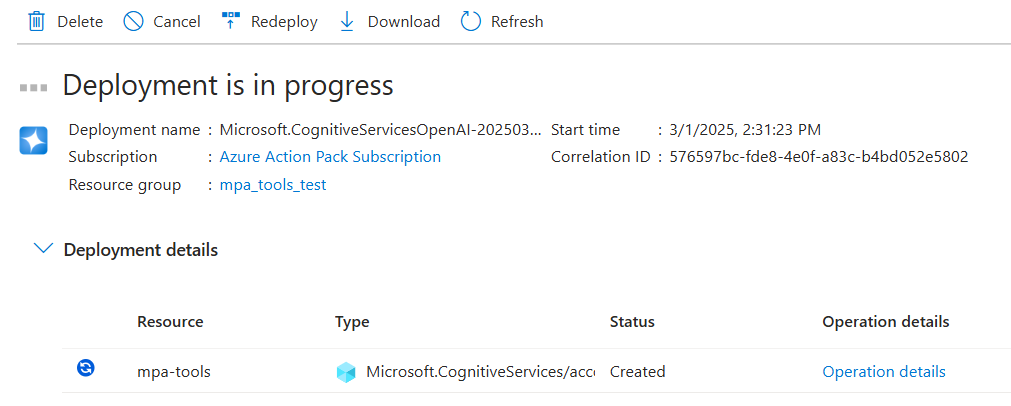
Step 3: Deploy a Model in Azure OpenAI
Once the resource is created:
1.Navigate toAzure OpenAI Studio:https://oai.azure.com/.
2.Select your Azure OpenAI resource. (in our case it ismpa-tools)
3.ClickDeployments →Deploy model, select “Deploy base model".
4.Choose a modelGPT-4o (or higher).
5.Assign a deployment name (e.g.,mpa-tools-gpt40-deployment).
6.Review AllDeployment details
7.ClickCreate resource and deploy.
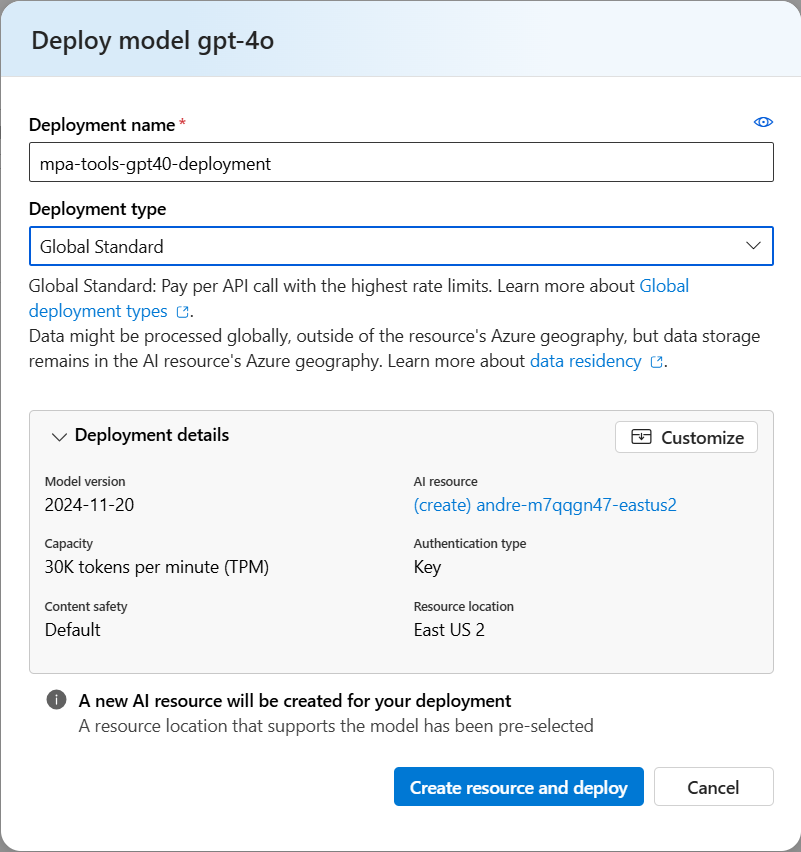
Note: Please be aware of the capacity limits. By default, our configuration allows for 30,000 tokens per minute, meaning that both input and output tokens count toward this limit. MPA Tools processes an average of 6,000 tokens per request, including both the payload and the AI-generated response.
Explanation:Azure OpenAI processes text in tokens, where a token can be a word, part of a word, or punctuation. Each request consumes tokens based on the input prompt and the model's response, with both counting toward the total usage. If the token limit is exceeded within a minute, requests may be throttled, requiring optimizations like reducing prompt size or implementing retry logic.
But this can be easily adjusted in the future! Note that it is possible to reach the rate limit in MPA Tools. If that happens, MPA Tools will display an error. You can resolve this by either modifying your query to use fewer tokens or increasing the token limit in the configuration settings, just as we did during the initial setup.
When the deployment is created, you can retrieve the API keys immediately.
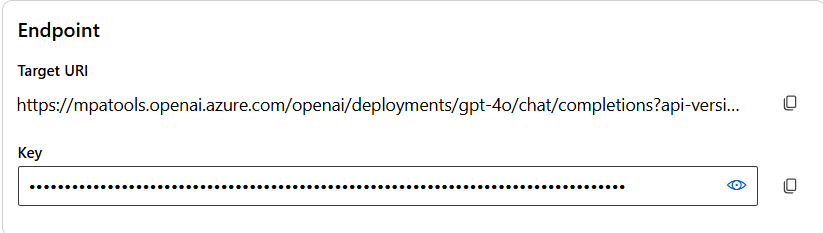
OR to get them again…
Step 4: Get API Keys and Endpoint
1.InAzure Portal, go to yourAzure OpenAI resource.
2.ClickKeys and Endpoint underResource Management.
3.Copy yourAPI Key andEndpoint URL.
2. Configuring MPA Tools to Use OpenAI
Once you have anAPI Key, follow these steps to integrate OpenAI withMPA Tools:
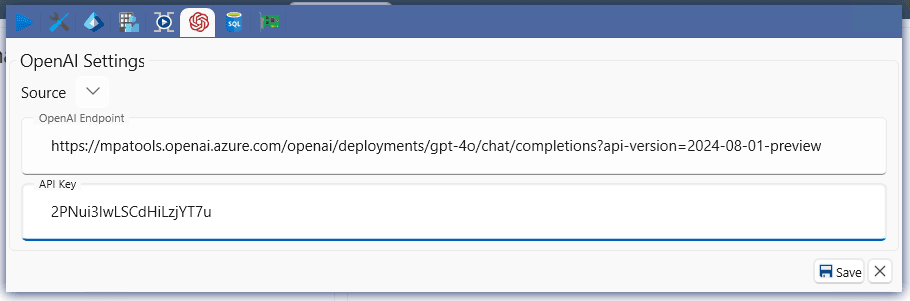
Step 1: Open MPA Tools
1.LaunchMPA Tools on your system.
2.ClickSettings →Open AI Settings.
Step 2: Enter API Key
- If usingAzure OpenAI, enter theAzure Endpoint andAPI Key.
Step 3: Save and Test
1.ClickSave Settings. When the settings are saved, the OpenAI red icon will appear throughout MPA Tools!
2.Run a test query to confirm OpenAI is responding correctly.
Using OpenAI in MPA Tools
Once integrated, you can leverage OpenAI for:
✔AI-Powered Troubleshooting – Get AI-suggested solutions for common IT issues.✔Automated Commands – Generate PowerShell or CMD scripts based on AI recommendations.✔Issue Explanation – Understand system errors in plain language.
Example: Using AI for Troubleshooting
💡 Suppose you want to analyze a system error:
1.Select aremote computer in MPA Tools.
2.ClickAI Troubleshooting.
3.The AI will analyze logs, errors, and system info.
4.It provides a detailedanalysis and suggested fixes.
Conclusion
ConfiguringAzure OpenAI orOpenAI API inMPA Tools unlocks AI-powered troubleshooting, making IT support more efficient. Whether usingAzure’s enterprise-grade AI orOpenAI’s API, the integration enhances IT automation and speeds up issue resolution.