Microsoft Intune has become the go-to platform for managing and maintaining modern Windows devices. One of its most powerful capabilities,ProactiveRemediation,helps admins detect and fix issues automatically using PowerShell. But there’s a major limitation:Intune doesn't display detailed script output.
For IT admins, not being able to see what a script printed makes troubleshooting and validation much harder. Fortunately,MPA Tools solves this visibility gap. It is currentlya practical solution that can capture readable output from both Proactive Remediation scripts and Intune action scripts—as long as the script writes output (You must have the “Write-Output" in your script).
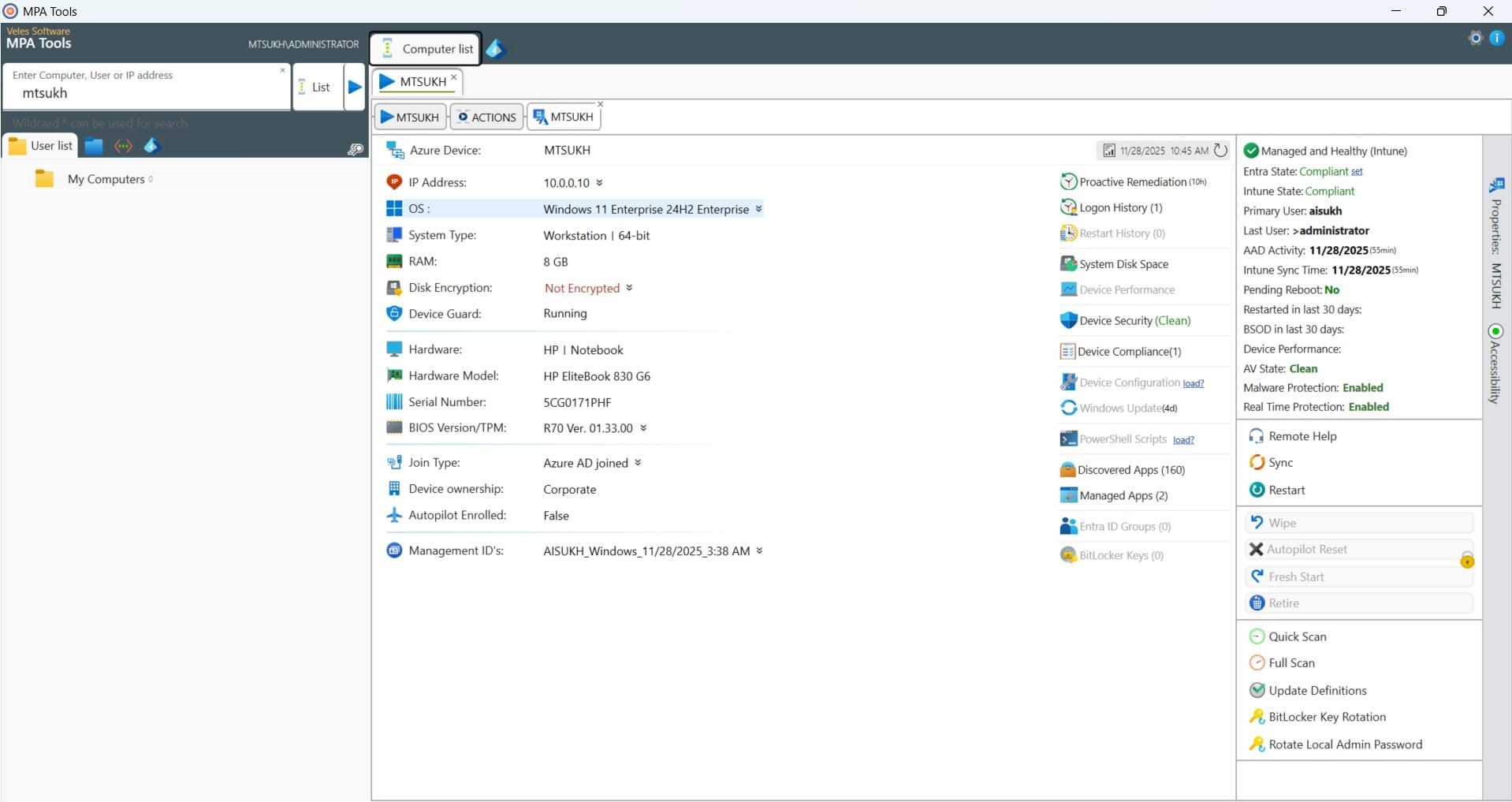
This blog explains what Proactive Remediation is, why script output matters, how to deploy a simple detection script, and most importantly, how to view that output using MPA Tools.
What Is Proactive Remediation in Intune?
Proactive Remediation is part ofEndpoint Analytics, available through:
- Windows Enterprise E3/E5
- Microsoft 365 E3/E5
- Equivalent licenses that include Endpoint Analytics
Proactive Remediation works by running two PowerShell scripts:
1.Detection script – Finds the issue
2.Remediation script – Fixes the issue
These scripts run on a recurring schedule using theIntune Management Extension (IME). They are commonly used for configuration checks, drift correction, cleanup tasks, app validations, and improving device health.
Why Capturing Output Matters
For many IT administrators, the script output is just as important as the exit code. Output helps answer questions like:
- What exactly did the detection script find?
- What errors occurred during execution?
- Which values, paths, versions, or registry keys were read?
- What actions did the remediation script perform?
Without output, troubleshooting becomes guesswork.
Creating a Simple Detection Script (PowerShell)
Below is a clean, readable detection script you can use for testing. It outputs clear messages that help validate whether MPA Tools is capturing data correctly.
Script Example Code:
$path = "C:\TestFolder\TestFile.txt"
if (Test-Path $path) {
Write-Output "File FOUND. Detection returning exit code 0."
exit 0
}
else {
Write-Output "File NOT found. Detection returning exit code 1."
exit 1
}
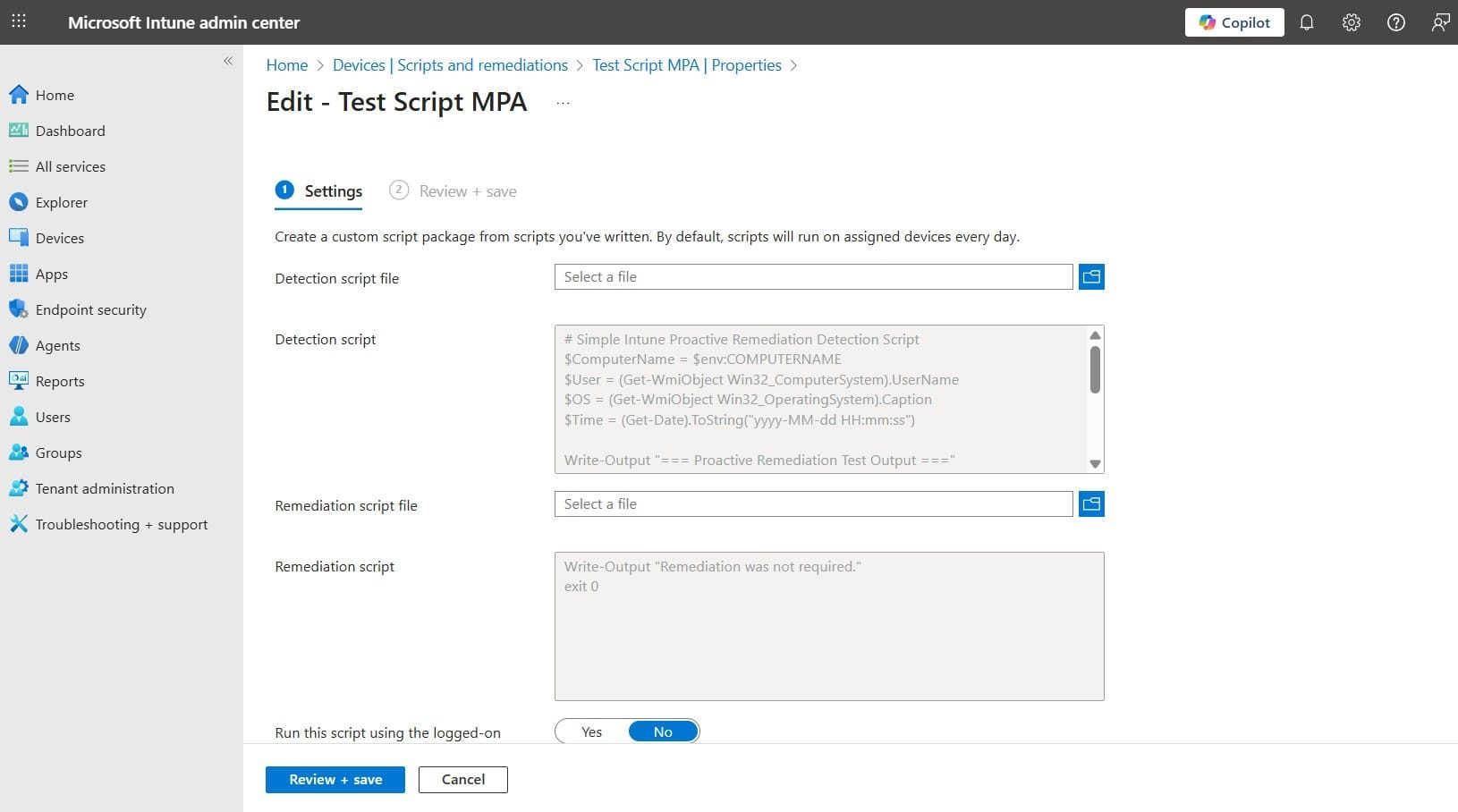
This script is intentionally simple to make the output easy to read and confirm.
Deploying the Script with Intune
Deploying Proactive Remediation scripts in Intune is straightforward:
1.Go to the Intune admin center
Navigate:Devices → Reports → Endpoint Analytics → Proactive Remediations
1.Click “Create script package.”
2.Name your package
Example:Test Script MPA
1.Upload the detection script
You can leave the remediation script blank for this demo.
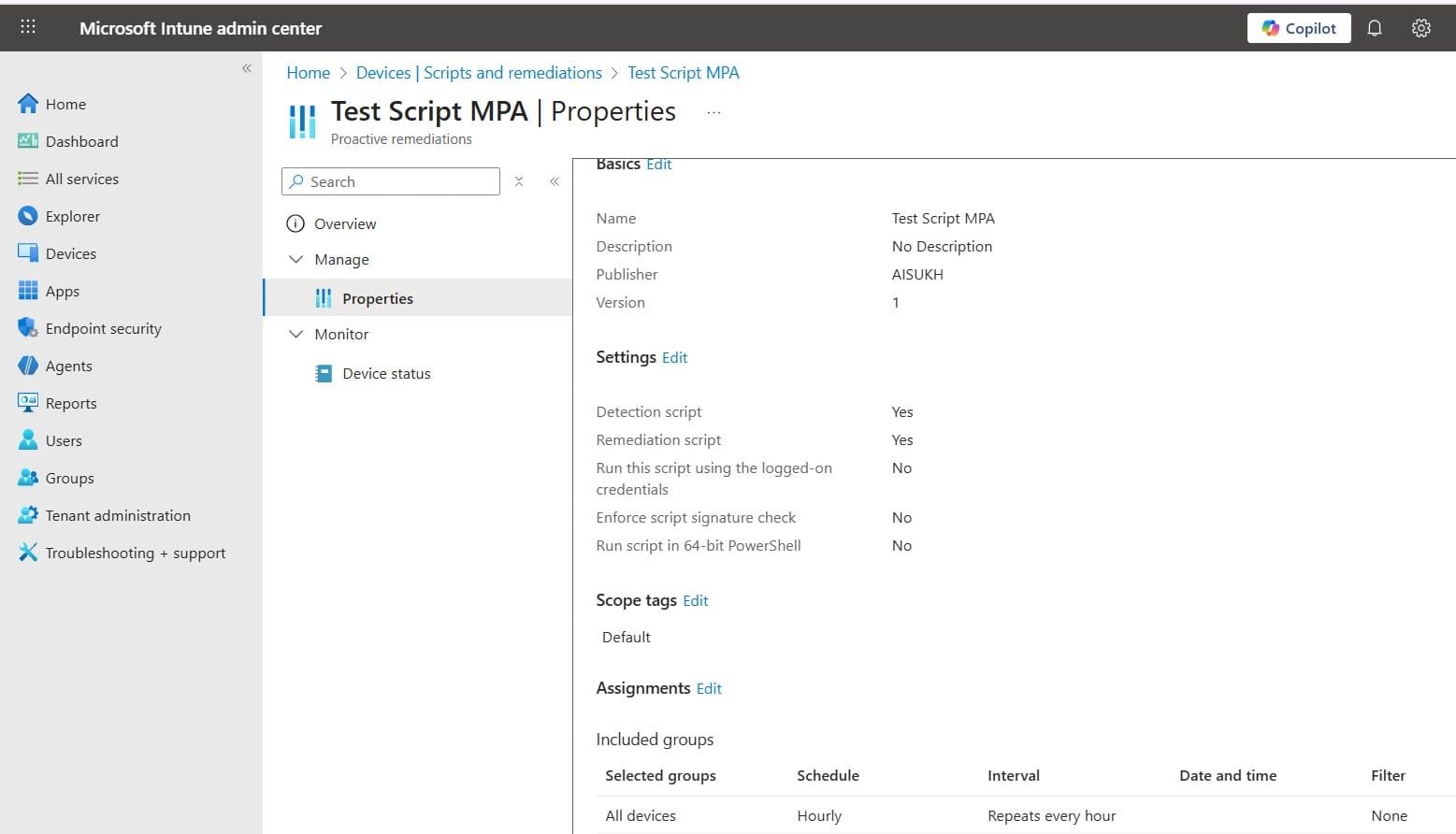
1.Set the schedule
Hourly is the best option for quick testing.
1.Assign to a device group
Target a test group or pilot devices.
1.Create the package
Intune will deliver the script through the IME, and the device will begin running the detection script on schedule.
Viewing Script Output in MPA Tools
This is where MPA Tools become essential. It is currently thepractical tool capable of pulling and displaying Proactive Remediation output in a readable format.
How to Capture Output with MPA Tools
1.Select the target device
2.Open the “PowerShell Scripts” pane
MPA Tools will:
- Parse the Proactive Remediation output
- Display every line of script output
A typical output might look like:
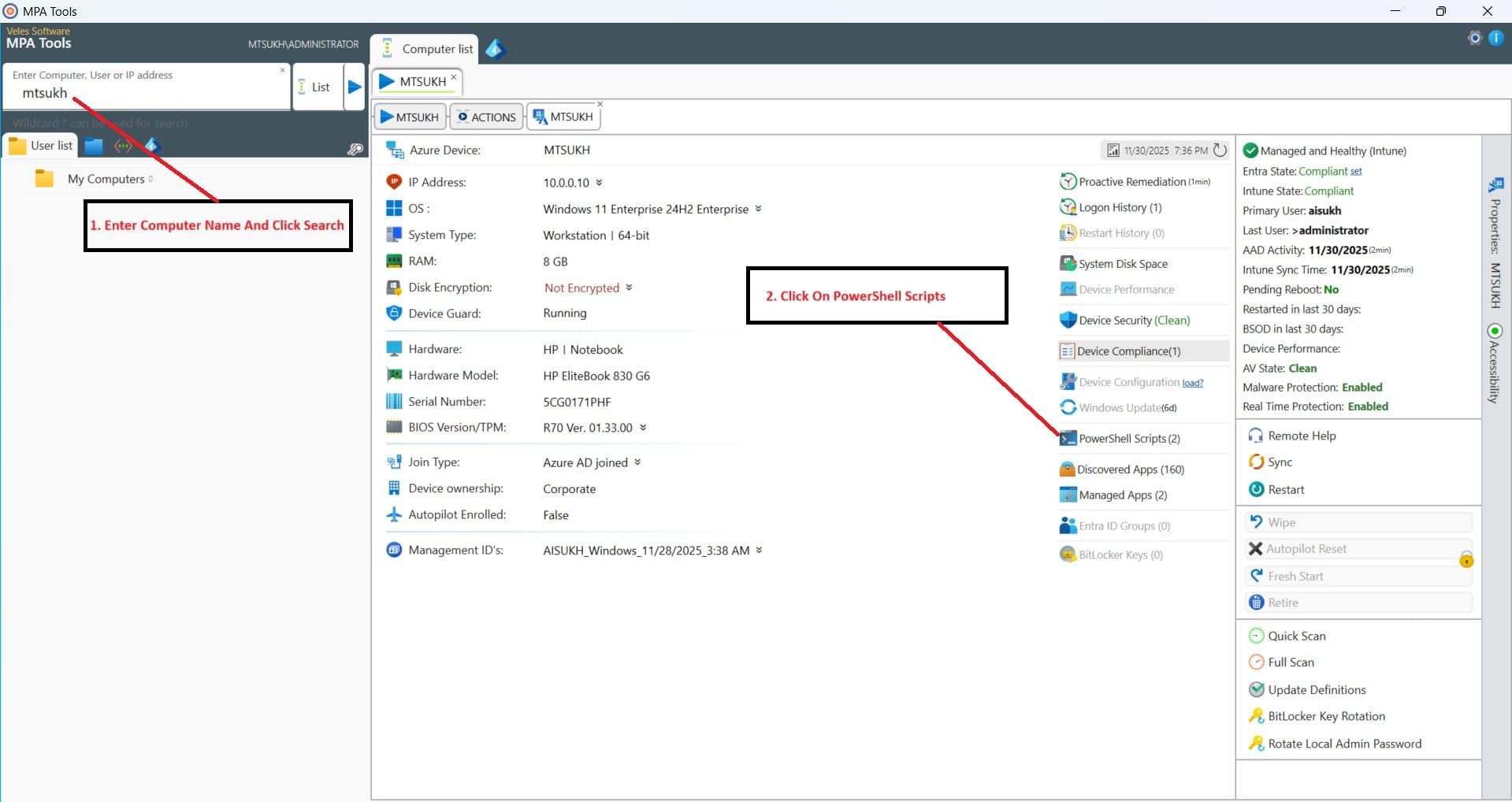
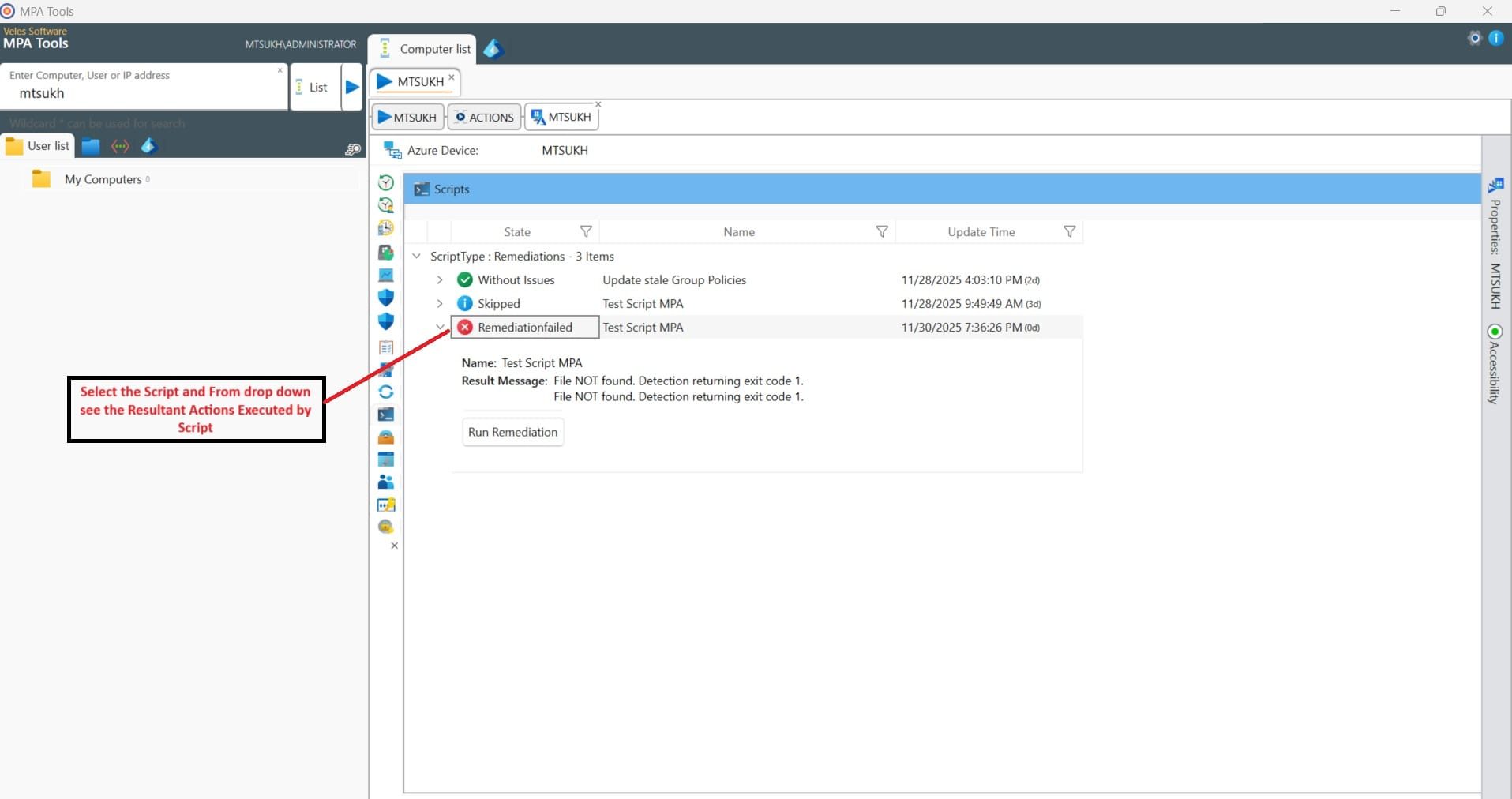
Also, there isAnother Option to look out for PowerShell Scripts Output. To go to the Actions Tab,Device Configurations, selectPowerShell Script, and run to see the Output of the Desired Scripts
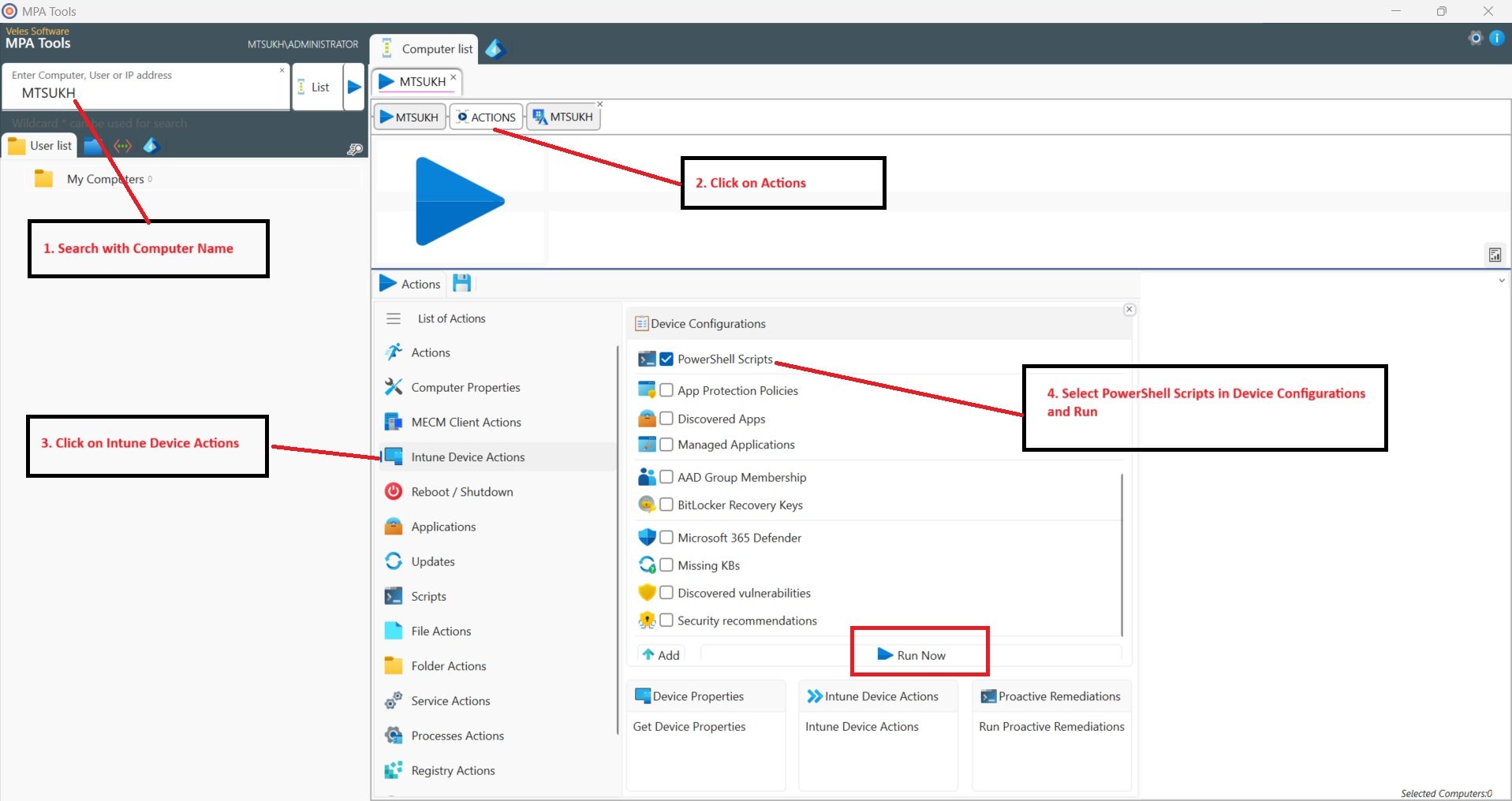
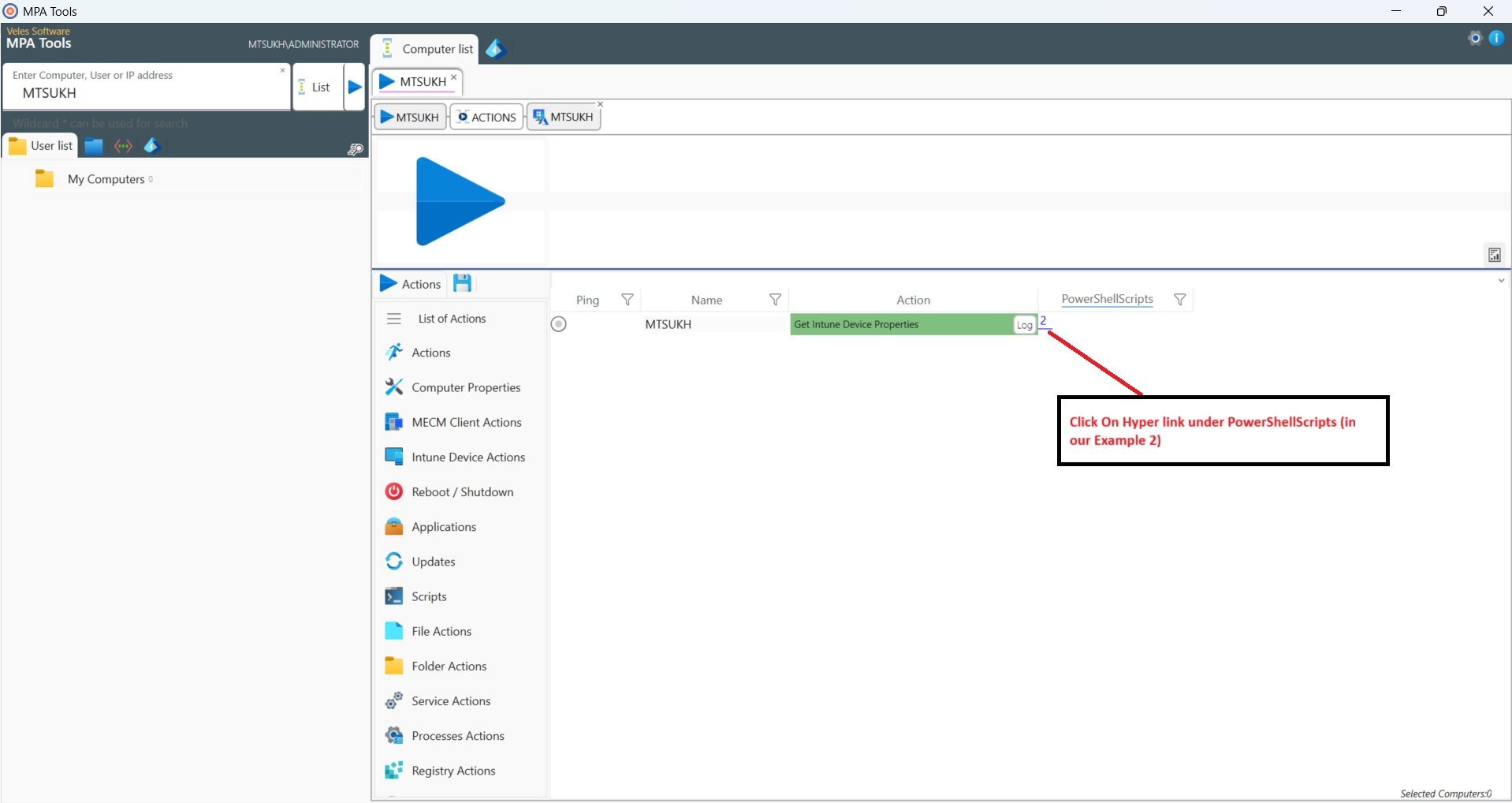
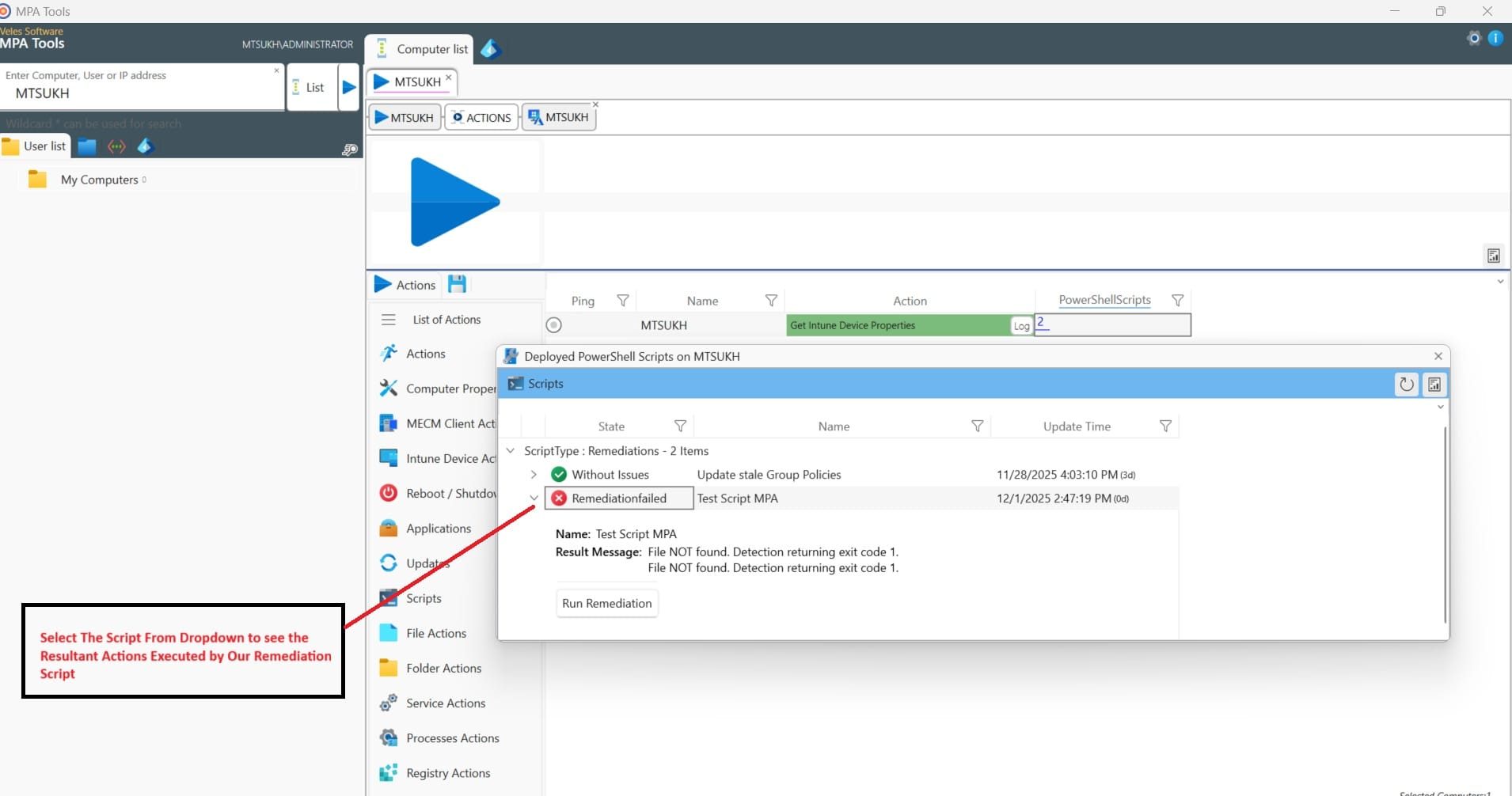
Today,MPA Tools can capture readable output that can capture readable output from:
- Proactive Remediation detection scripts
- Proactive Remediation scripts
- Intune action scripts (like remediation scripts or device tasks)
Common Use Cases
Retrieving script output helps admins in multiple ways:
✔ Troubleshooting failed remediations
Quickly pinpoint what failed and why.
✔ Verifying configuration checks
Validate that detection logic is working correctly.
✔ Improving compliance and drift correction
Output helps prove that checks and fixes actually ran.
✔ Helpdesk and tier-1 support
Support teams can instantly see script results without digging into logs.
✔ Audits and documentation
Output provides proof of actions taken on devices.
Conclusion
Proactive Remediation is one of the most valuable automation features in Microsoft Intune, but its biggest limitation is the lack of native script output visibility that administrators can review on multiple computers at the same time. For IT admins, this missing information often leads to slow troubleshooting and uncertainty.
MPA Tools closes this gap by providing full script output, making it possible to see exactly what your detection and remediation scripts did on each device. If your script prints it, MPA Tools will capture it.
Whether you're troubleshooting, validating compliance, or building automation, having access to script output makes your Intune environment dramatically easier to manage.
Proactive Remediation is a feature withinEndpoint Analytics that allows admins to run PowerShell-based detection and remediation scripts on Windows devices. It requires Windows Enterprise (E3/E5), Microsoft 365 (E3/E5), or equivalent licenses that include Endpoint Analytics. The feature continuously checks devices for issues and automatically fixes them using scheduled scripts.
The Intune portal only displays high-level results such asNo issues detected,Issues fixed, orError. It doesnot provide detailed script output, logs, or messages written by the script. Without this visibility, admins cannot see what the detection script found, what actions were taken, or why the remediation failed, making troubleshooting much harder.
Intune does not provide native access to script output. The only reliable way to view readable output is by usingMPA Tools, which captures and displays everything written by the script—includingWrite-Output messages. MPA Tools supports detection scripts, remediation scripts, and Intune action scripts.
You can also execute this script remotely via MPA Tools or set it up as a proactive remediation script for on-demand use.
Your PowerShell scripts must useWrite-Output to print information. MPA Tools reads whatever your script writes to output, so including clear messages, such as file checks, registry values, version information, or errors, ensures that you get meaningful results during troubleshooting and validation.
Retrieving script output is extremely useful for:
- Troubleshooting failed remediations
- Validating detection logic
- Confirming configuration drift corrections
- Helping helpdesk teams understand device issues
- Providing audit or documentation evidenceOutput visibility removes guesswork and dramatically improves operational efficiency.