
Often, when IT admins discuss remote management of Azure AD-joined (now Entra ID) devices, there’s a perception that achieving secure remote management is nearly impossible. The sentiment often goes, “Why would you want a ‘swiss cheese’ firewall on your public profile?” But is it actually possible to configure a firewall on Entra ID-joined devices to allow traffic like SMB, RPC, and WinRM securely, similar to domain-joined devices? The answer is yes! In this post, I’ll walk you through a secure approach to firewall configuration that keeps your Azure AD-joined devices accessible yet protected.
Read on to find out how to set up Firewall Configuration for Secure Remote Management on Azure AD Joined Devices!
Why Does Firewall Configuration Matter for Azure AD (Entra) Joined Devices?
As organizations increasingly rely on Azure AD-joined devices for seamless, secure access to cloud resources, effective firewall configuration becomes crucial. Well-configured firewalls protect against unauthorized access and empower IT admins to manage devices remotely, without adding unnecessary risk. While Azure AD-joined devices significantly improve management flexibility, there are still many situations where admins need to step in—whether to check local logs, run a WMI query, or troubleshoot directly—without interrupting the user. Misconfigured firewalls, however, can block essential remote management protocols or, worse, expose devices to external threats. With the right configuration, you can harness the full flexibility of remote access while maintaining robust security standards.
Key Considerations Before You Begin
When configuring firewall rules for remote management on Azure AD-joined devices, keep these critical considerations in mind:
- Management Tool for Deploying Firewall Configurations: If you’re using Intune, deploying and configuring firewall policies becomes much simpler. Intune’s Security Baseline and Firewall Policy configurations streamline the process, allowing you to enforce consistent settings across all managed devices with minimal effort.
- Remote Management Tools: To manage Azure AD-joined computers efficiently, consider a versatile tool like MPA Tools. MPA Tools enables quick connections to Azure AD-joined devices, offering capabilities such as exploring file systems, running scripts, and performing various administrative tasks without needing additional agents or software.
- Network Protocols and Ports: For secure and complete remote management, several protocols and ports are essential, including RPC, SMB, WMI, WinRM, and, if needed, RDP. Properly configuring these allows for seamless remote management while minimizing security risks.
- Security and Compliance Alignment: Ensure that your firewall configurations meet your organization’s security standards and compliance requirements. This includes aligning with any corporate compliance policies that mandate specific firewall settings, encryption levels, or access controls to protect sensitive data effectively.
How to configure Windows firewall for remote access on Entra joined devices
Before we begin, let’s clarify that we’ll be working exclusively with the Domain Firewall Profile. The other profiles, such as Public and Private, will remain inactive for our configuration, meaning they won’t have any rules applied to them and will stay closed. This approach keeps your firewall configuration tight and secure.
You might wonder, “How will this work if the Azure AD (Entra ID) joined device isn’t on a traditional domain?” This is where Authenticated Network Settings come into play. By setting up authenticated network conditions, we can essentially enable domain-like firewall behavior on Entra ID-joined devices.
Here’s how it works: you define a list of internal URLs (like intranet sites or other internal resources) and a network name, then apply these to your endpoints. When a device detects it can access one of these URLs, it dynamically switches to the Domain Firewall Profile with that network name, allowing specific firewall rules to apply.
Steps to Set Up Authenticated Network Settings
1. Define Internal URLs for TLS Authentication:
2. Choose HTTPS URLs that are accessible only within your corporate network. These URLs should be accessible without requiring any extra login (no MFA) and must have SSL certificates trusted by the device.
3. Configure the Network List Manager in Intune:
4. Use Intune to create a Settings catalog configuration profile with the following:Allowed Tls Authentication Endpoints: Specifies the URLs that, when accessible, enable the Domain Profile.Configured TLS Authentication Network Name: Sets a unique network name that devices will recognize as a secure, authenticated network.
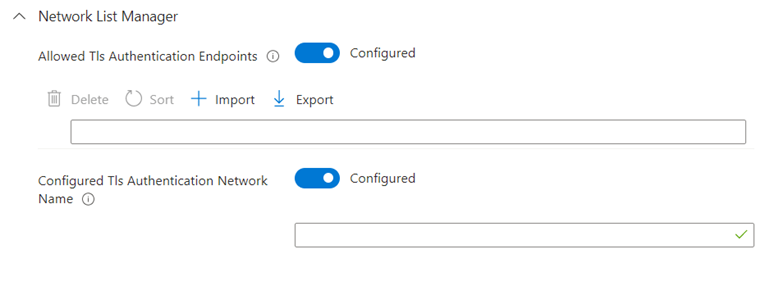
Deploy the Settings: Assign the profile to your Azure AD-joined devices. When a device connects to the corporate network and can reach one of the configured URLs, it will switch to the Domain Profile, enabling secure management traffic. More about TLS Configurations here.
The end result will look like this
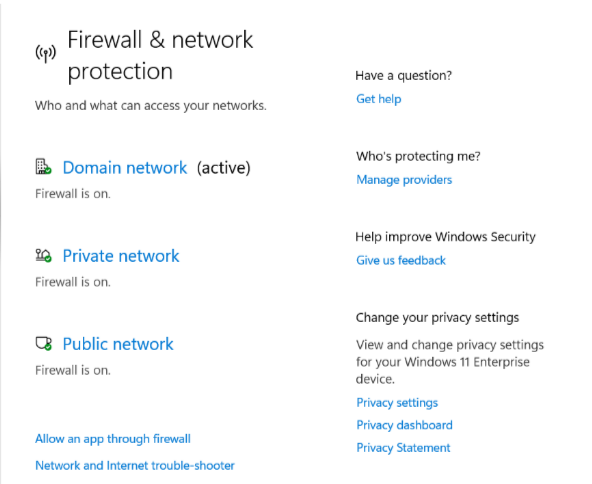
And to confirm Run Get-NetConnectionProfile
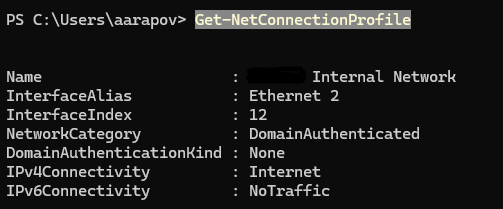
Why This Works
Using authenticated network settings allows you to apply secure firewall rules only when devices are on trusted networks, keeping public and private profiles locked down. This configuration creates a flexible, secure management setup for Entra ID-joined devices, similar to traditional domain-joined devices but without the need for legacy on-premises infrastructure. And this is how to configure Windows firewall for remote access on Entra joined devices!
Now that we’ve ensured the Domain profile is our active firewall profile, we can start configuring rules with more flexibility and control. You can set up rules similarly to how you would on a traditional domain-joined computer, tailoring them to meet your specific management needs. For instance, you might designate a specific server or device as your remote management hub, allowing access only from that trusted source. This approach ensures that only approved devices can connect, adding an extra layer of security to your remote management setup.
First, let’s set up the main firewall policy in Intune:
1. Navigate to Endpoint Security > Firewall.
2. Click Create Policy.
3. Select Platform: Windows and Profile: Windows Firewall.
Here’s how I configure the main policy, aligning with Microsoft and CIS best practices. It’s essential to emphasize that your firewall should only permit what’s explicitly configured—nothing more. Therefore, setting “Allow Local Policy Merge” to Off is critical, as this prevents local policies from merging with the centrally defined firewall policy, which is crucial for maintaining consistent security and endpoint health.
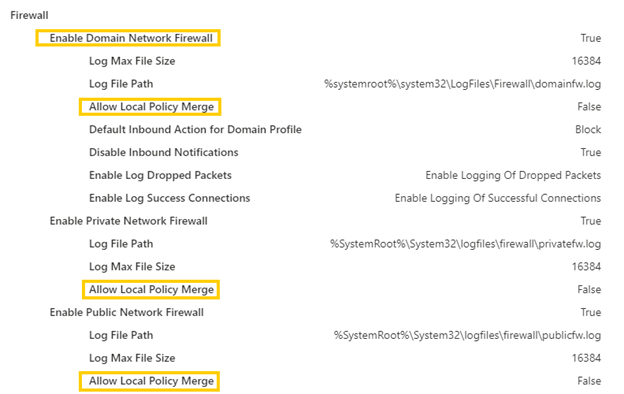
Now we can configure our rules!
1. Go to Endpoint Security > Firewall in Intune.
2. Click Create Policy.
3. Choose Platform: Windows and Profile: Windows Rules.
Typically, I configure the following five essential rules:
- ICMP (Ping): Allows basic network connectivity testing.
- RPC and WMI (Remote Management): Enables remote management capabilities.
- SMB (Remote Shares): Allows access to shared files and resources on remote systems.
- WinRM over HTTPS (PowerShell Remote Management): Secures PowerShell sessions for remote administration.
- RDP (Remote Desktop): Provides remote desktop access when necessary.
These rules offer robust support for remote management while maintaining secure, controlled access to key services.
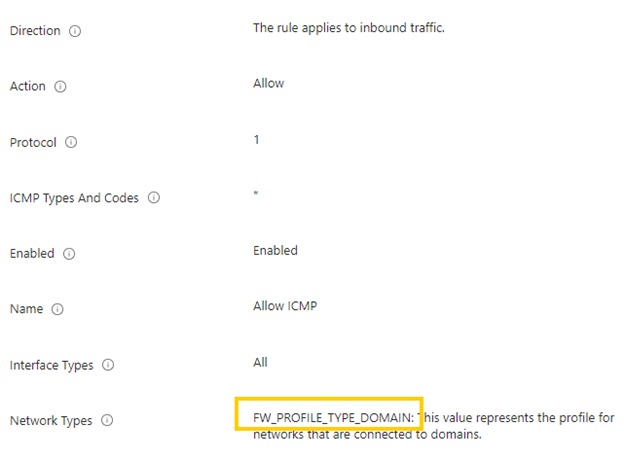
ICMP – very straightforward configurations
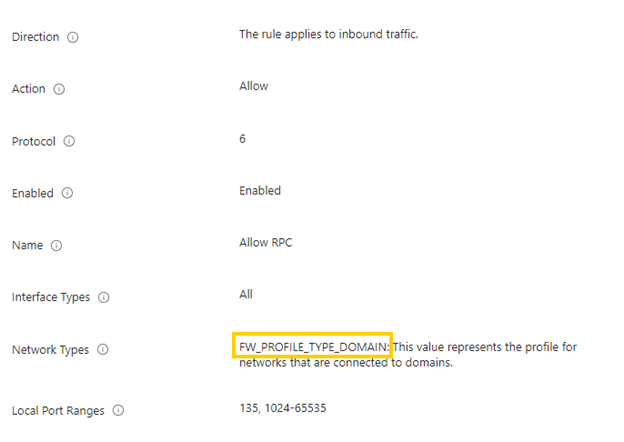
RPC and WMI – Flexible, Secure Configuration for Remote Management
Configuring Remote Procedure Call (RPC) and Windows Management Instrumentation (WMI) is crucial for enabling effective remote management. The following example provides a classic setup for remote WMI, but remember that you have significant flexibility to customize this configuration to meet specific security and management needs.
Here are a few options to consider:
1. Limit Access to Specific Processes: You can specify which processes are allowed to access remote WMI, further tightening control over remote management operations and ensuring only authorized applications can initiate WMI queries.
2. Restrict Access to Specific Servers: Define which servers or IP ranges are permitted to access WMI remotely, narrowing exposure and adding a layer of security by restricting remote access to trusted endpoints only.
3. WMI Port Redirection: Instead of using a range of ports, configure a specific port for WMI traffic. This targeted approach makes firewall rules easier to manage and minimizes open ports, enhancing security.
With the Domain Firewall Profile now enabled on Entra ID-joined devices, these RPC and WMI rules become both secure and highly adaptable, allowing you to balance security with the flexibility needed for remote management.
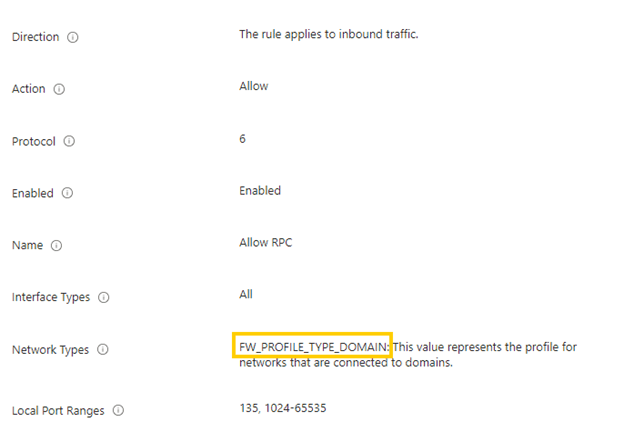
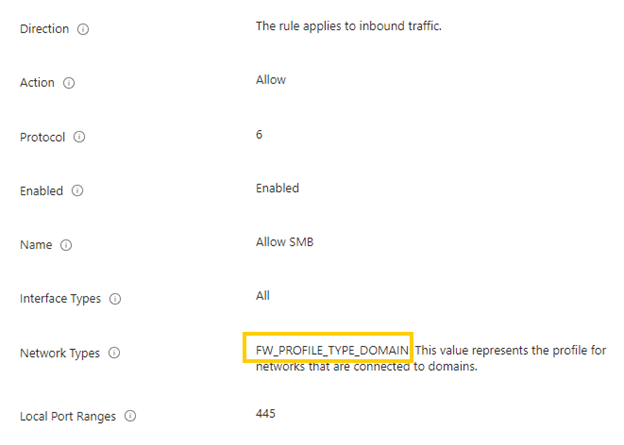
SMB – Enabling Easy Access to Remote Shares on Entra ID-Joined Devices
With SMB enabled, configuration is straightforward, but the benefits are substantial. One of the great advantages here is that you can now access remote shares on Entra ID-joined devices. This setup makes it incredibly easy to view important files, like Intune Management Extension logs, directly from a remote system—no extra steps required. Need to upload or download files and folders? No problem. This is a capability that was previously missing in Azure AD-joined environments, and it significantly enhances remote management by allowing seamless access to device files.
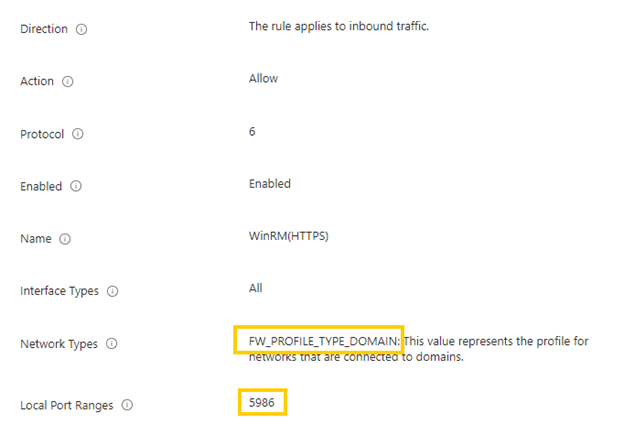
WinRM over HTTPS – Simple to Set Up with Added Security
Configuring WinRM over HTTPS is straightforward, though it does require a few additional setup steps to enable secure remote management. The good news? It’s easy to implement, and we cover the full configuration process in our WinRM blog post. Setting up WinRM over HTTPS ensures secure PowerShell sessions, giving you a robust way to manage devices remotely with peace of mind.
And Last but Not Least – RDP Firewall Rule Configuration
The RDP firewall rule is the final piece and, like the others, is straightforward to set up. Configuring RDP access allows for secure, remote desktop sessions when needed, making it easy to connect to devices directly. While simple to configure, this rule provides an essential option for remote troubleshooting and administration.
Wrapping Up
Configuring firewall rules on Entra ID-joined devices enables secure and flexible remote management without sacrificing control or security. By thoughtfully setting up rules for ICMP, RPC, WMI, SMB, WinRM over HTTPS, and RDP, you’re not only empowering IT admins with essential tools but also ensuring your devices remain protected in a remote-first environment.
This approach brings together the best of both worlds—robust security and the flexibility needed for effective remote management. With the Domain Profile in place and the right configurations, your Entra ID-joined devices are ready to support your team’s remote access needs confidently and securely.