
Hey there, fellow IT admins! Today, let’s dive into creating a local administrator account using Microsoft Intune on your Windows devices. This setup is essential for tasks like elevating UAC—especially crucial in a passwordless environment—along with troubleshooting, remote management, and overall device control. With Intune, you can configure local admin accounts across multiple devices, ensuring they’re secure and set up during Autopilot provisioning.
There are a few ways to go about this, including using CSP configurations (OMA-URI). However, in my experience, these methods can sometimes cause errors and don’t always offer the level of security we need. Instead, let me walk you through a reliable, secure approach to creating a local admin account with Intune, adding it to the local administrators group, and setting up LAPS.
Ready? Let’s get into it!
As I mentioned earlier, instead of using CSP to create and set passwords for a local admin account, we'll take a different approach. We'll use PowerShell proactive remediations, which offers more control and reliability for this task.
First and foremost, ensure the default local administrator account is renamed to something unique. This account should also be disabled by default for security purposes, but it’s wise to double-check.
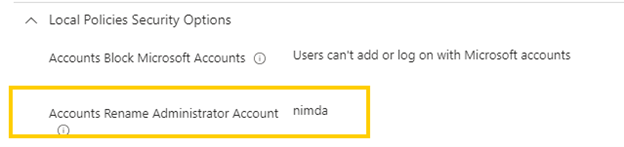
Now lets create our new Local Administrator account. Our account is not going to be “Administrator” right away, but it will in time.
Below is a PowerShell script I use as a proactive remediation in Intune. Its function is straightforward: it checks if the LocalAdmin account exists. If it doesn’t, the script creates it as a regular, disabled user Without a password. If the account already exists, the script then checks if the password is managed by LAPS.
Here’s how it works:
- If the account has no LAPS password: The account remains disabled, maintaining security.
- If LAPS has already set the password: The account is enabled. This is where the magic happens—no need to preconfigure a password or expose it in clear text. The account stays disabled until LAPS does its job, at which point it’s automatically enabled with the LAPS-managed password.
For setup:
1. Proactive Remediation Deployment: Deploy the script as a proactive remediation in Intune and set it to run every hour. This helps ensure the account stays updated.
2. Autopilot Provisioning: Deploy the script as a platform script to make sure the account is created during Autopilot provisioning.
Note: The script writes output, but viewing PowerShell script output in Intune can be tricky. However, with MPA Tools, it’s seamless—just one click, and you can see exactly what’s working (or not!).
$a = Get-LocalUser -Name “LocalAdmin"
if ($a){Write-Output “LocalAdmin exists…"Write-Output “checking password last set…"Write-Output $a. PasswordLastSetif ($a. PasswordLastSet){if(!($a. Enabled)) { $a | Enable-LocalUser}}}else {try {Write-Output “Creating LocalAdmin as NoPassword, AccountNeverExpires, Disabled"$b = New-LocalUser -Name ‘ LocalAdmin' -NoPassword -AccountNeverExpires -Disabledif ($b){Write-Output “Created LocalAdmin"}else{Write-Output “Error! Account was not created!"}
} catch {Write-Output “An error occurred: $_"} }Write-Output “Completed Script"
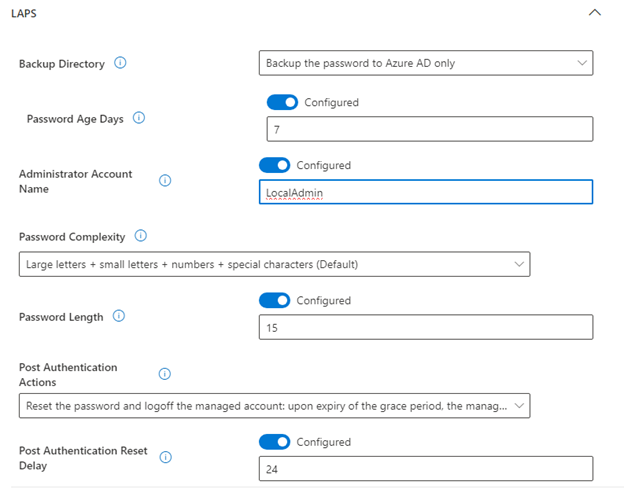
Alright, what’s next? Now we have a LocalAdmin account with a LAPS-managed, automatically rotated password (I'll provide an example on configuring LAPS for this new LocalAdmin account in the blog appendix). But how do we grant it local administrator rights? Let’s walk through it!
1. Navigate to Endpoint Security: In Intune, go to Endpoint Security > Account Protection.
2. Create a New Policy:
3. Click Create Policy.For Platform, select Windows.For Profile, choose Local User Group Membership.
4. Configure the LocalAdmin Account:
5. In the policy, specify LocalAdmin in plain text.Add the LocalAdmin account and any additional Azure AD groups by using their SIDs (make sure it is a SID and not objectid), so members of those groups will also have local admin rights.
This setup grants local admin rights securely, leveraging both the local account and Azure AD groups.
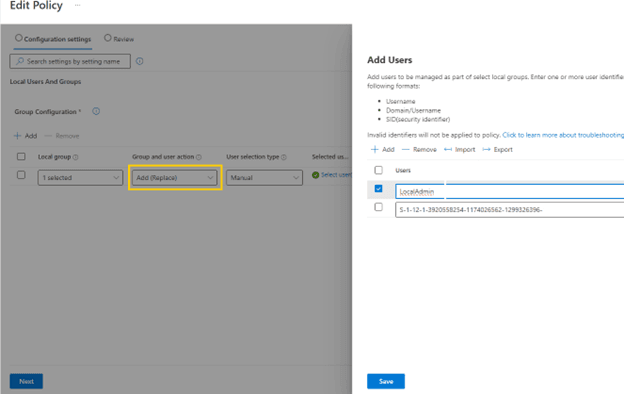
Be sure to select Add (Replace) when configuring the policy. This setting ensures that any other local admin accounts are removed from the Administrators group, leaving only the specified accounts with admin privileges.
Now, simply deploy this configuration to your workstations, and you’re all set! This approach maintains tight control over admin access, enhancing security across your devices.
As promised quick LAPS config for reference (quick Microsoft LAPS reference here):
Conclusion
By following this guide, you've successfully created a secure local administrator account using Microsoft Intune, complete with a LAPS-managed, automatically rotated password. With proactive remediation scripts and the right policies in place, you now have a streamlined process for managing local admin accounts securely across all devices. This setup not only simplifies management but also enhances security, keeping admin credentials safe and protected from exposure.