In this post, we will go through the Google Chrome installation behaviour and how to increase your deployment success rates. And we will look at why keeping Google Chrome up to date is an important part of housekeeping.
Why it's important to keep Google Chrome up to date
Google Chrome is a browser that is always evolving and improving, and as a result, it is frequently updated. More often, these updates improve security to protect you while browsing the internet.
Sometimes these updates address zero-day vulnerabilities. For example, the recent zero-day vulnerabilityCVE-2023-7024 that relates to a heap buffer overflow in the WebRTC feature in Google Chrome versions lower than 120.0.6099.129. This vulnerability allows a remote attacker to potentially exploit heap corruption via a crafted HTML page.
What is a Zero-Day Vulnerability?
A zero-day vulnerability is a security flaw in software that has been actively exploited before the developer or the vendor is even aware that the vulnerability exists. The term zero day refers to the days between the time the vulnerability was discovered and the first attack against it. The type of vulnerability that poses the highest risks are generally the ones that are actively being exploited. It, therefore, makes sense that zero-day vulnerabilities raise high concerns amongst security experts. Particularly, when the zero-day vulnerability relates to “high attack surfaces". Meaning software that is frequently attacked, for example browsers like Google Chrome, or productivity software like Microsoft Office or Adobe Acrobat. When it comes to zero-day vulnerabilities, achieving that 100% deployment success rate is a must!
I have auto-updates enabled, what's the big concern?
Not everyone uses Chrome as the default browser, and some people may prefer to use Microsoft Edge or Firefox, or another browser, depending on what your organisation allows. If the browser is not in use, then it might not actually be updating as expected. When it comes to zero-day vulnerabilities, it's not recommended to wait until the browser updates on its own. Instead, you should be proactive with ensuring that the required update is deployed.
How do I deploy Google Chrome?
The enterprise version of the Google Chrome installer can be downloaded fromEnterprise Browser Download for Windows & Mac - Chrome Enterprise. The installer for Windows is a Microsoft Installer file called googlechromestandaloneenterprise64.msi. This can be deployed with the usual software deployment technologies like SCCM and Intune. The MSI file could also be installed usingMPA Tools.
The MSI file can be delivered to the destination computers with the Copy File action.
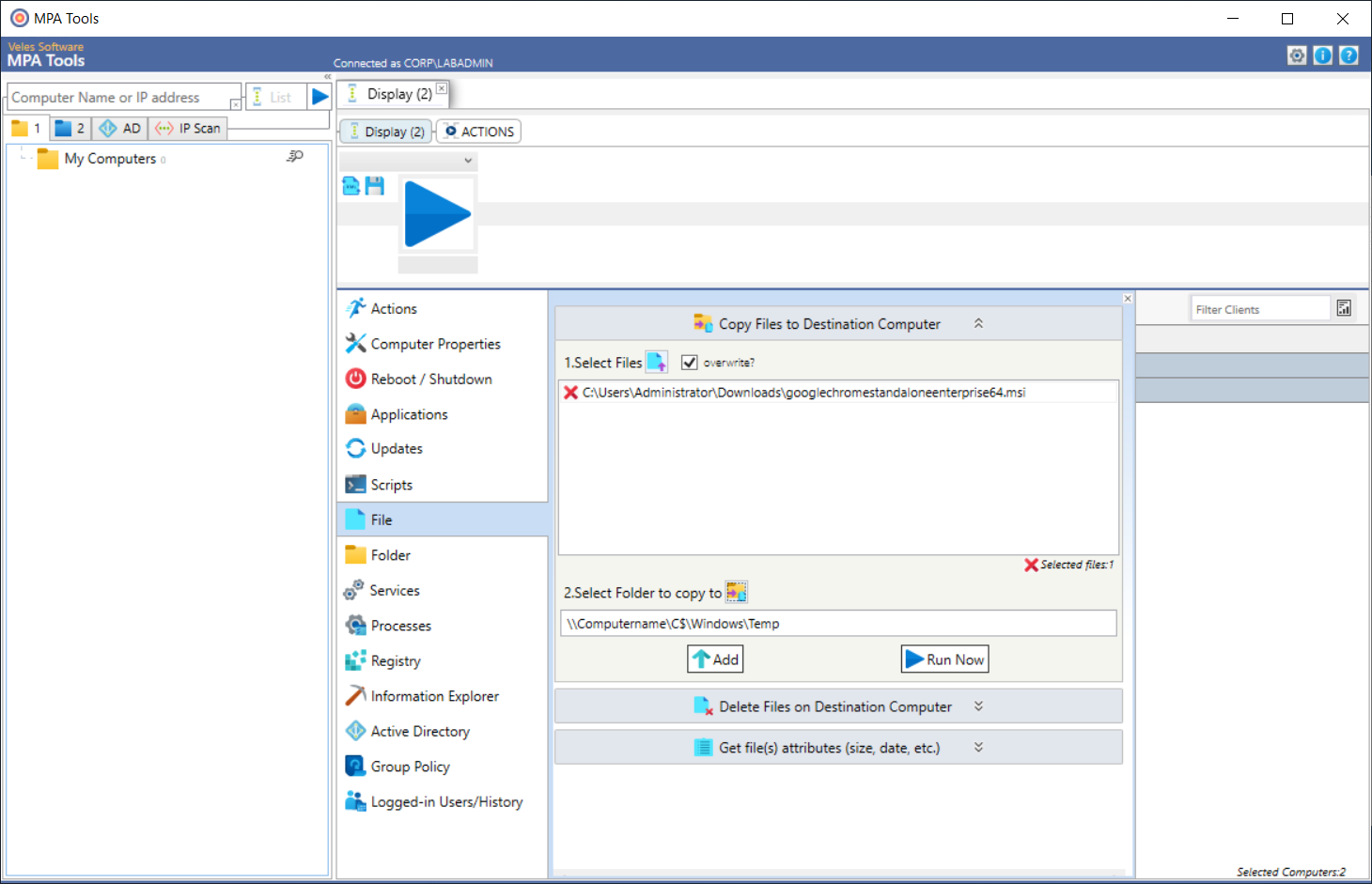
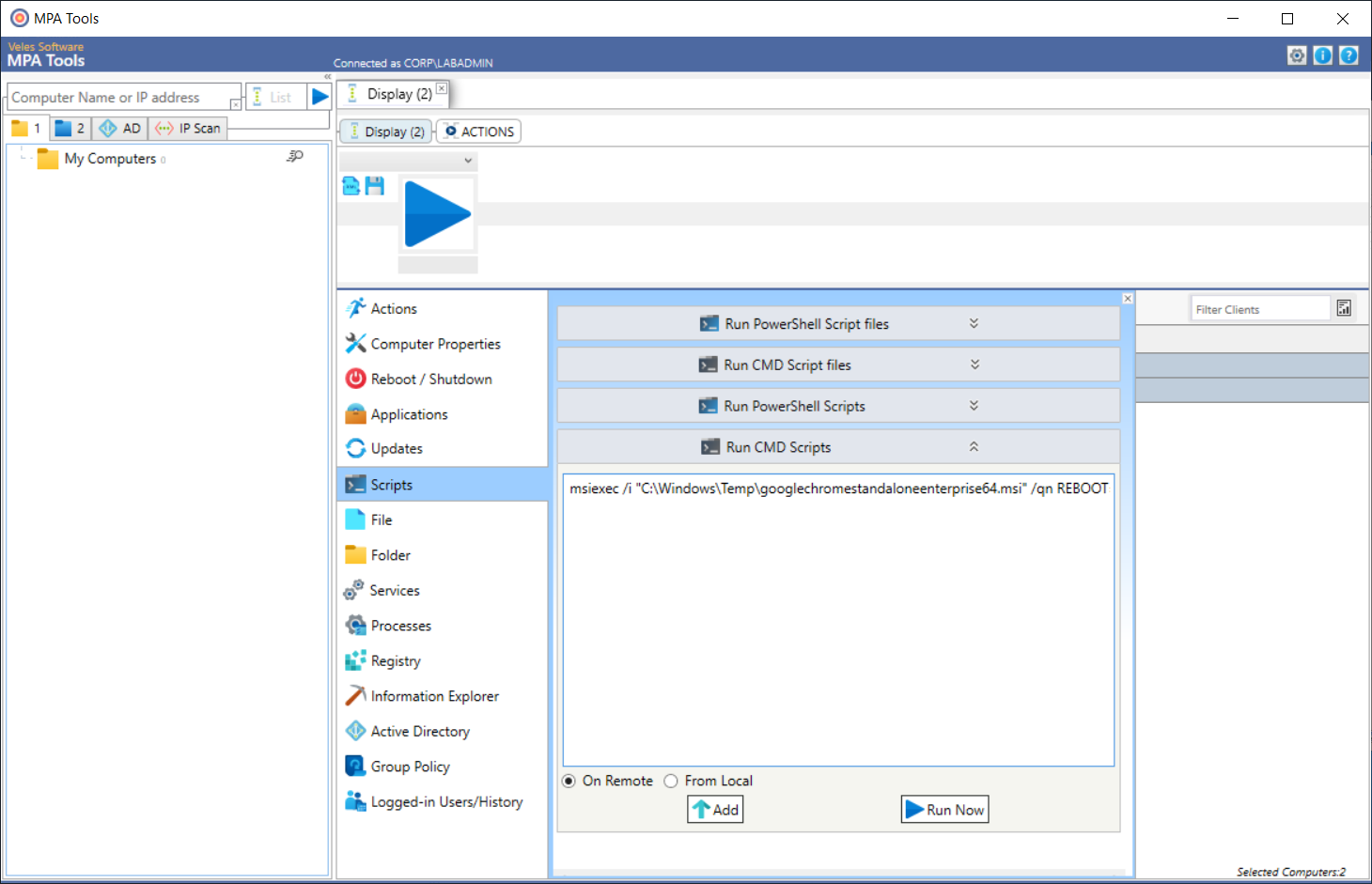
And the install command can be executed with the Run CMD Scripts action.
Challenges with installing Google Chrome
The #1 challenge with installing Google Chrome is that the browser is almost always in use (often with several - or if you are like me - hundreds of tabs open). But, for the update to complete successfully, the browser needs to be closed and re-opened again. There are other issues that can occur with the Chrome installation.
The second most common issue we have seen is, the installation of the googlechromestandaloneenterprise64.msi might fail with a 1603 error or “A fatal error occurred during installation" (seeMsiExec.exe error messages - Win32 apps | Microsoft Learn for a listing of all MSI error codes). Unfortunately, this 1603 error code is quite generic but when it comes to Google Chrome, it almost always means there was an error with the “DoInstall" custom action which executes the Chrome setup - more on that in our postHow to do a full Chrome remediation
Expected installation behaviour with Google Chrome
Let's look at how the Google Chrome installer updates the Chrome browser on a Windows computer. This will help us understand the intended behaviour that Google has designed in the update mechanism for Chrome.
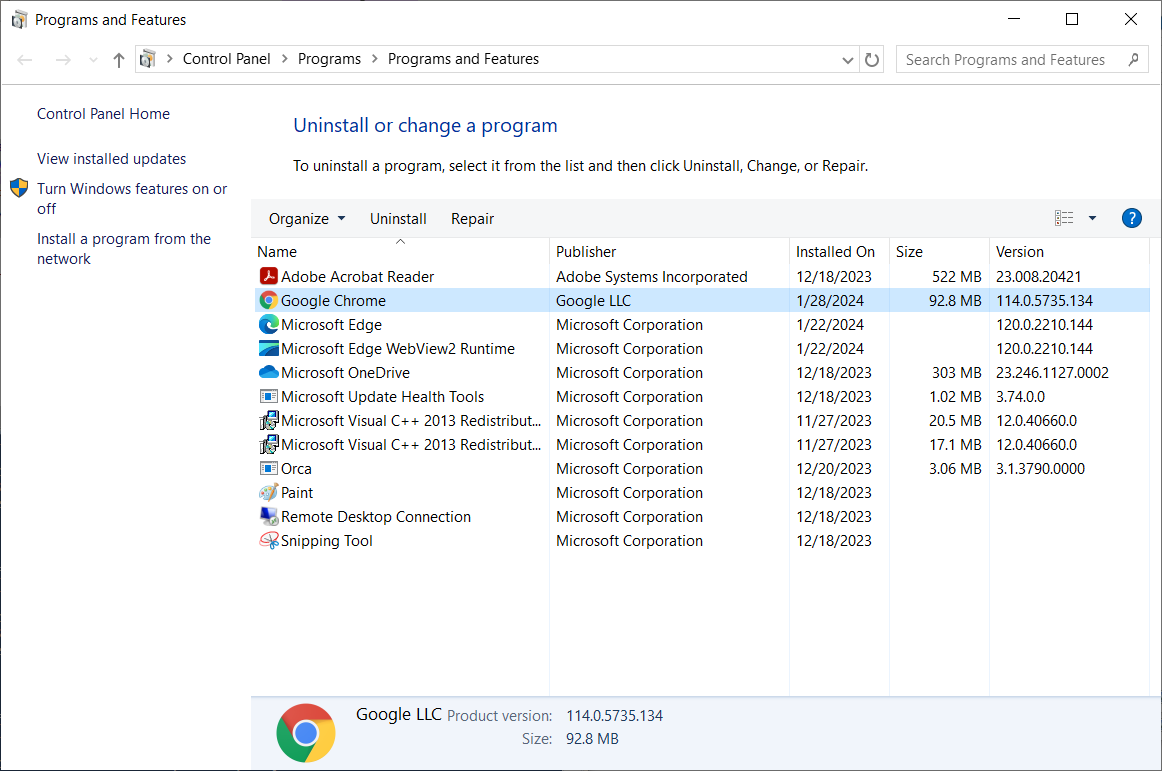
In this example, we have a Windows 10 virtual machine with an older version of Google Chrome installed. When we open Programs and Features, we can see that the version of Chrome that is installed is 114.0.5735.134.
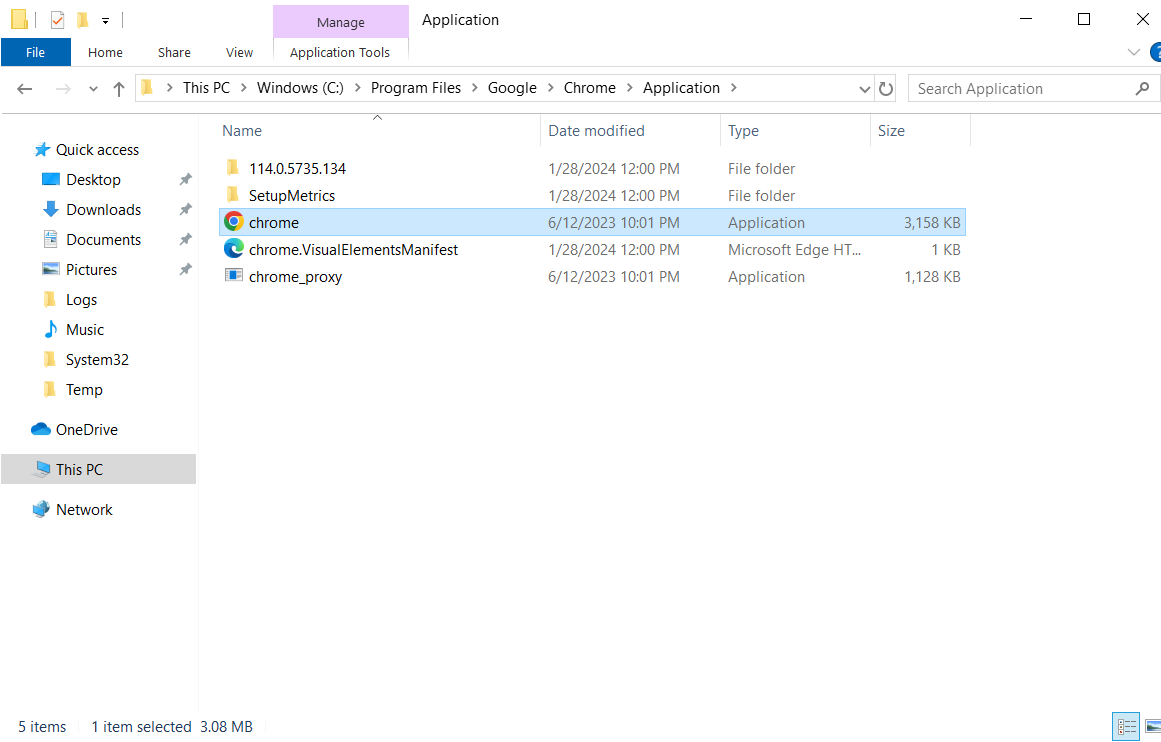
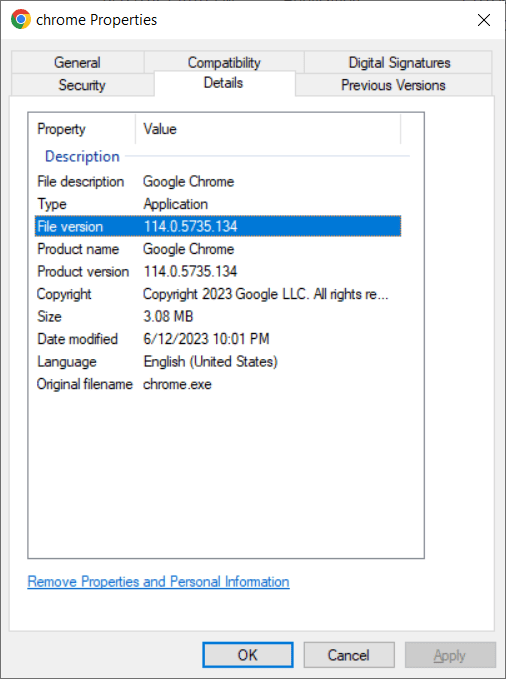
We can also confirm from the Chrome application folder “C:\Program Files\Google\Chrome\Application" that there is a “114.0.5735.134" sub folder and that the version of the Chrome.exe is 114.0.5735.134.
Now let’s launch Chrome and open a couple of tabs to simulate normal browser use.
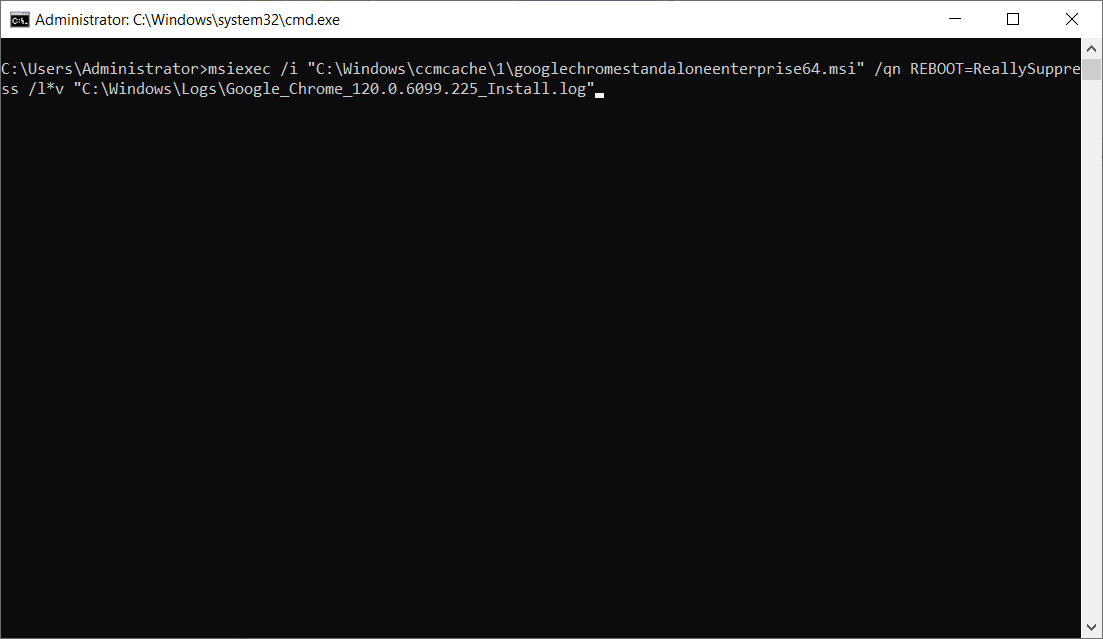
Now let’s install the latest googlechromestandaloneenterprise64.msi using the silent msiexec command below (note: we are using version 120.0.6099.225 at the time of writing this post).
With this command, we are executing the install with the quiet mode (and no UI), suppressing any prompts for a restart of the system, and writing a verbose log file. And we have placed the installer in the ccmcache folder to mimic a deployment from SCCM.
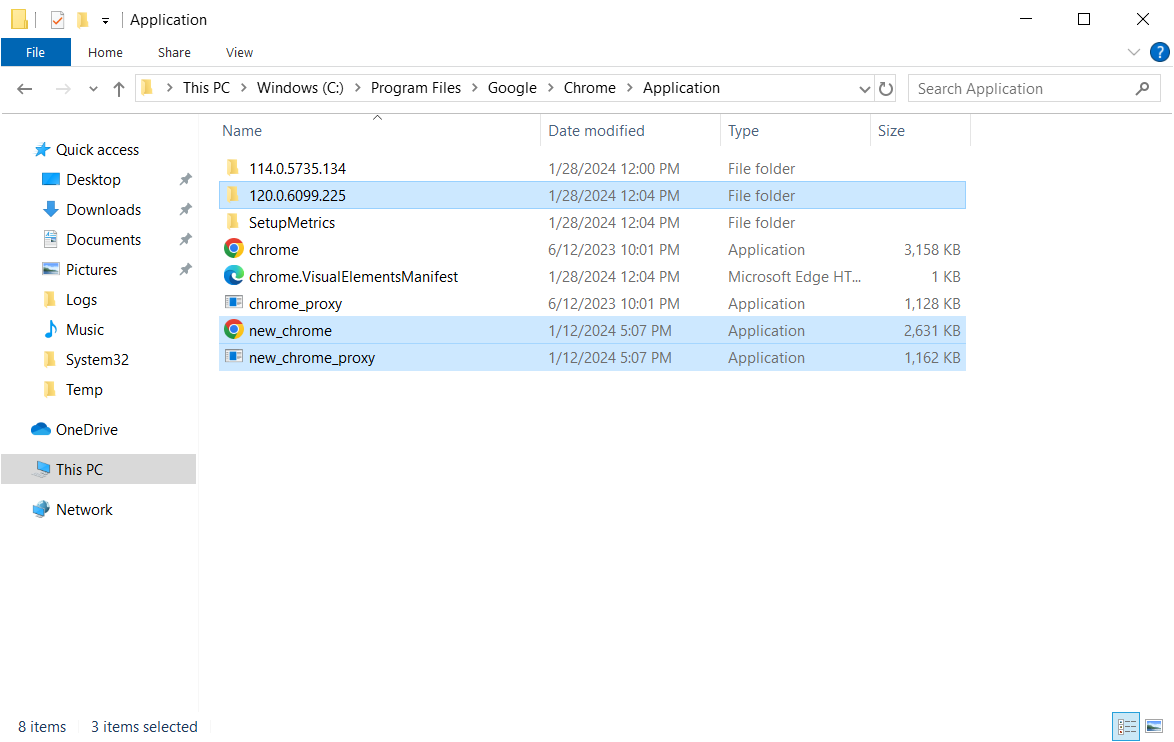
During the install, the new files will be staged (i.e. the new 120.0.6099.225 version folder, the new_chrome.exe and the new_chrome_proxy.exe files) in the Chrome application folder. These files are now waiting for Chrome to be closed so that the files can be swapped out.
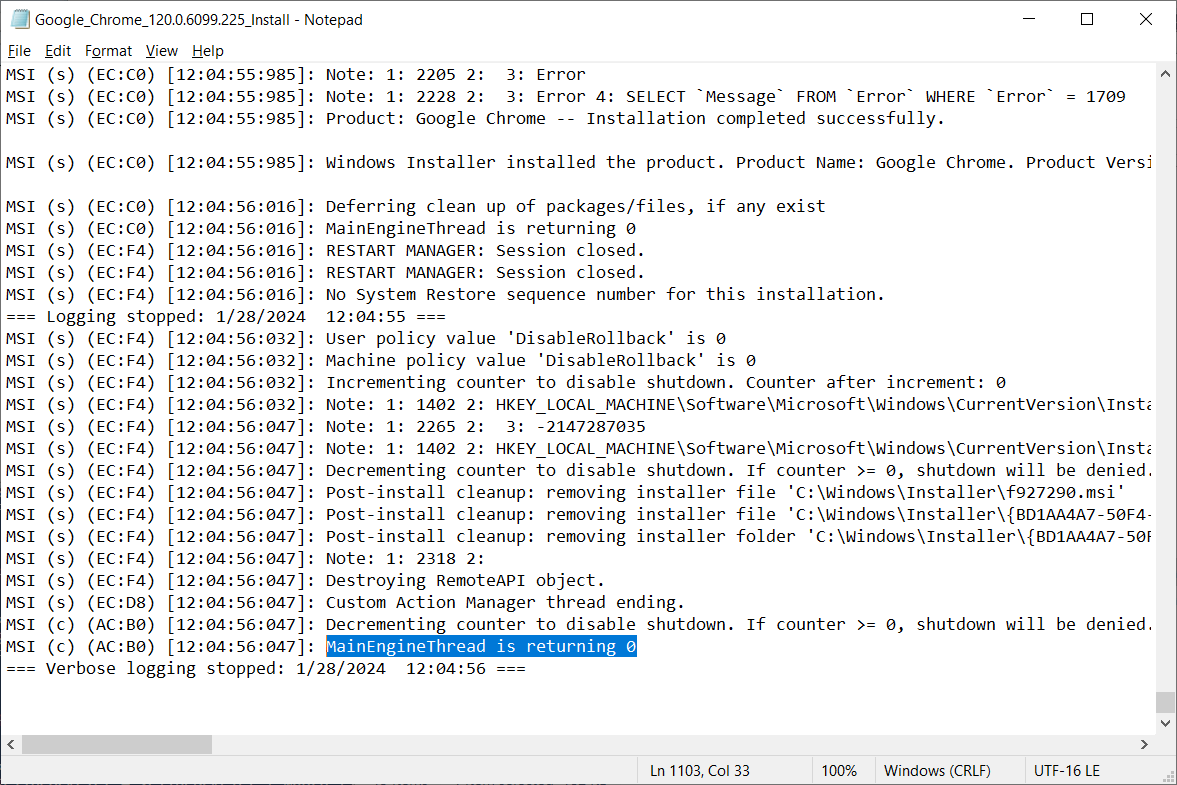
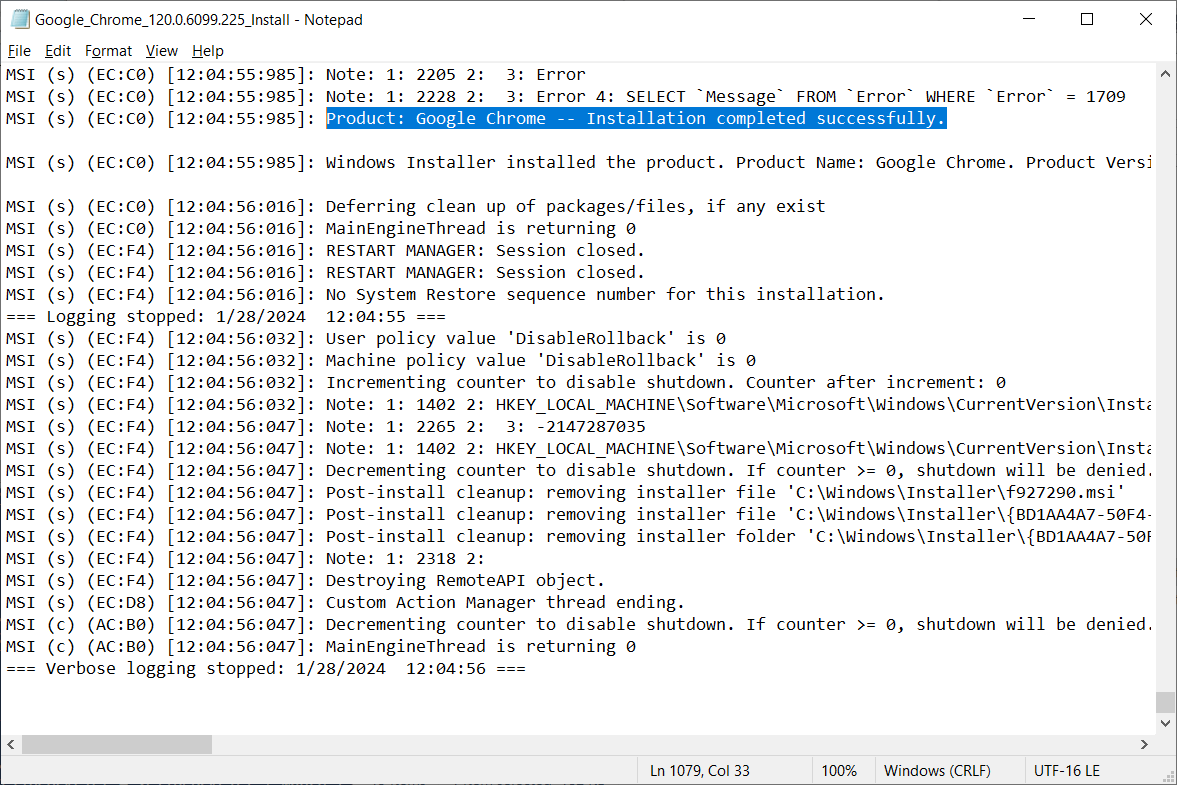
If we look at the Chrome install log file, we can see that the process returns the success code of “0" and that the Google Chrome installation completed successfully.
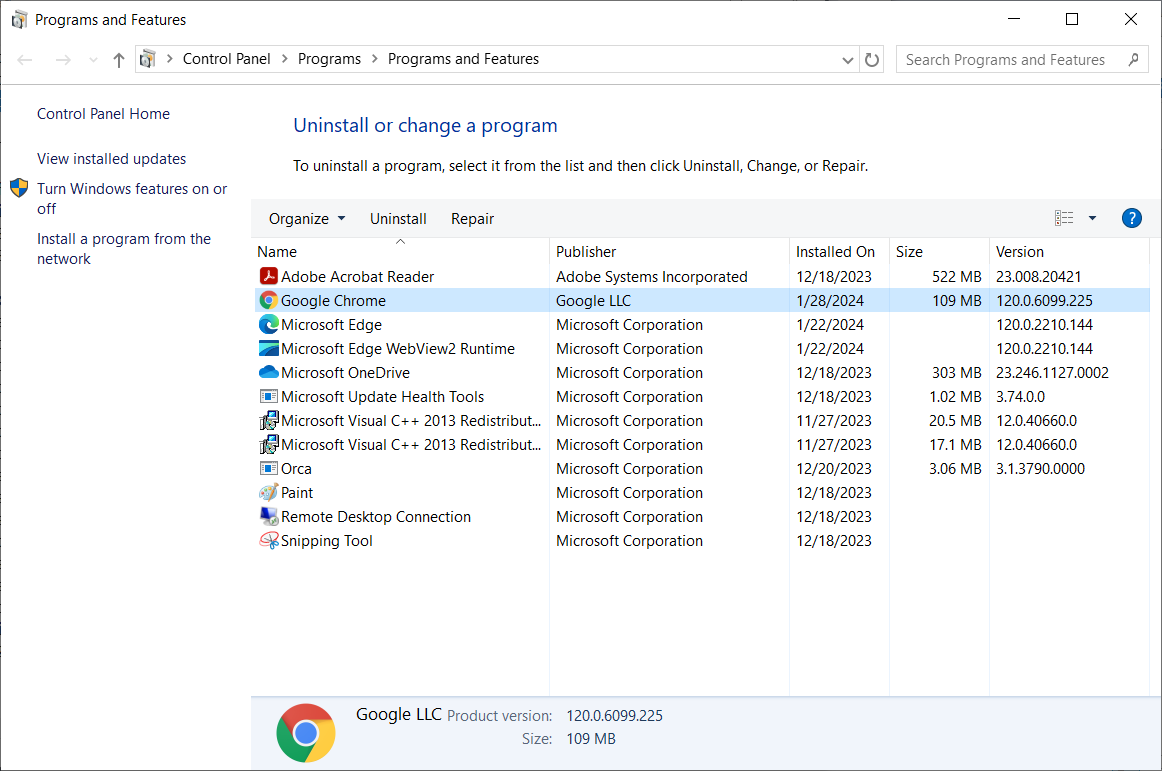
We can also confirm in Programs and Features that version 120.0.6099.225 is now installed.
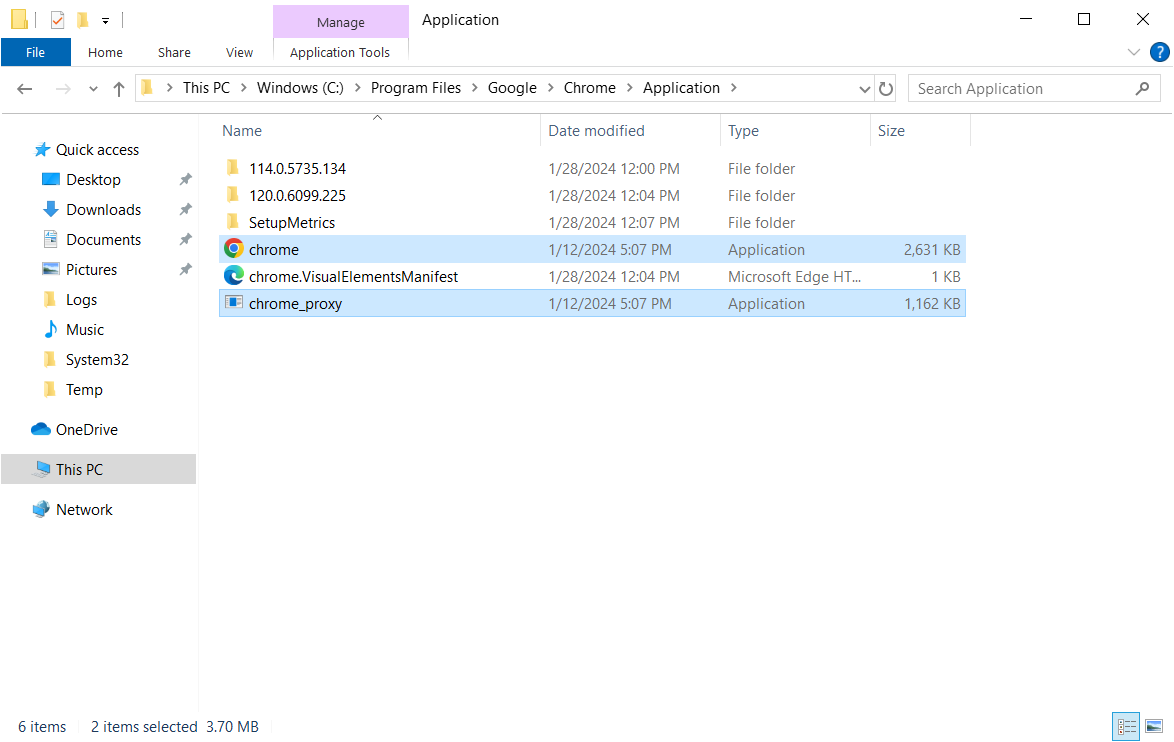
Now if we close the Chrome browser, we can see the file changes kicking in. First with the Chrome.exe and the Chrome_proxy.exe.
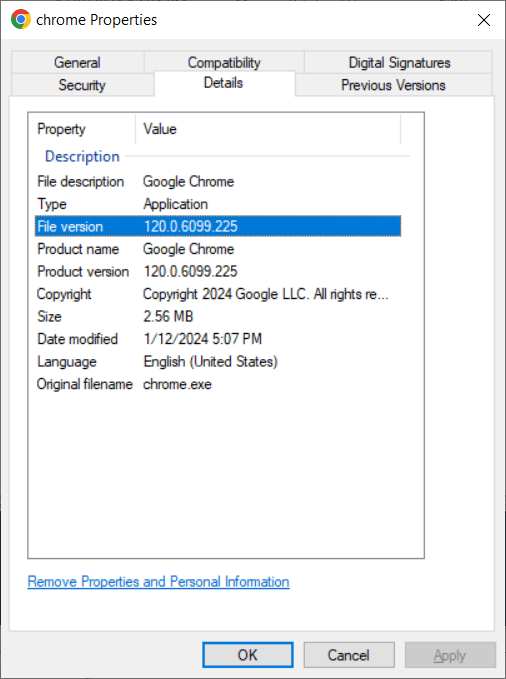
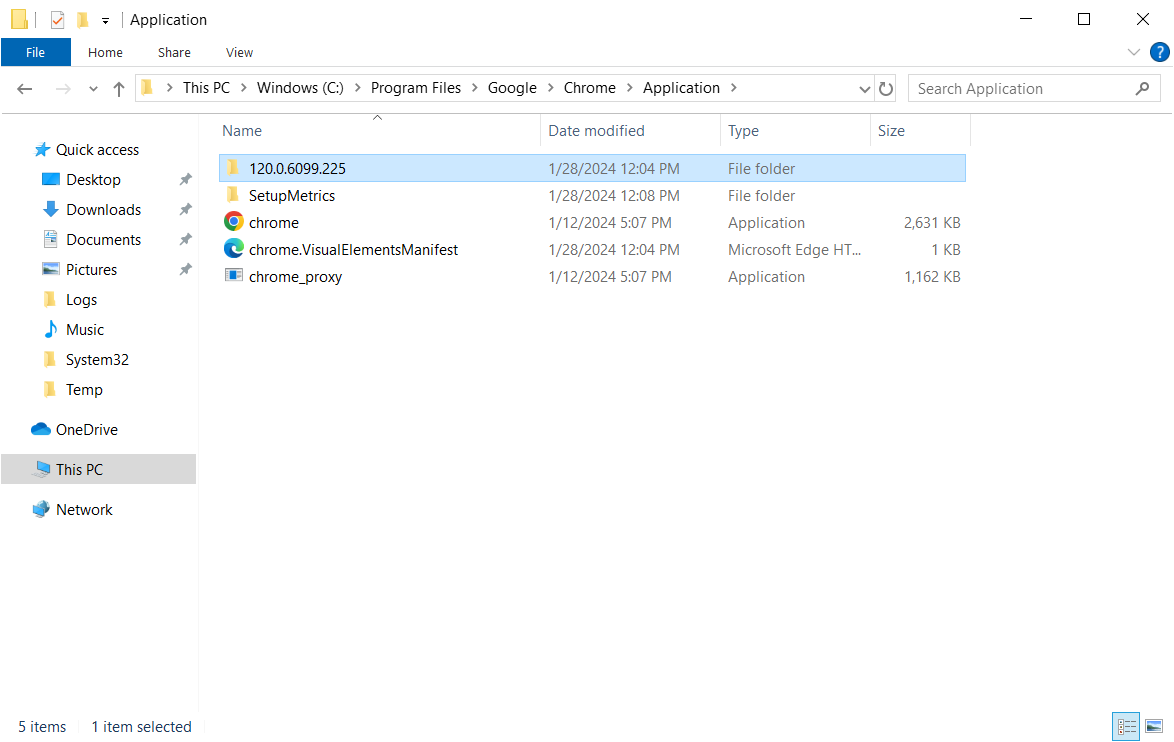
Then soon after, the version folder is replaced with the new one and the file finalization process is complete.
Something to watch out for
Notice how the Chrome version is showing the latest version number in Programs and Features before the Chrome files have been finalized? If the computer is restarted at this point, it is possible that the files might not end up being finalized. This scenario can occur if the end-user restarts the computer, or if a restart is triggered by other means, for example, a Windows update or another application deployment where a restart is forced. This scenario is a false positive and can lead you to think Chrome is up to date when in fact the files have not yet been updated.
Now that we understand the Chrome update behaviour, what's next?
We now know what to expect from the installation behaviour, and we can see that the key take away is that the Chrome browser must be closed for the file finalization process to complete. Also, this process should be run before the computer is restarted.
For your deployment automation, you will need to sequence the following actions:
1.Install the latest version of Chrome with the googlechromestandaloneenterprise64.msi file
2.Check if the file “C:\Program Files\Google\Chrome\Application\new_chrome.exe" exists
3.Close Chrome to remove any file locks
4.Trigger the file update process
Why not force close Chrome before the MSI install?
While killing processes associated with the app's executables before installing an app update is the common or typical methodology, there is one big reason why we would not recommend it for Chrome. These days, we do more in our browsers than ever before. A lot more applications that we use now are web-based and as a result, we are spending more time working from our browsers, for example, Office 365, SharePoint, Jira, Confluence, Service Now - just to name a few.
I don't know about you but if I found that Chrome had been closed during an update, I am not sure I would think to check if the update was completed before re-opening Chrome. I think this is typical and expected end-user behaviour - to just reopen Chrome if they find that it had been closed. The obvious risk here is that the update might not have completed, and re-opening Chrome prematurely could impact the update install process.
If you have ever found that Chrome appears to have been updated on a computer only to find that the Chrome.exe is an older version, then this is the likely explanation as to how and why this has happened.
Closing Chrome to remove file locks
We can close Chrome by using the TASKILL command to kill any chrome.exe, chrome_proxy.exe or GoogleUpdate.exe processes that are running on the computer. This includes any processes that have been left active from disconnected user sessions.
Or we can use the Stop-Process PowerShell cmdlet to kill these processes.
Triggering the file update process
If we go back to the installation behaviour testing, there is another log file we should look at. There is a Chrome install log file generated by the “DoInstall" custom action that is executed within the MSI install. The log file is in “C:\Windows\Temp\chrome_installer.log". In this log file we can see the below command line:
If we look at the subsequent log entries, we can see this command triggers a number of actions relating to renaming the Chrome.exe and deleting older versions.
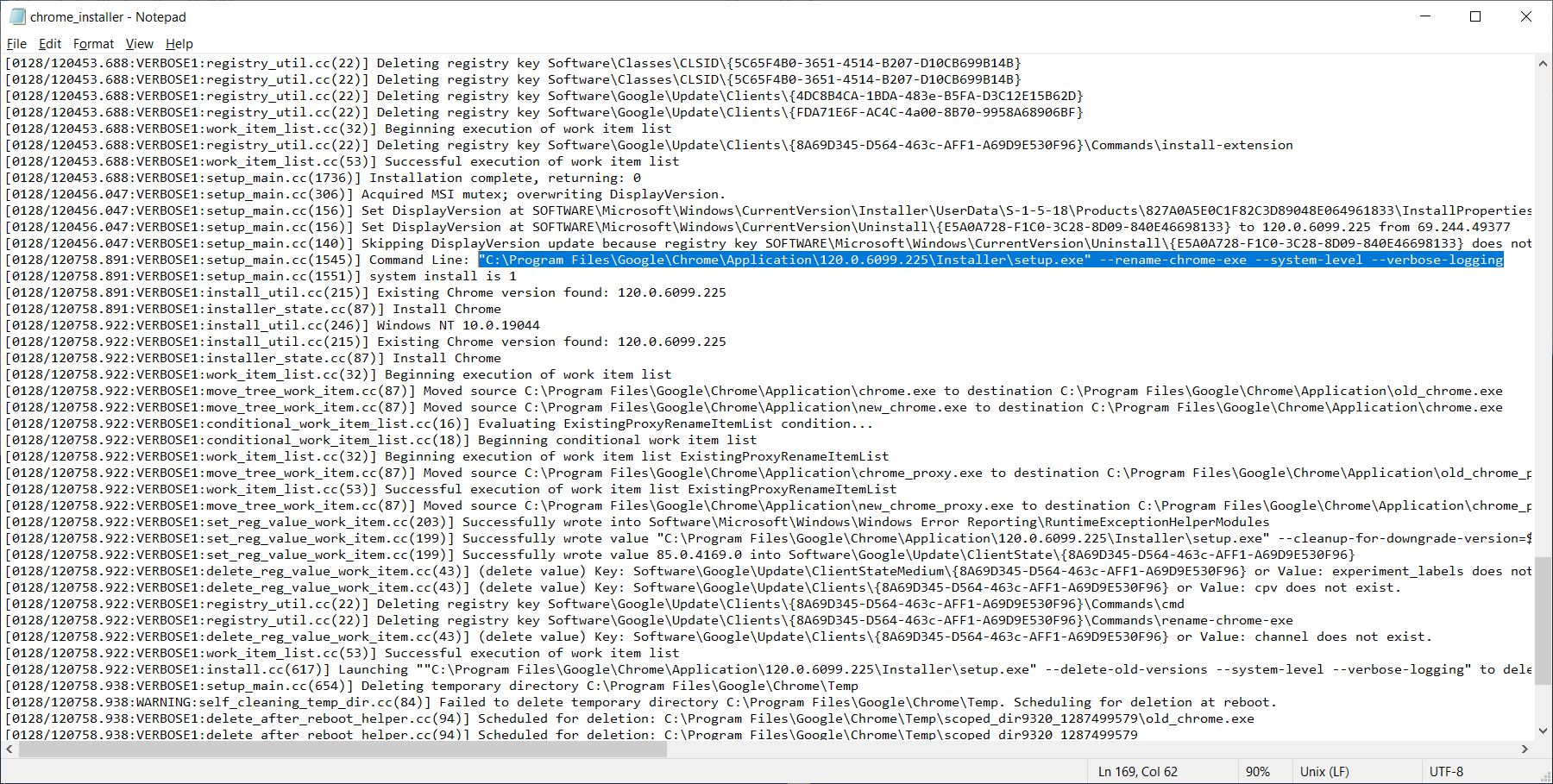
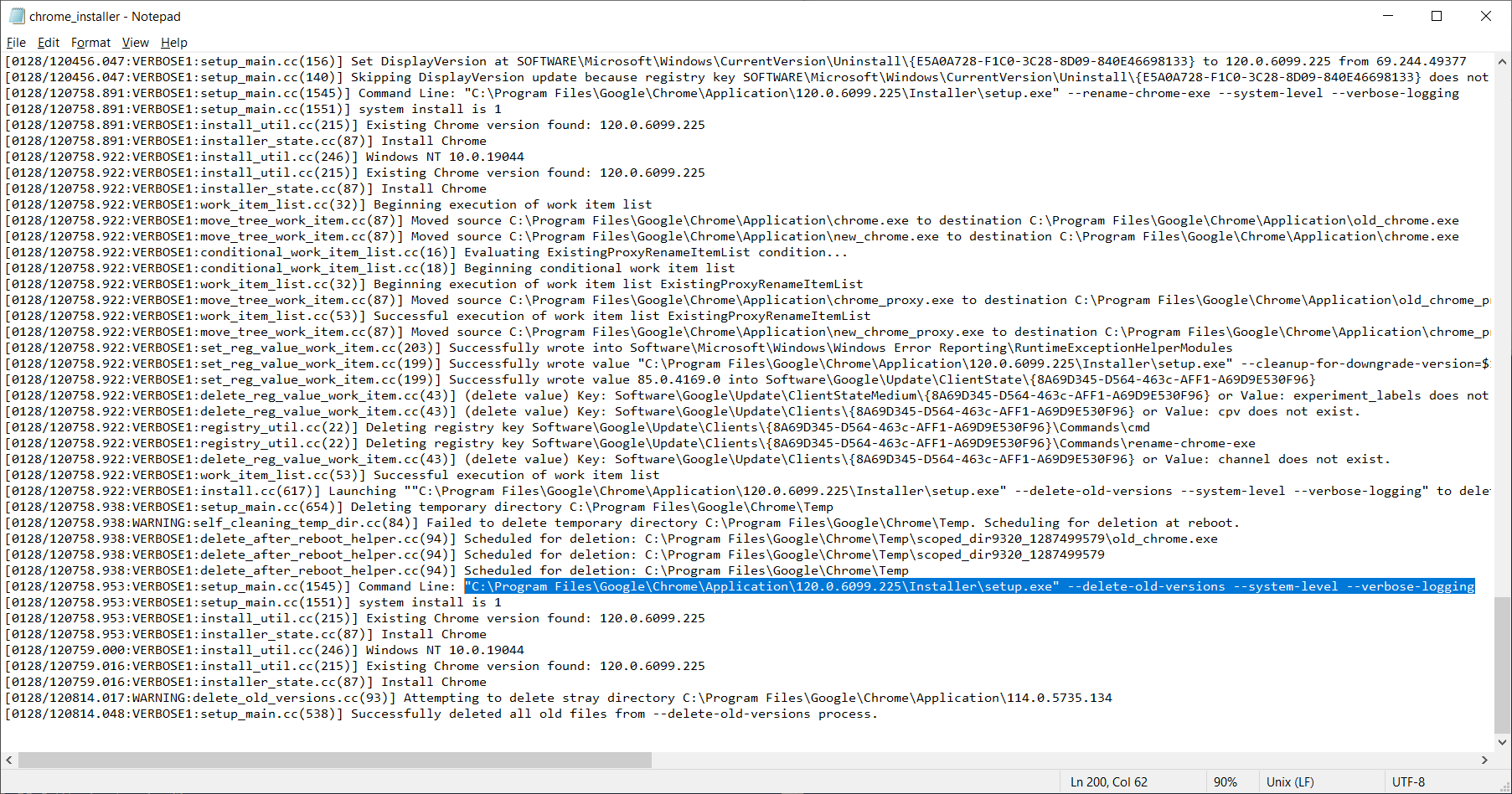
From our testing we have found that this command triggers the file finalization process. It is all we should need to execute to complete the file update and the “delete-old-versions" command will automatically be executed afterwards.
What’s the user's experience?
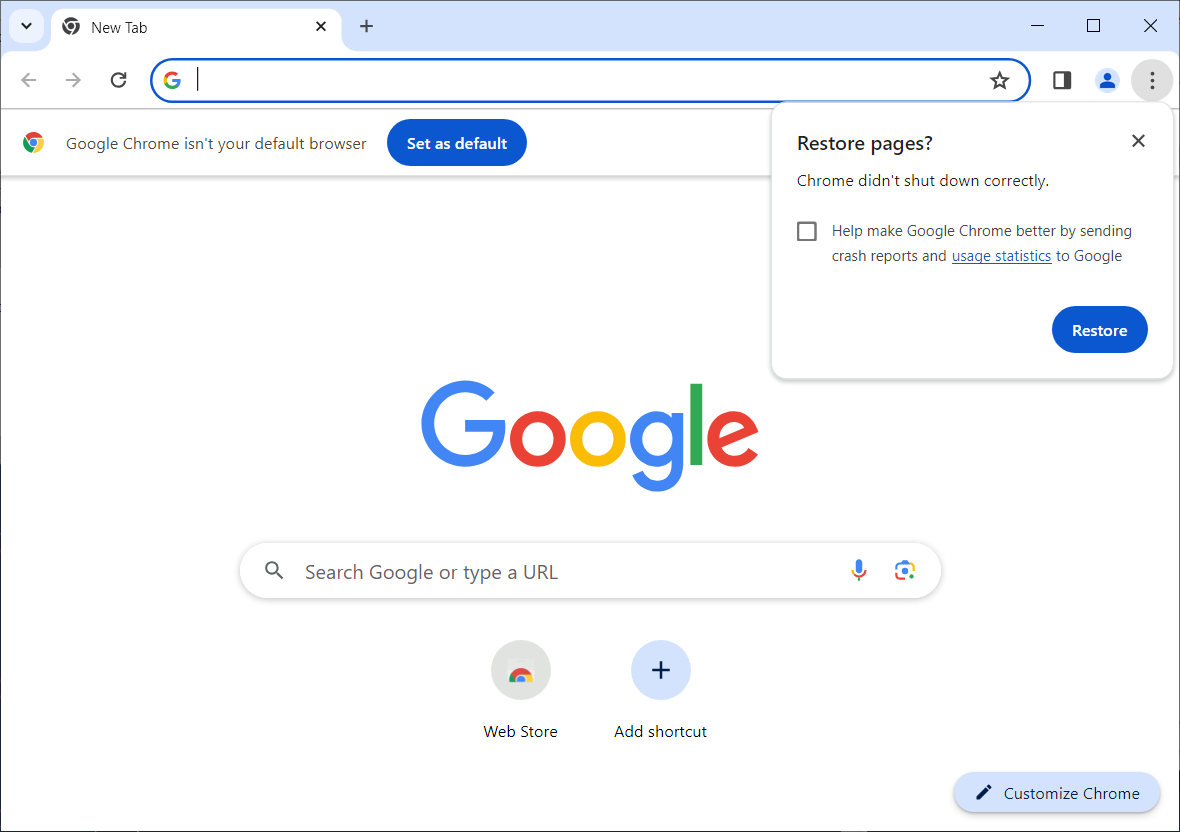
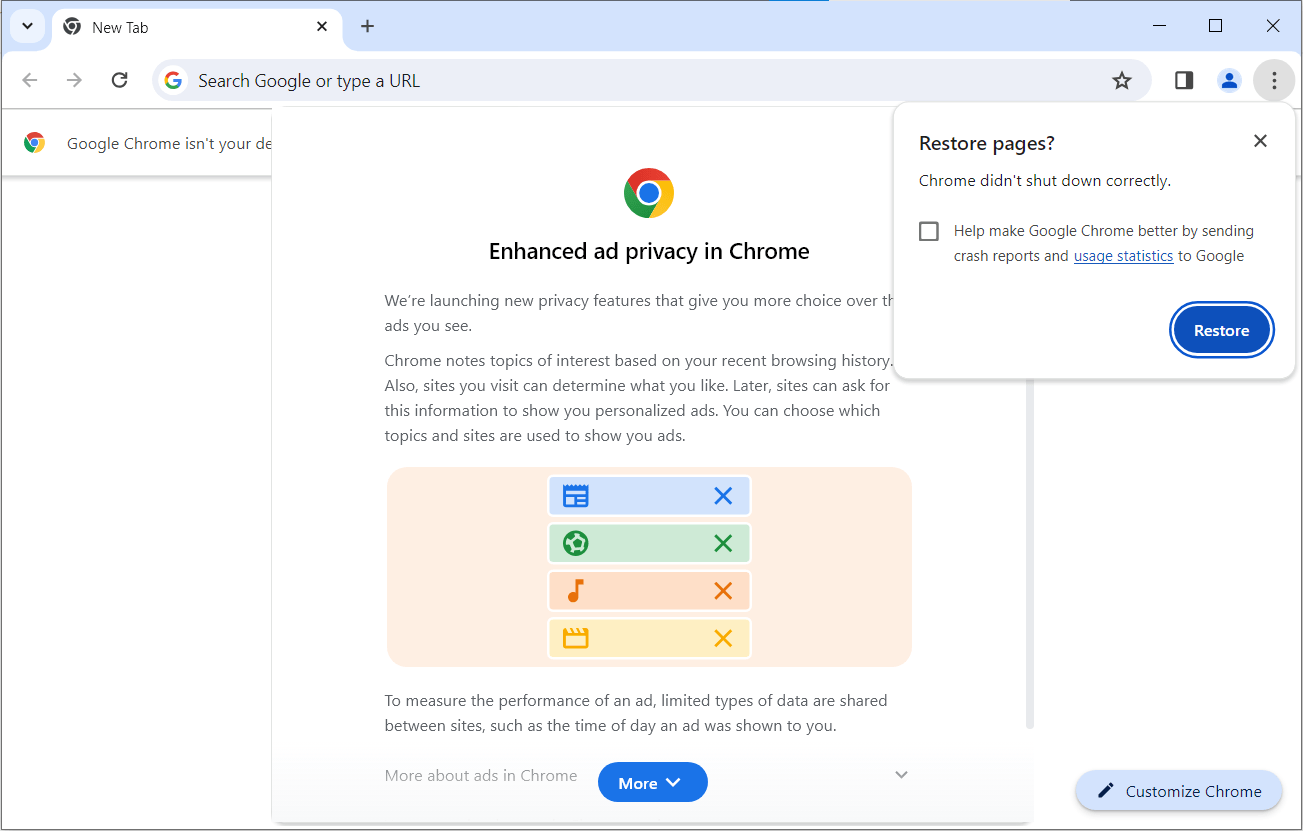
One of the other benefits of closing Chrome before the file finalization, as opposed to before the MSI install, is that Chrome will be closed only momentarily. As a result, there is less risk that the end-user could open Chrome before the new files are finalized. The next time the end-user launches Chrome, they will be prompted to restore closed pages.
Using MPA Tools to trigger the file update process
You can use MPA Tools to identify computers in your environment that have installed a new version of Chrome but haven't yet finalized the new files.
In MPA Tools, click the Actions button and then select the computers you would like to scan.
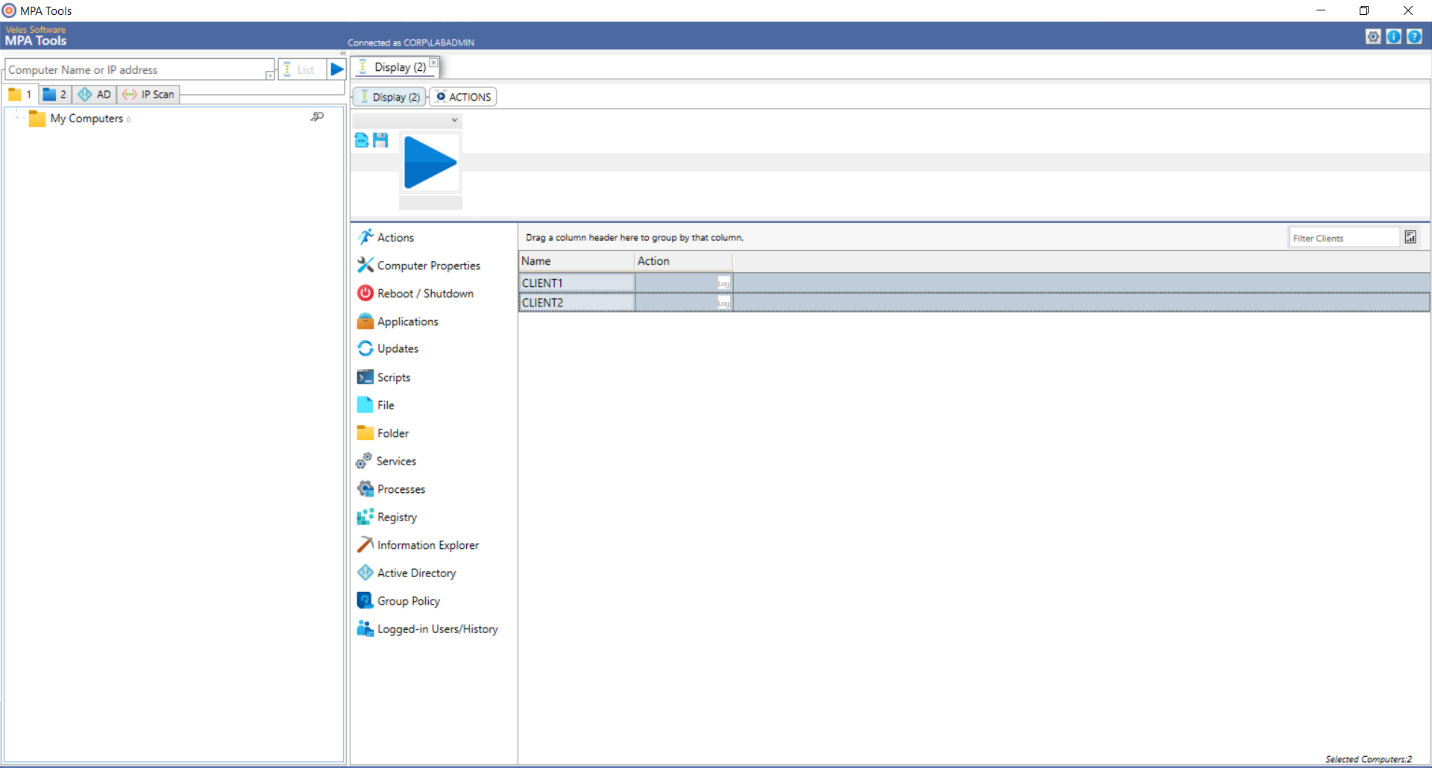
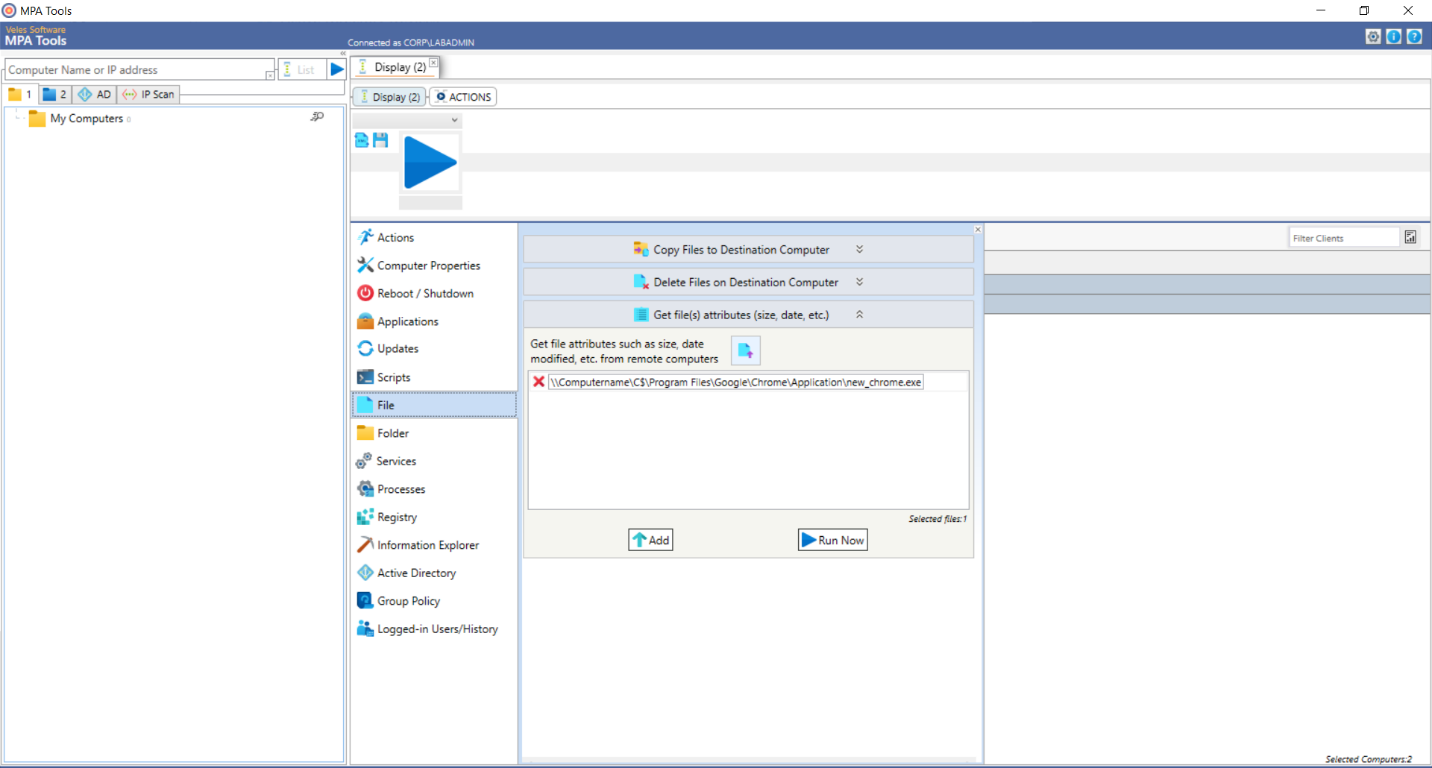
Next, select the File category from the Actions menu. Then select “Get file(s) attributes (size, date, etc.). Click the browse button to select the file path below:
Then click the Run Now button.
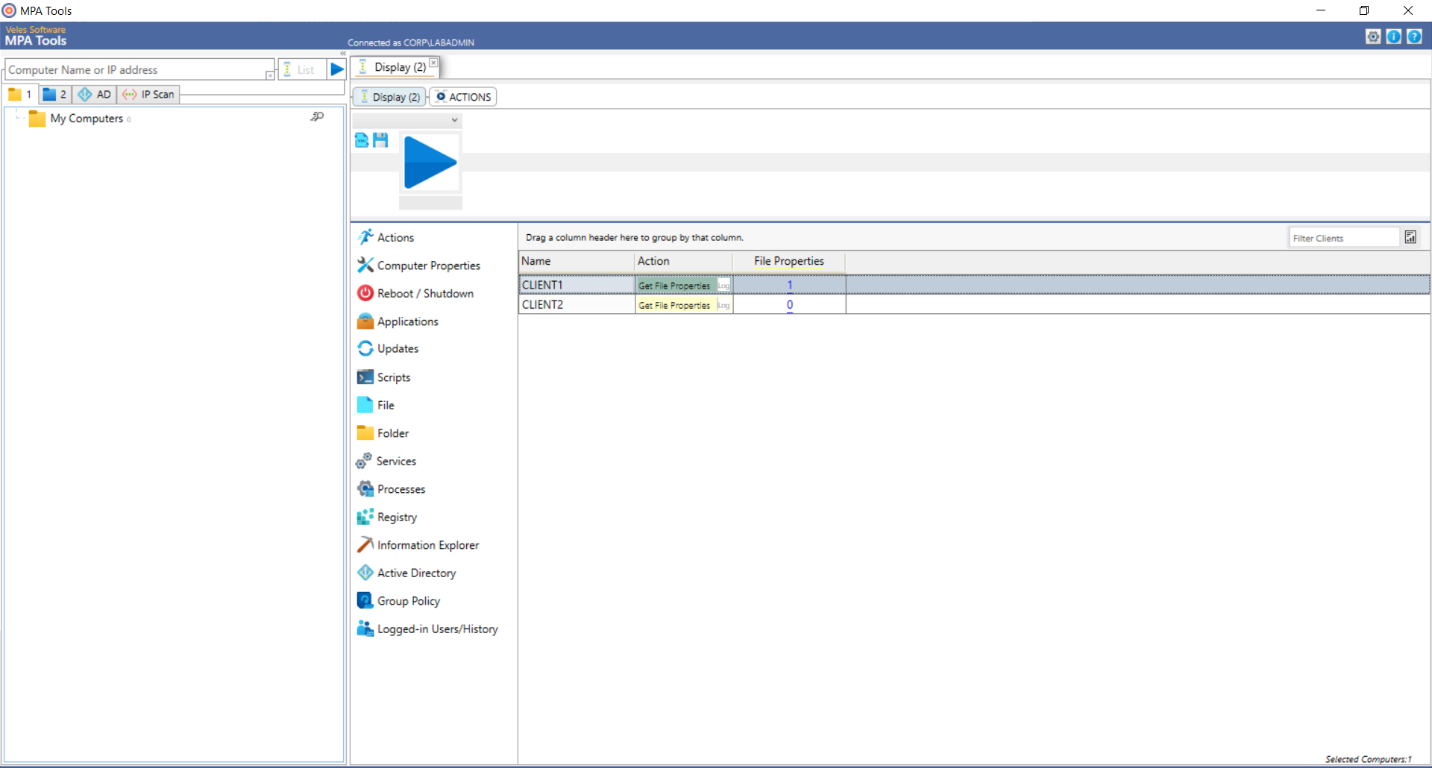
Soon after, you will see the results populated, where 1 represents computers that have the new_chrome.exe and 0 represents computers that do not.
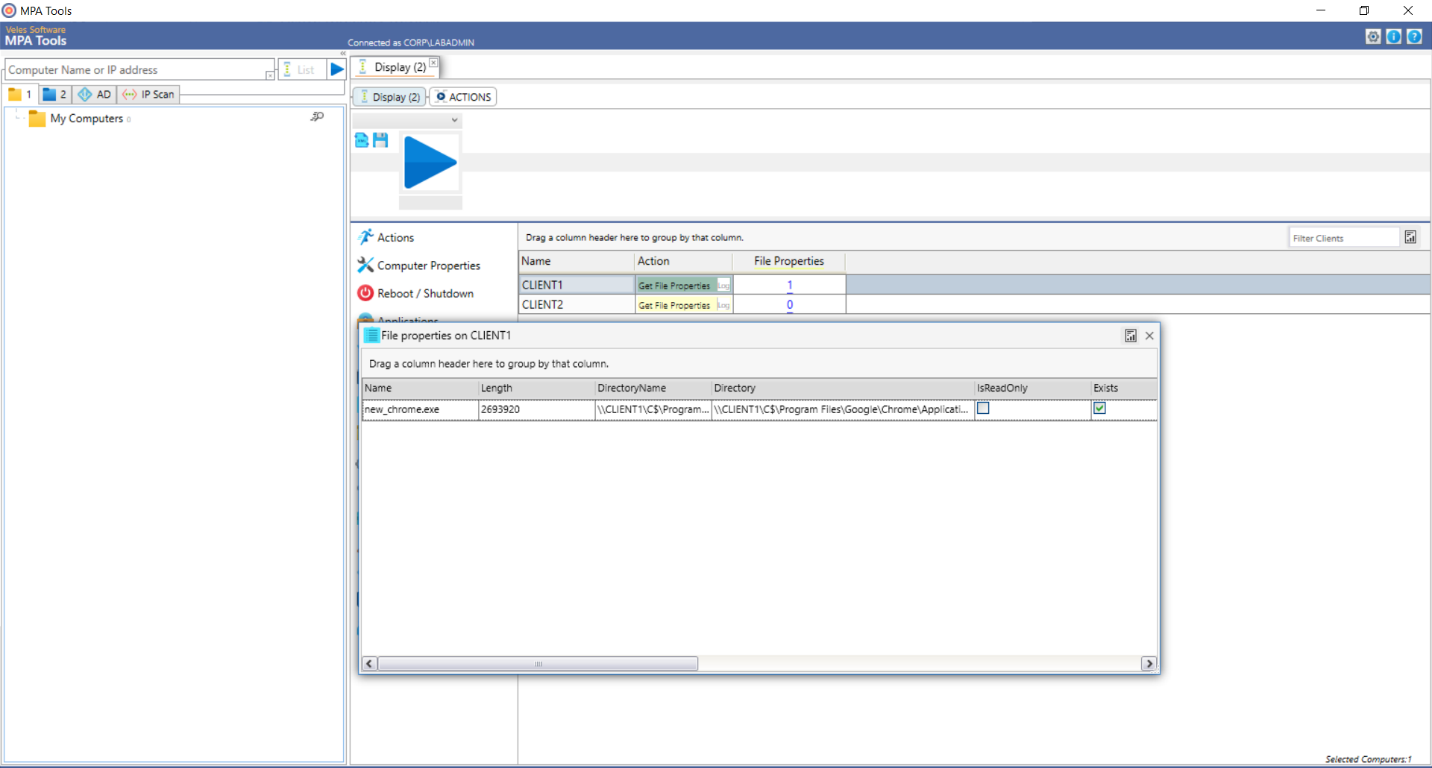
Select a computer with File Property result of 1 to see the full results. You will see that the file size (“Length") is returned and the “Exists" checkbox is selected.
Next, select the computers with File Property result of 1 and then select Scripts from the actions menu. Then select “Run CMD Scripts".
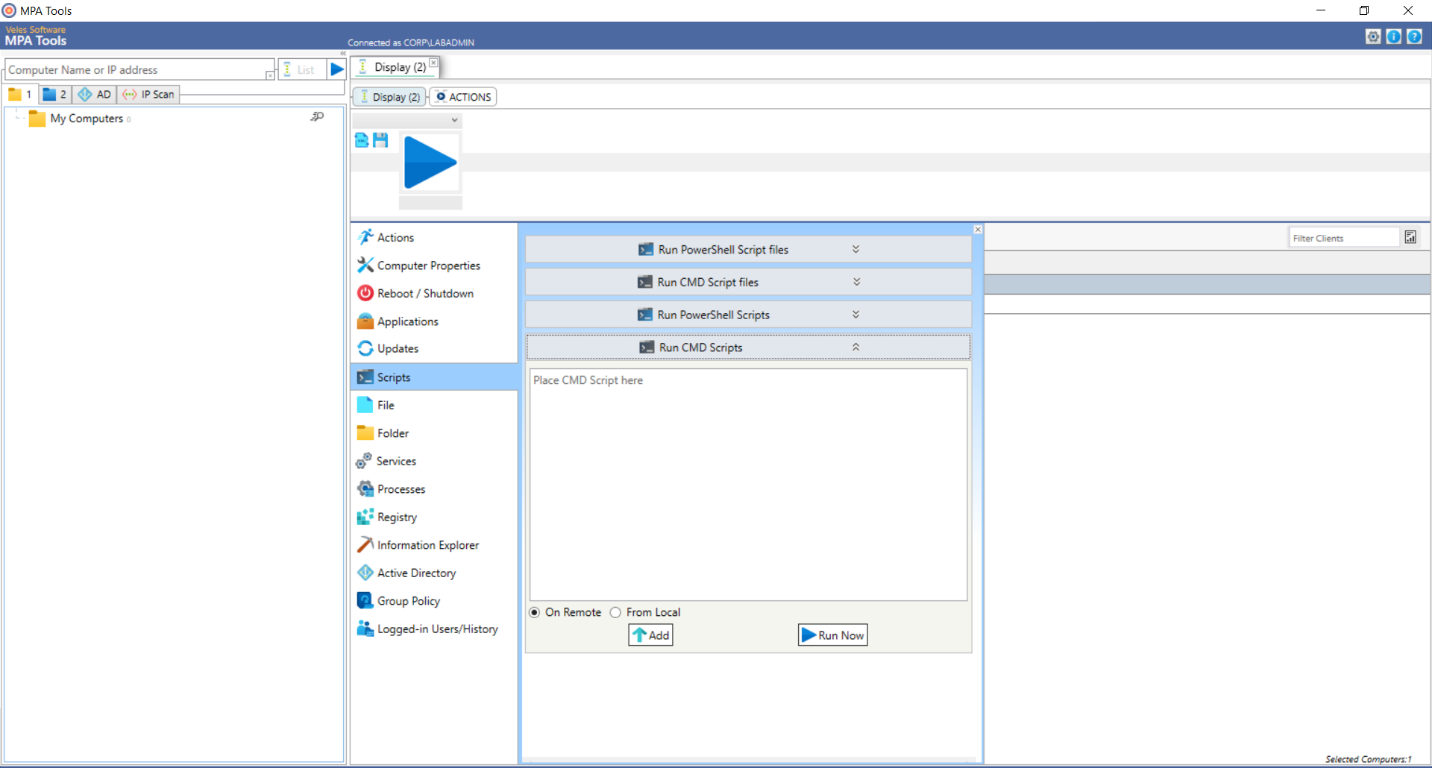
Enter the following commands in the field that says “Place CMD script here" and then click the Run Now button.
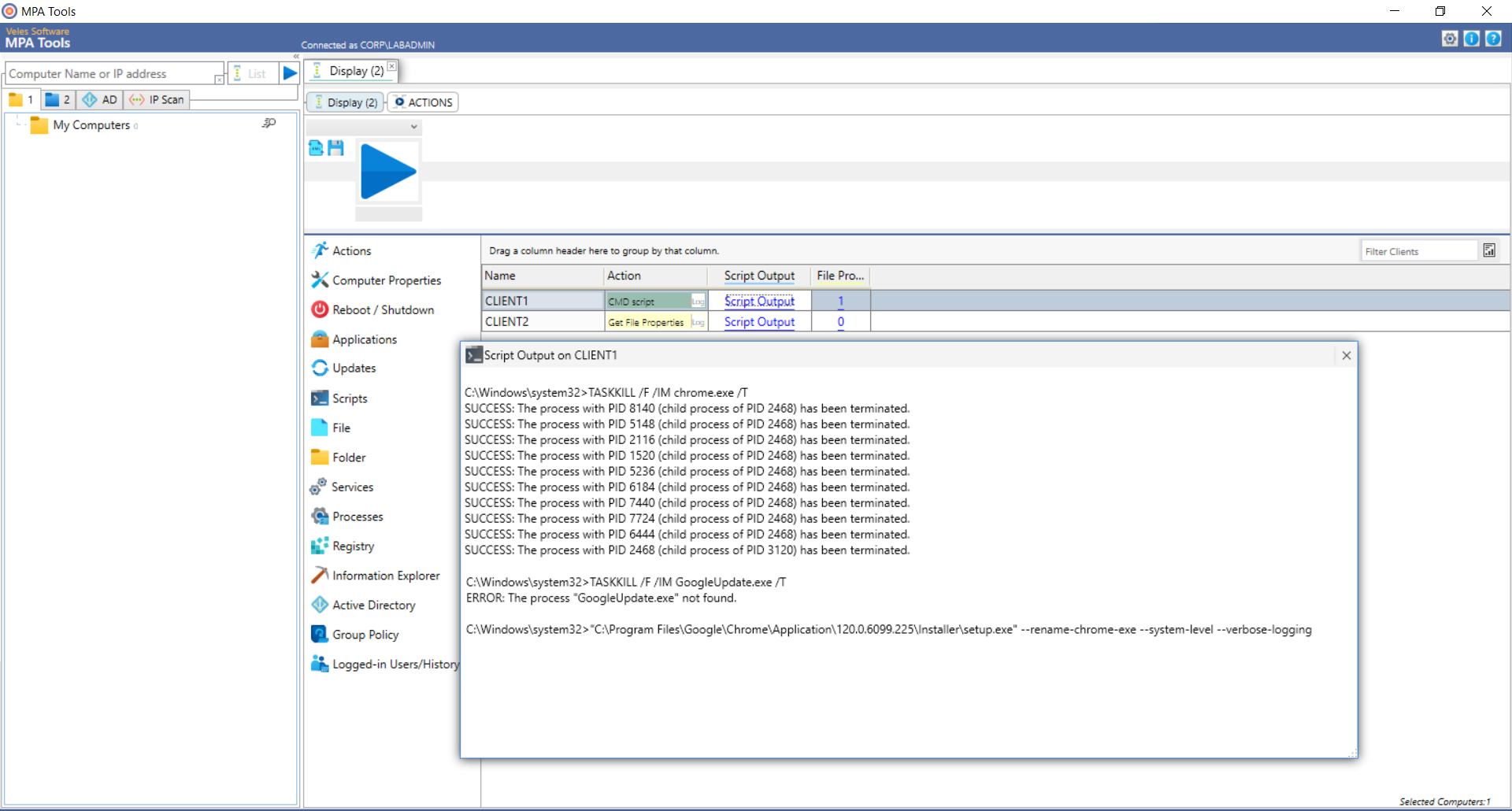
These commands will kill any chrome.exe or GoogleUpdate.exe processes, if they are running, and then it will execute the Chrome file finalization command.
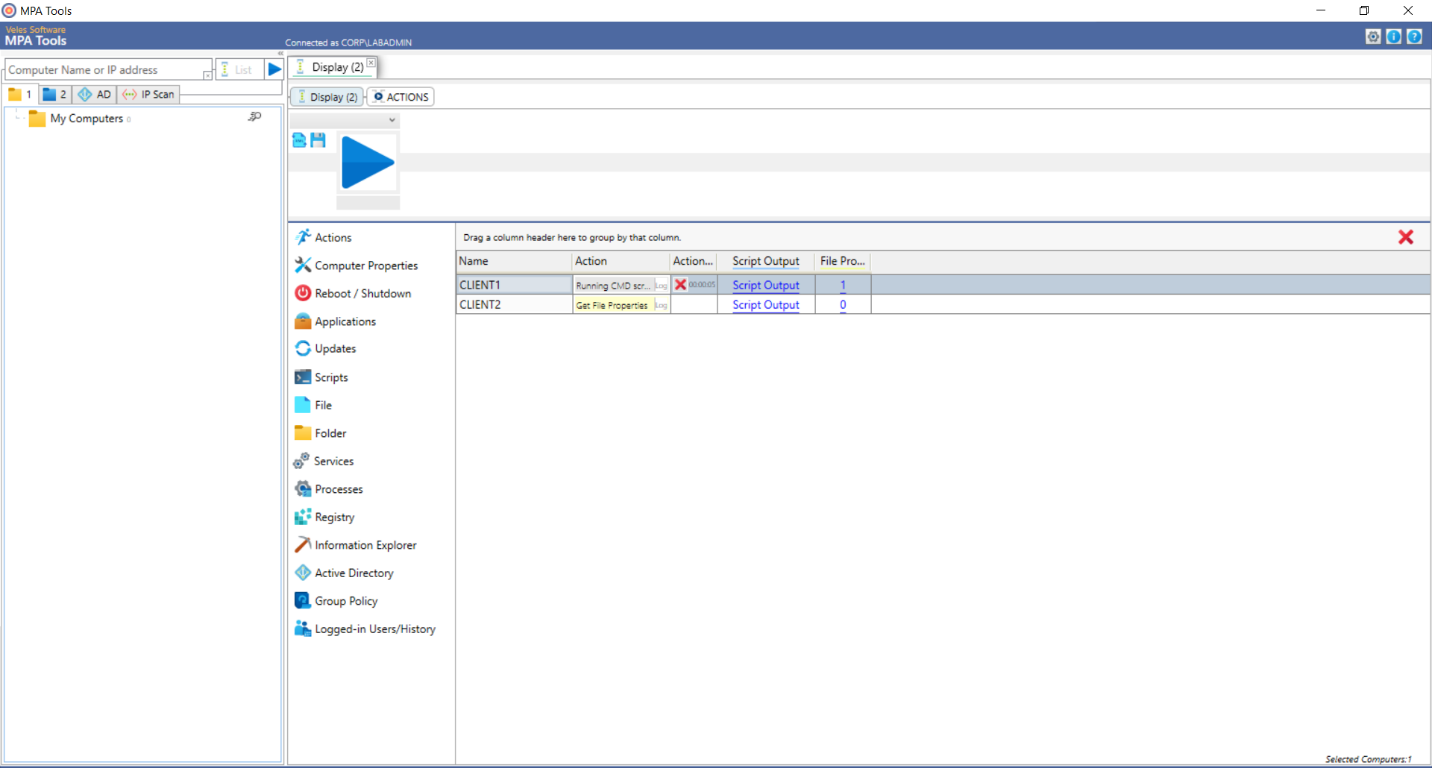
Once the CMD script execution has completed, the results can be confirmed on each computer by viewing the Script Output.
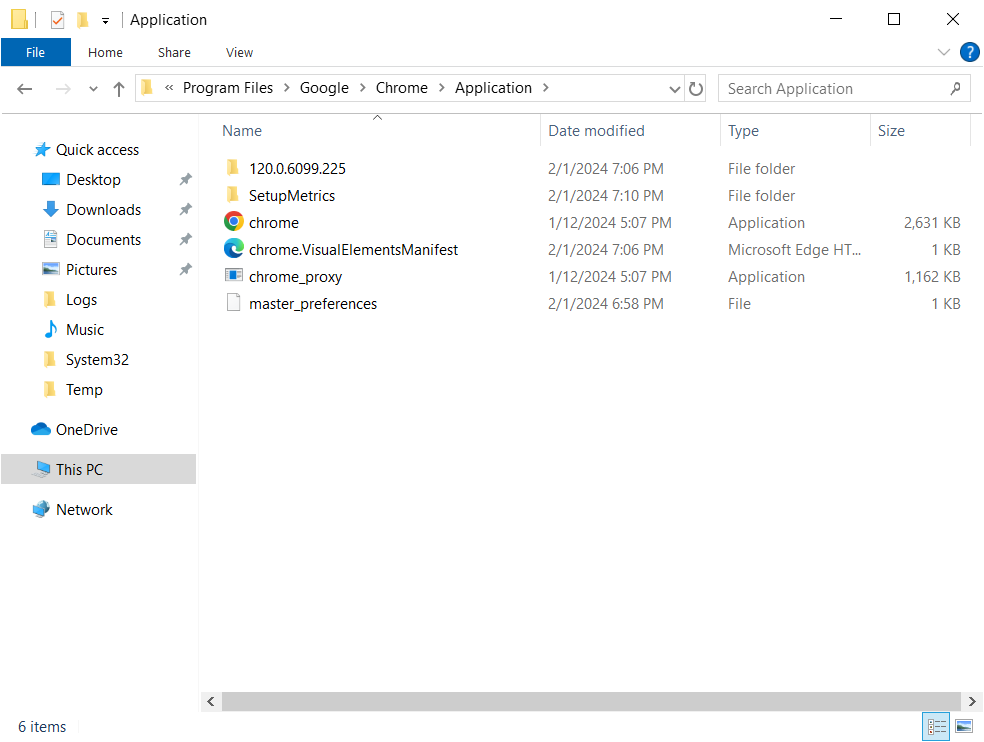
On the client computer, the new Chrome files have been finalized.
The prompt to Restore pages appears when Chrome is launched.
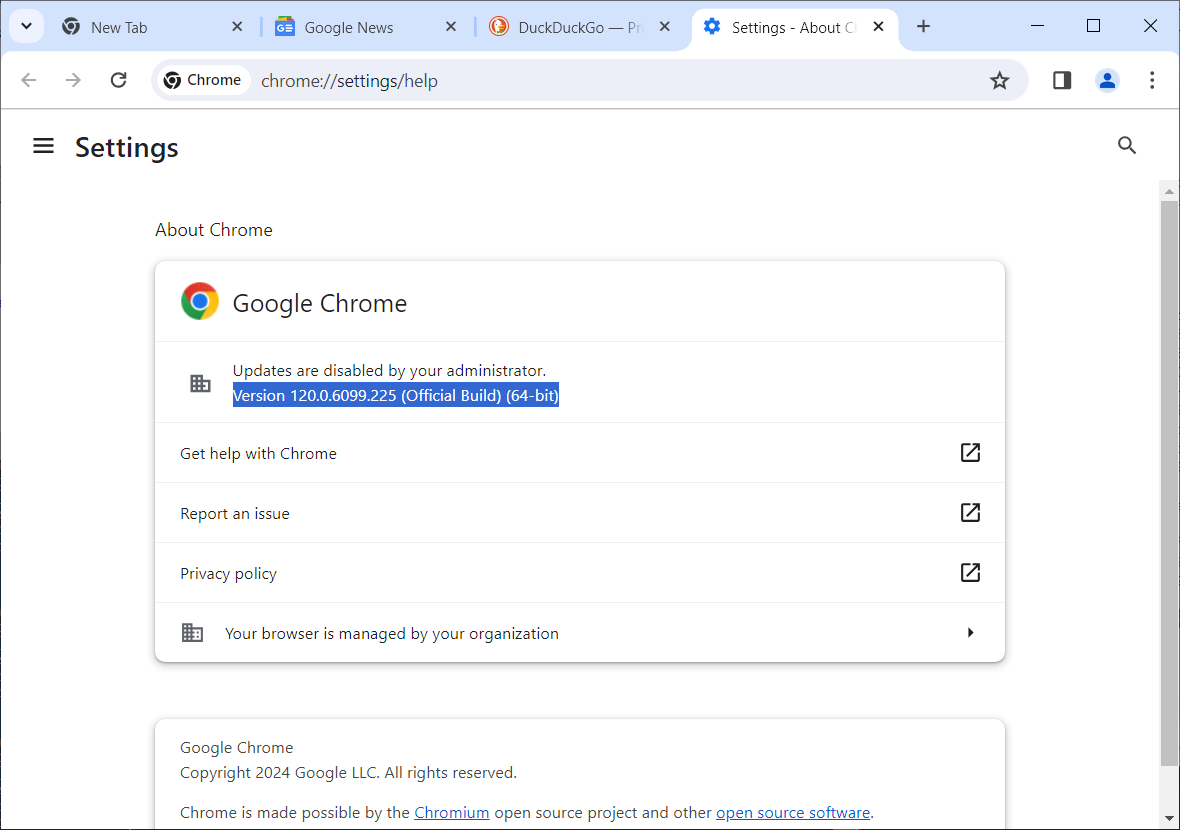
And the new version can be confirmed by clicking on the Chrome menu and selecting Help > About Google Chrome.
Hope this helps with any frustrations you may be experiencing with getting Chrome up to date in your environment. Stay tuned for the next post where we will look at performing a full uninstall of Chrome to allow you to clean install Chrome afterwards.