In this post, we will show you how to deploy a Configuration Baseline in SCCM (or as it is now known MECM). Configuration baselines in Configuration Manager contain a defined set of desired configurations that are evaluated for compliance as a group.
Following our earlier post onhow to enable the WMI firewall rules for client accessibility inMPA Tools, we will demonstrate how to enable the WMI firewall rules using a PowerShell script-based configuration baseline. The benefit of which is, like the Intune Remediation method, the script package can automatically detect and fix the WMI firewall rules on a schedule.
What are Configuration Baselines?
In Configuration Manager, baselines are used to define the configuration of a system that is established at a specific point in time. Configuration baselines can contain one or more defined set of desired configurations, or Configuration Items. These configuration items are evaluated on a schedule and returned to the site system for reporting. Configuration items can also be set to automatically remediate missing or incorrect configurations. For more information, seeAbout Configuration Baselines and Items | Microsoft Learn.
Pre-requisites for PowerShell script configuration baselines
First, we need to verify that compliance evaluation is enabled for the clients. In the SCCM Administrative console, navigate to Administration\Overview\Client Settings. Check that this is enabled under Compliance Settings in either the default client settings or the applicable client settings that are assigned to the relevant client devices.
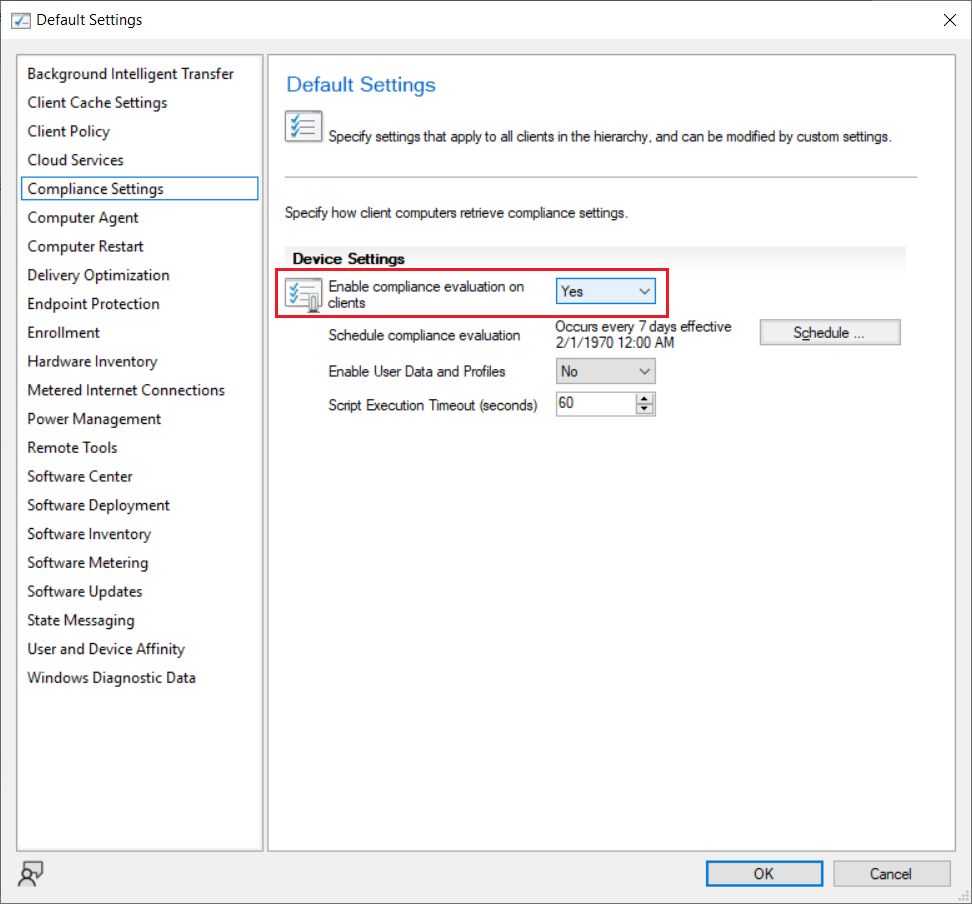
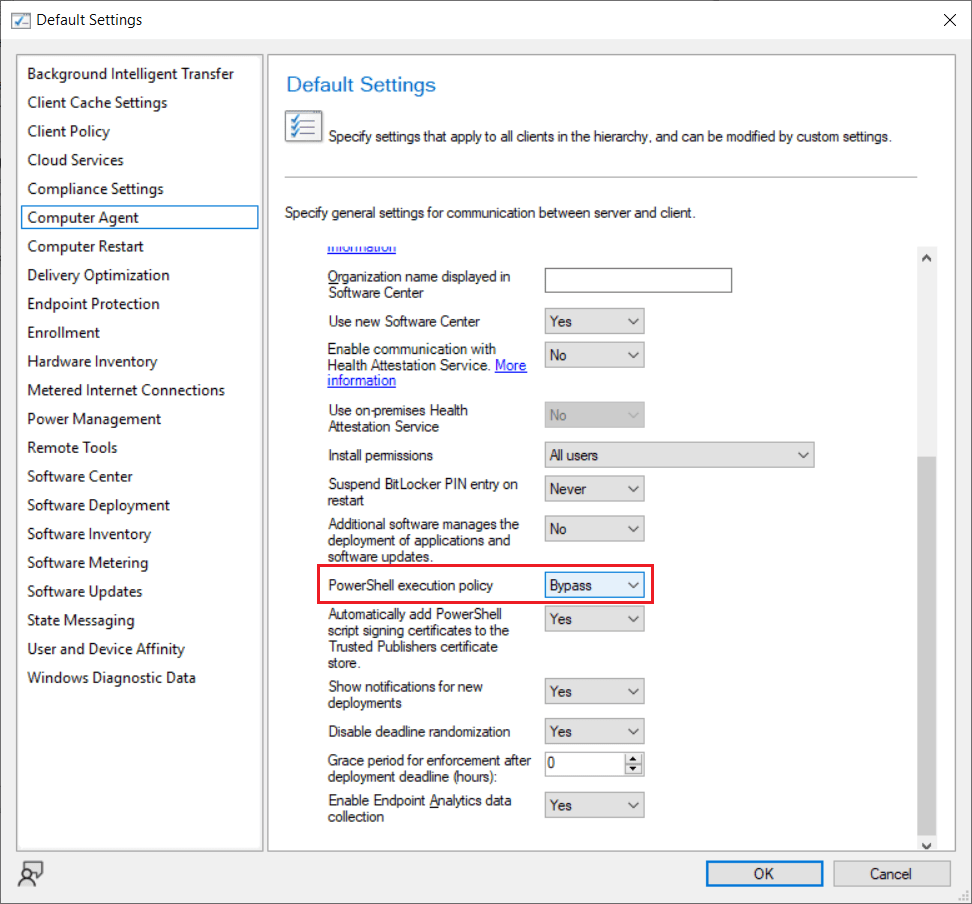
Next, we will need to confirm that PowerShell execution policy allows scripts to be executed by the SCCM clients. The PowerShell execution policy is under Computer Agent in either the default client settings or the applicable client settings that are assigned to the relevant client devices. In this example, we will set the execution policy to Bypass.
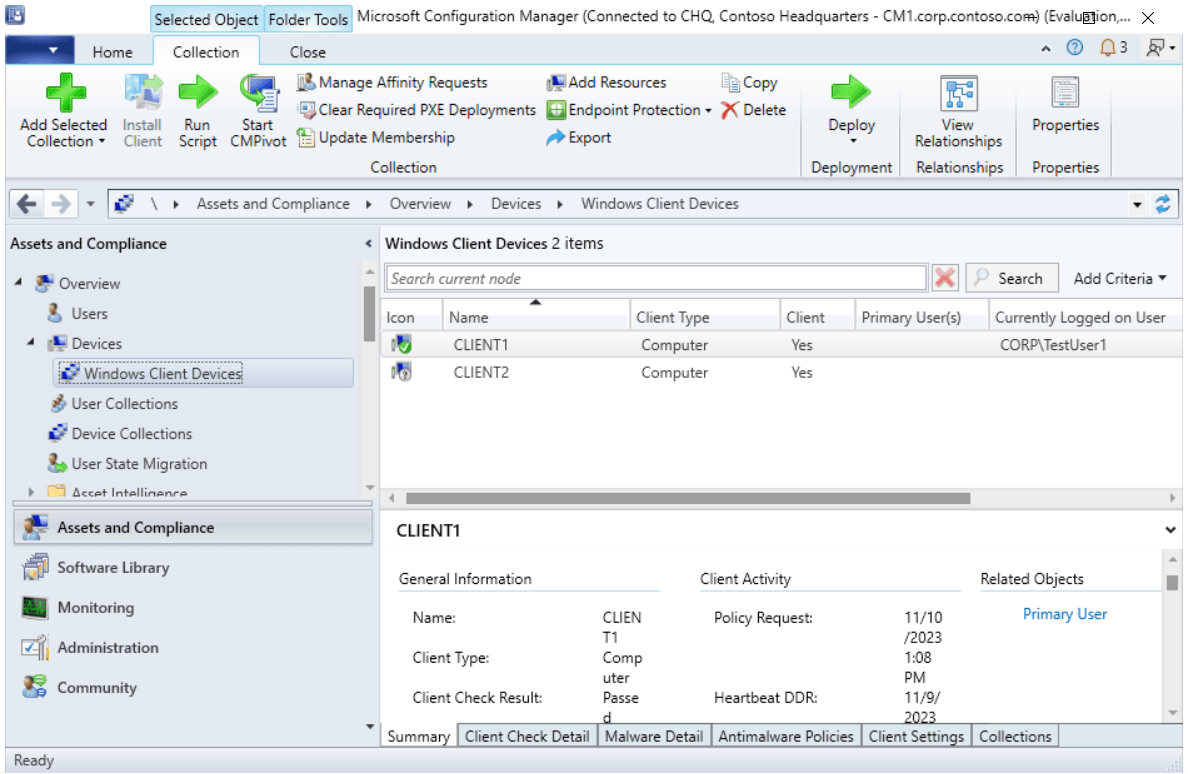
Selecting a device collection
Next, we will need to ensure that we have an applicable device collection for the relevant Windows 10/11 devices. The device collection can be configured to use direct membership or query-based membership. In this example, we will be assigning the configuration baseline to our query-based Windows Client Devices collection.
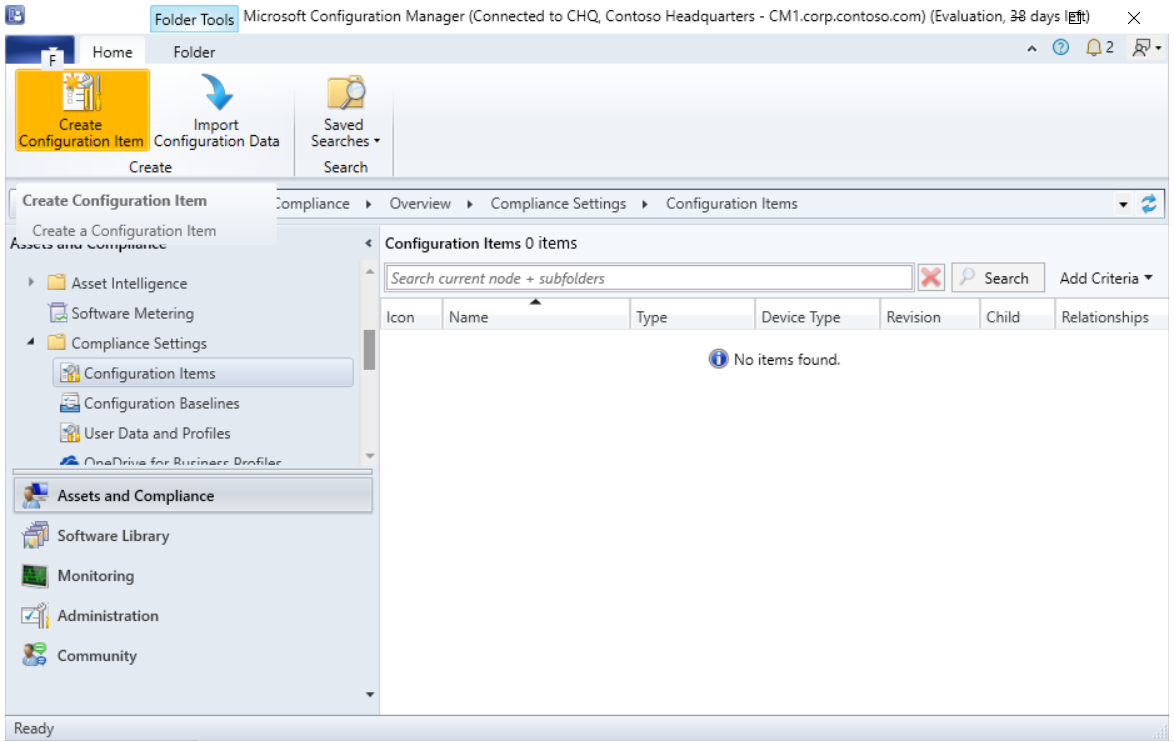
Creating the configuration item
First, we will start with creating a configuration item. In the SCCM Administrative console, navigate to Assets and Compliance\Compliance Settings\Configuration Items. Click the Create Configuration Item button on the ribbon toolbar.
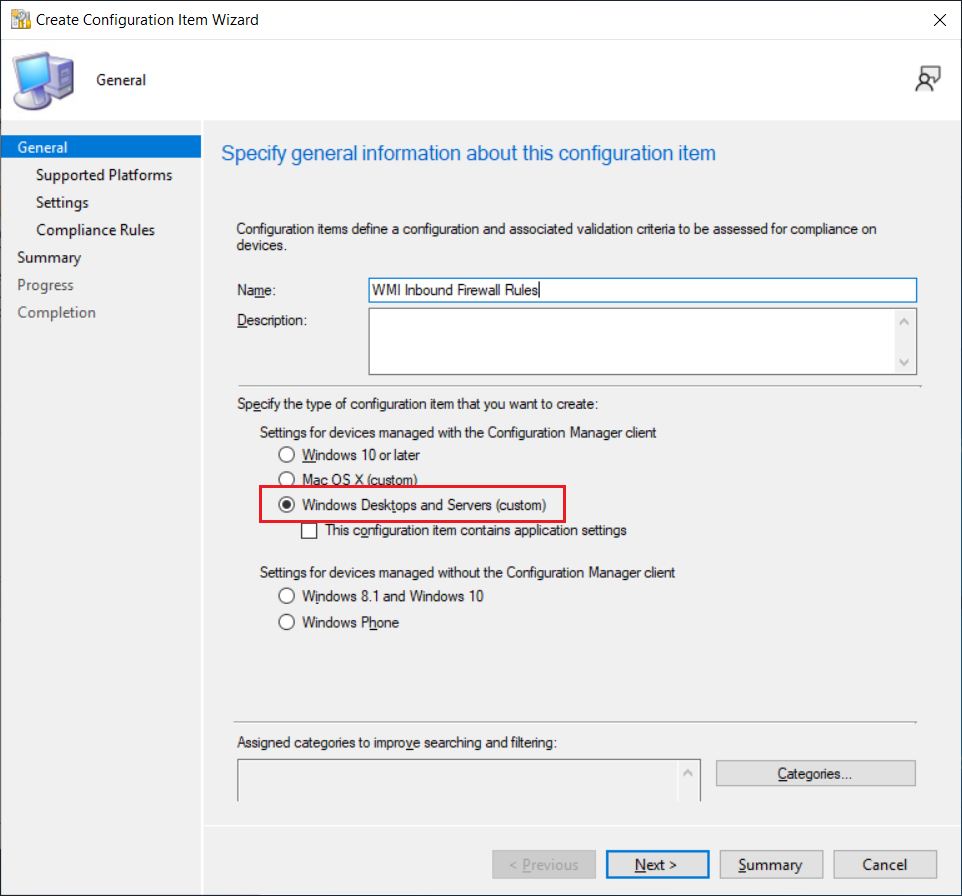
Specify a name for the configuration item. Select the Windows Desktops and Servers (custom) radio button and then click Next.
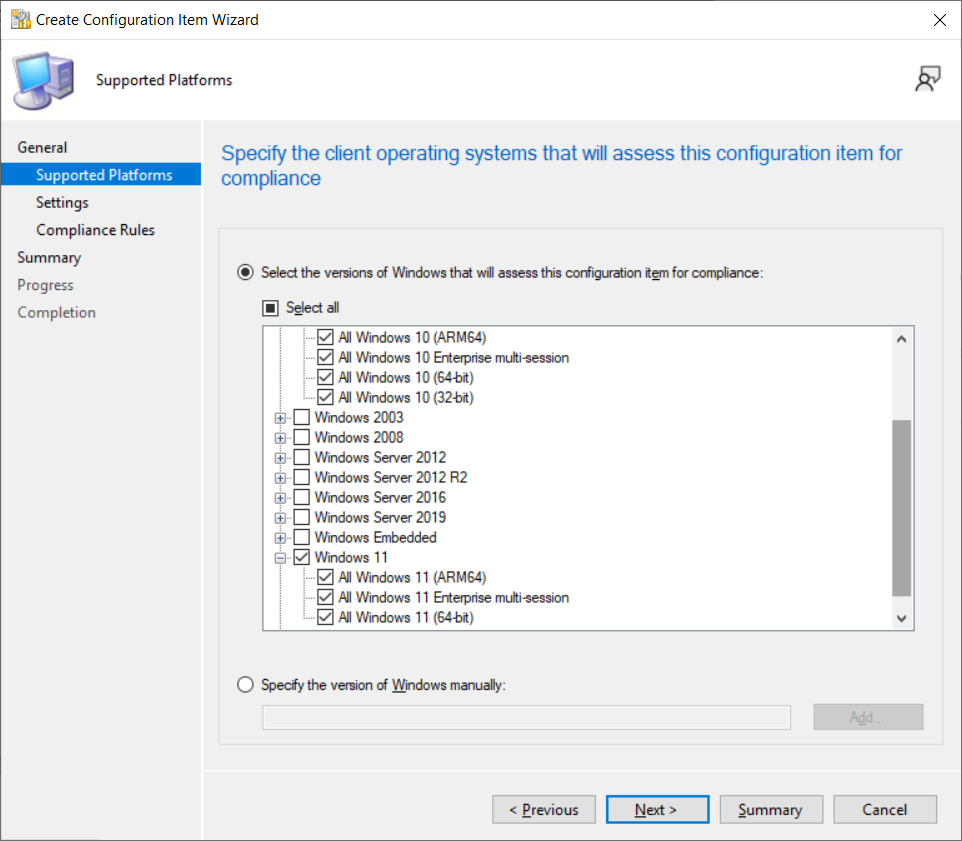
Select the relevant windows platforms. In this example, we will be selecting both Windows 10 and Windows 11. Then click Next.
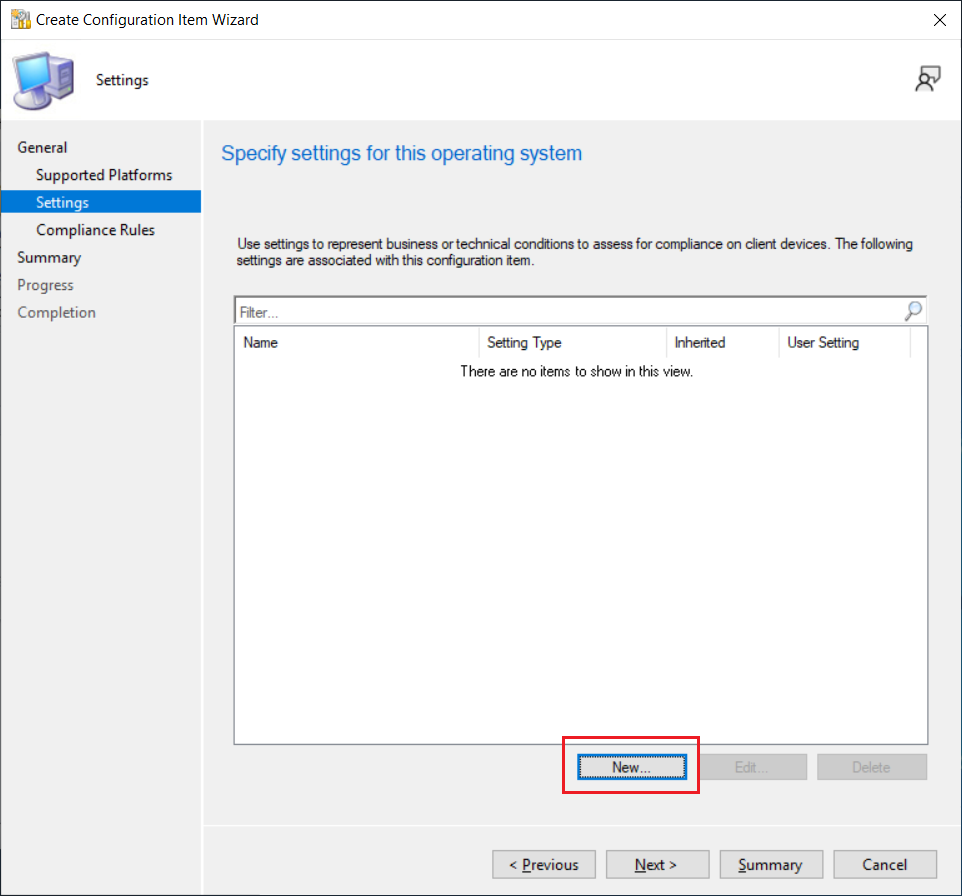
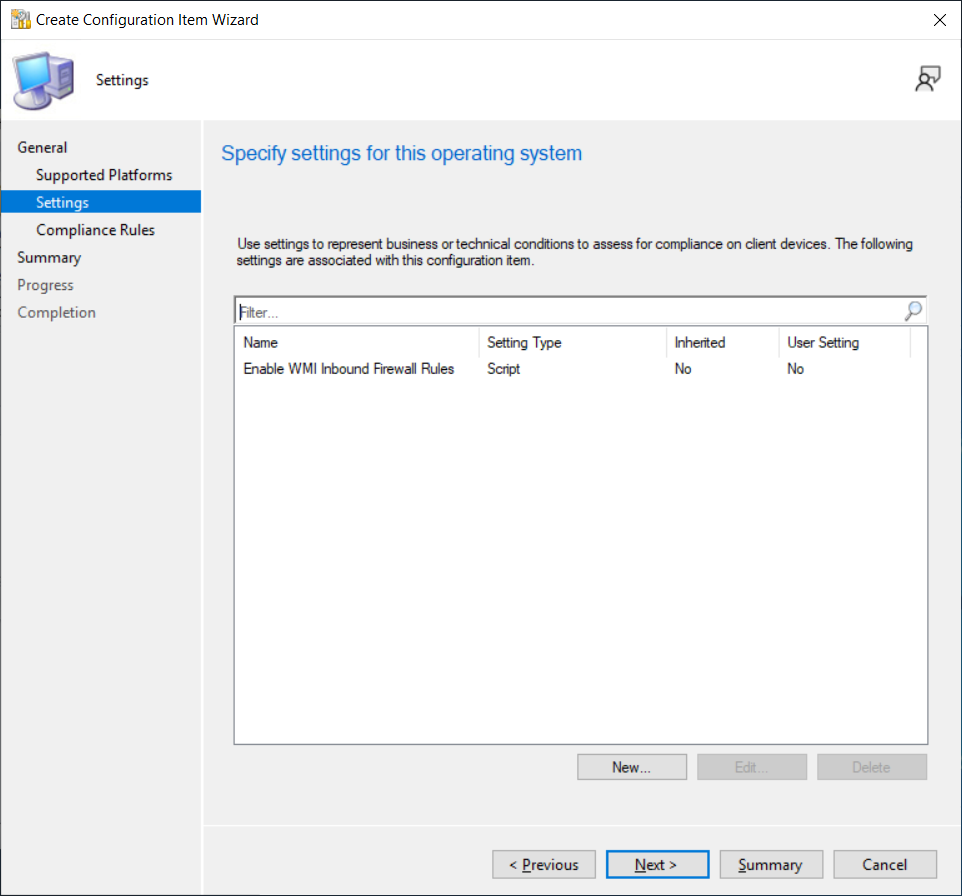
On the Settings page in the wizard, click the New button.
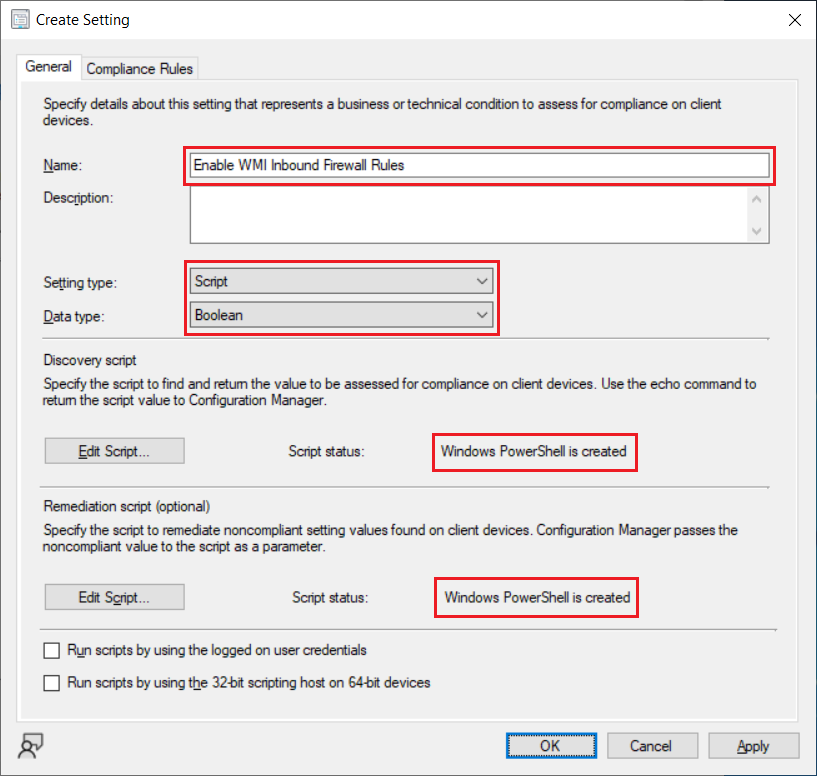
Specify a name for the settings rule. Select Script for the setting type and Boolean for the data type. This means that the detection script should be configuration to return a Boolean result (i.e. true or false).
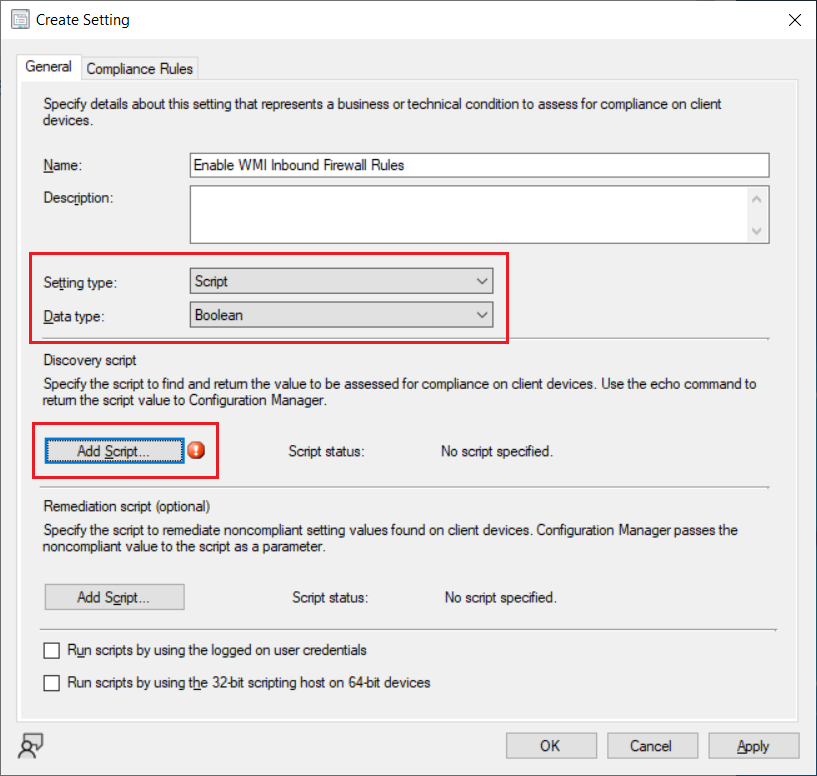
Setting the detection script
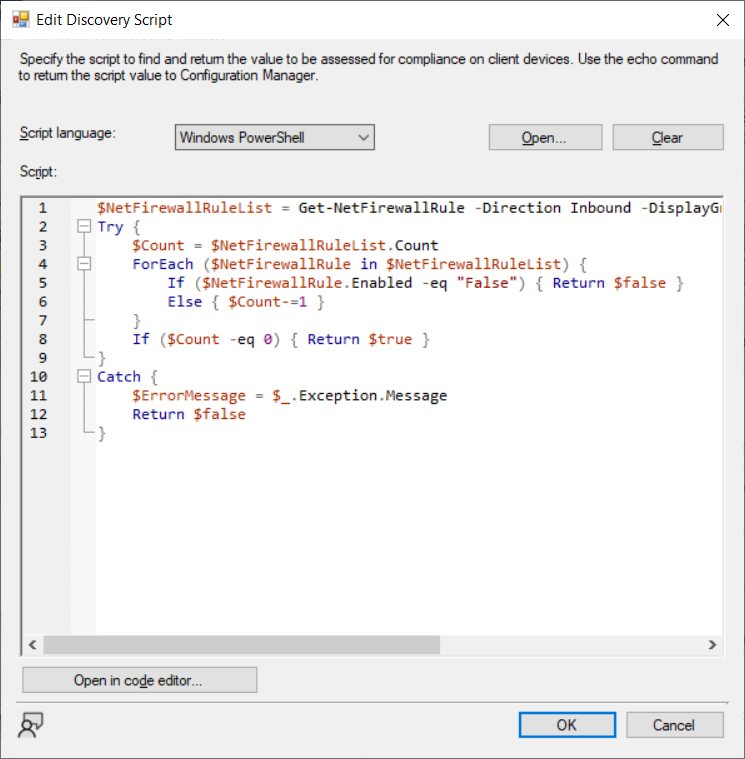
Click on the Add Script button to enter the following detection script.
Then click OK.
Setting the remediation script
Next, we will specify the remediation script.
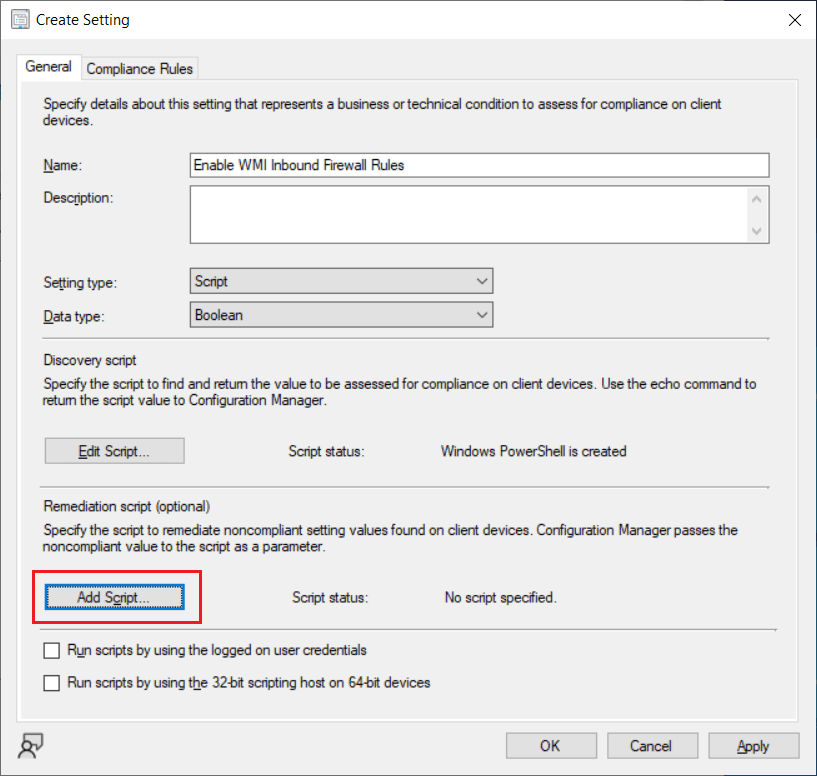
Click on the Add Script button to enter the following remediation script.
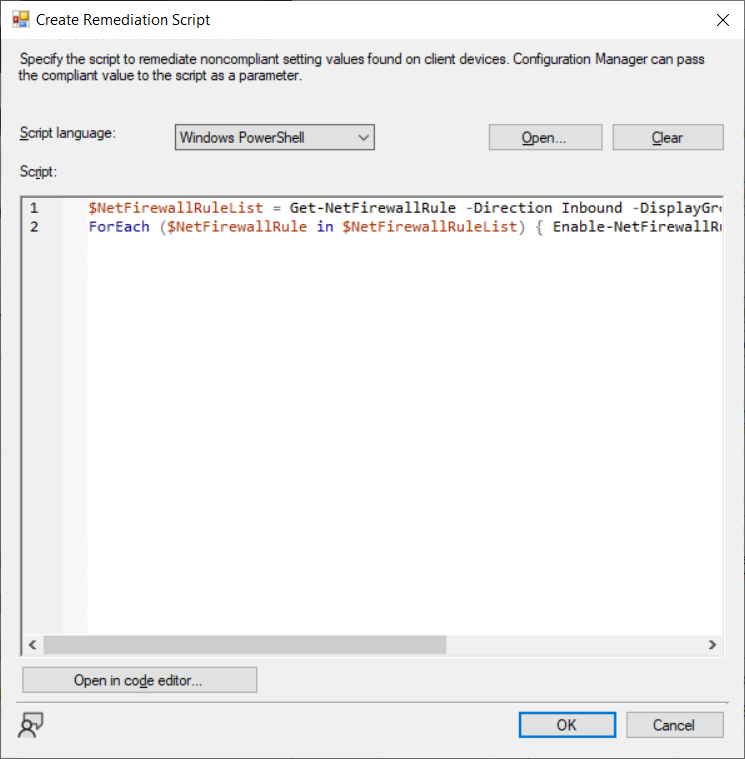
Then click OK.
Validate that all the required settings are defined then click OK.
Click Next.
On the Compliance Rules page in the wizard, click the New button.
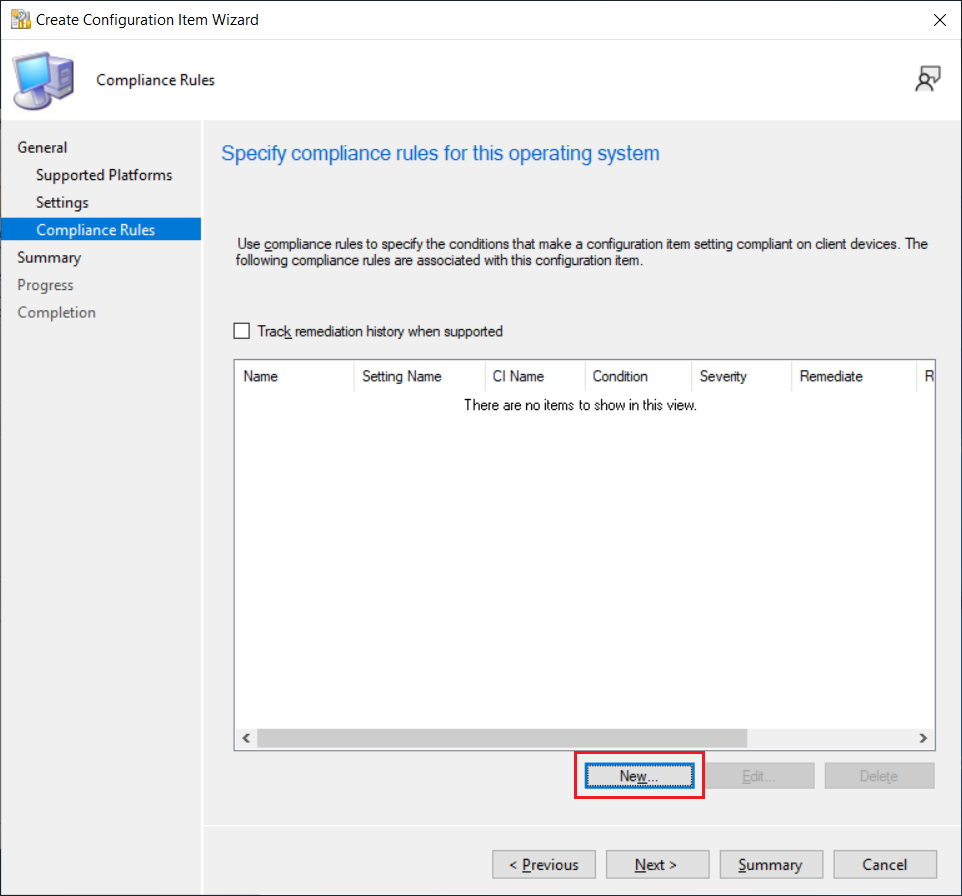
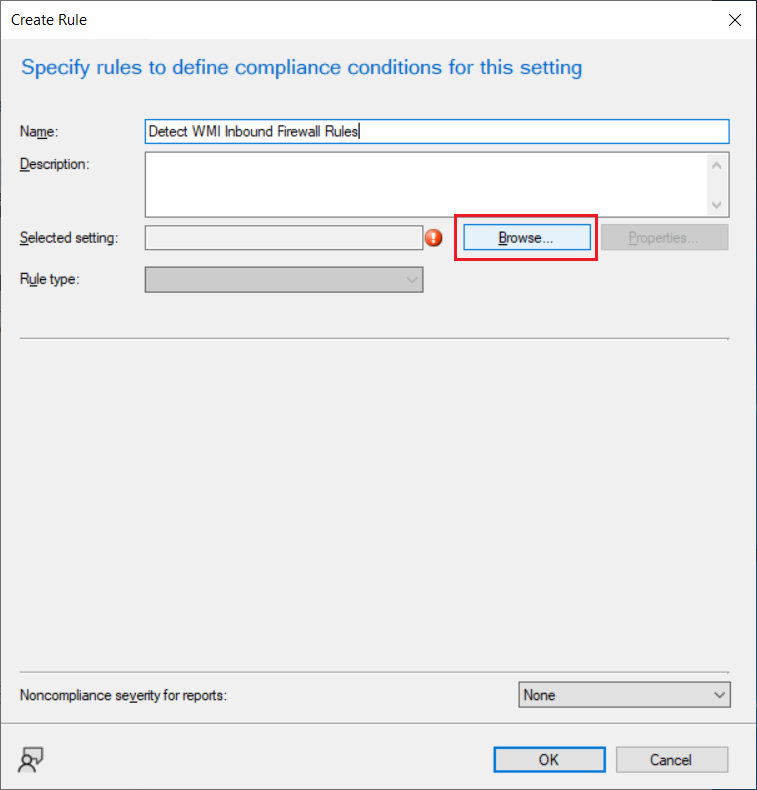
Specify a name for the compliance rule and then click the Browse button.
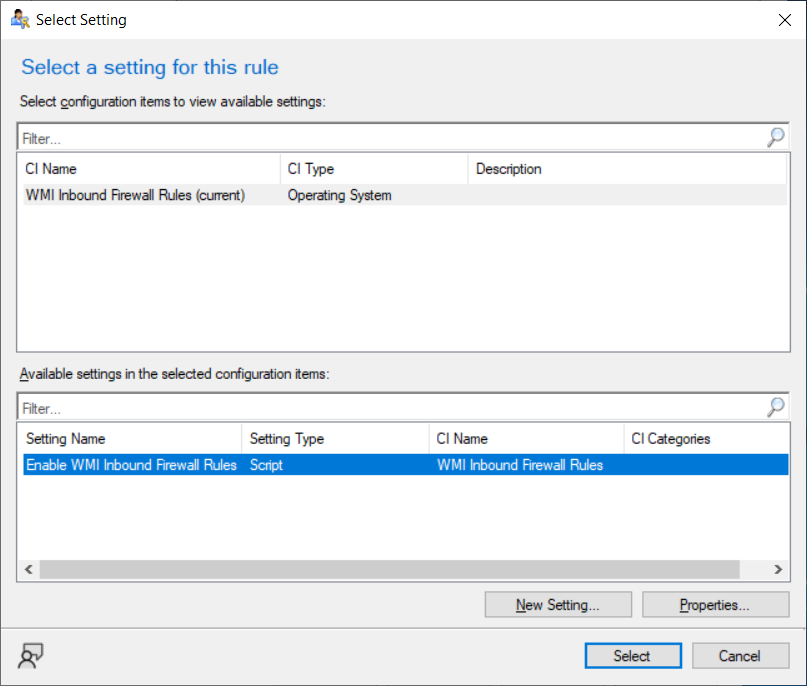
Select the setting created in the previous step.
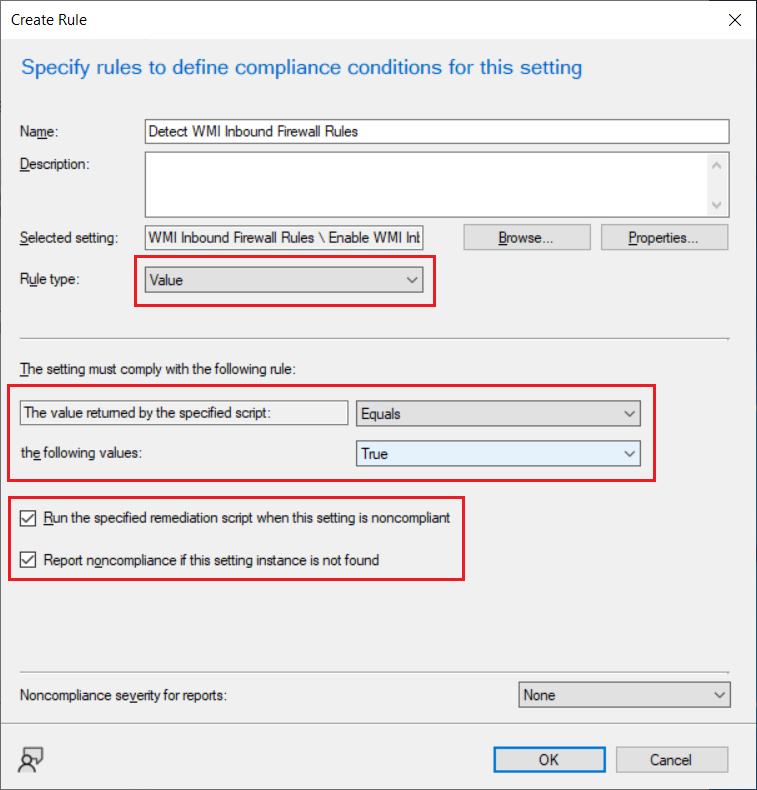
Next, set the rule type to “Value". Under the value returned by the specified script, set the rule to “Equals" and “True". Select the checkbox to run the remediation script when the setting is noncompliant. And select the checkbox to report noncompliance. This means that, unless the detection rule returns true, the remediation script will be executed on the client to make it compliant with the setting. This will also be reported in the Monitoring node.
Click Next.
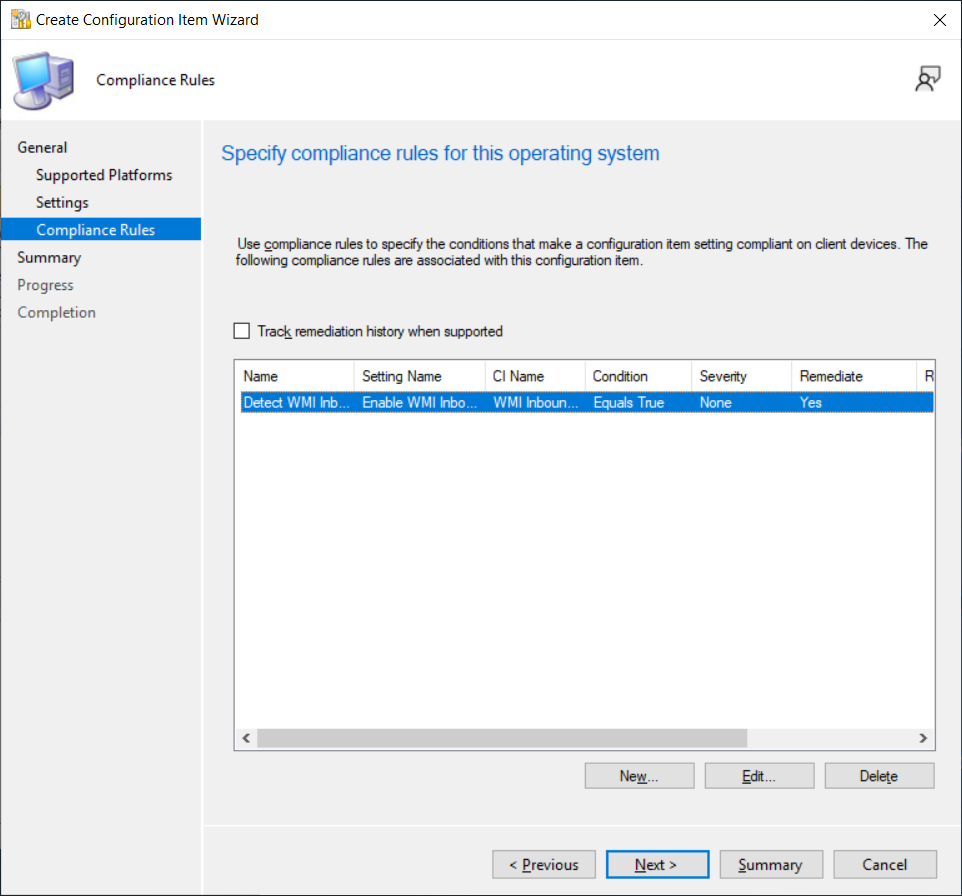
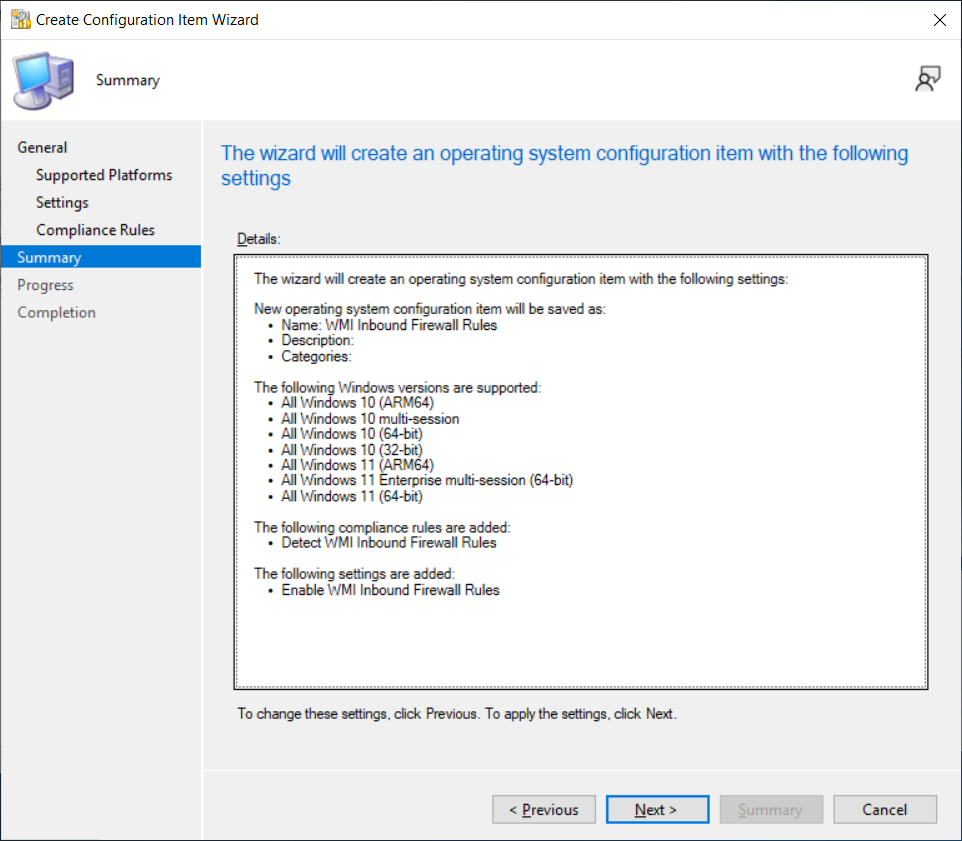
Verify the settings in the summary and then click Next.
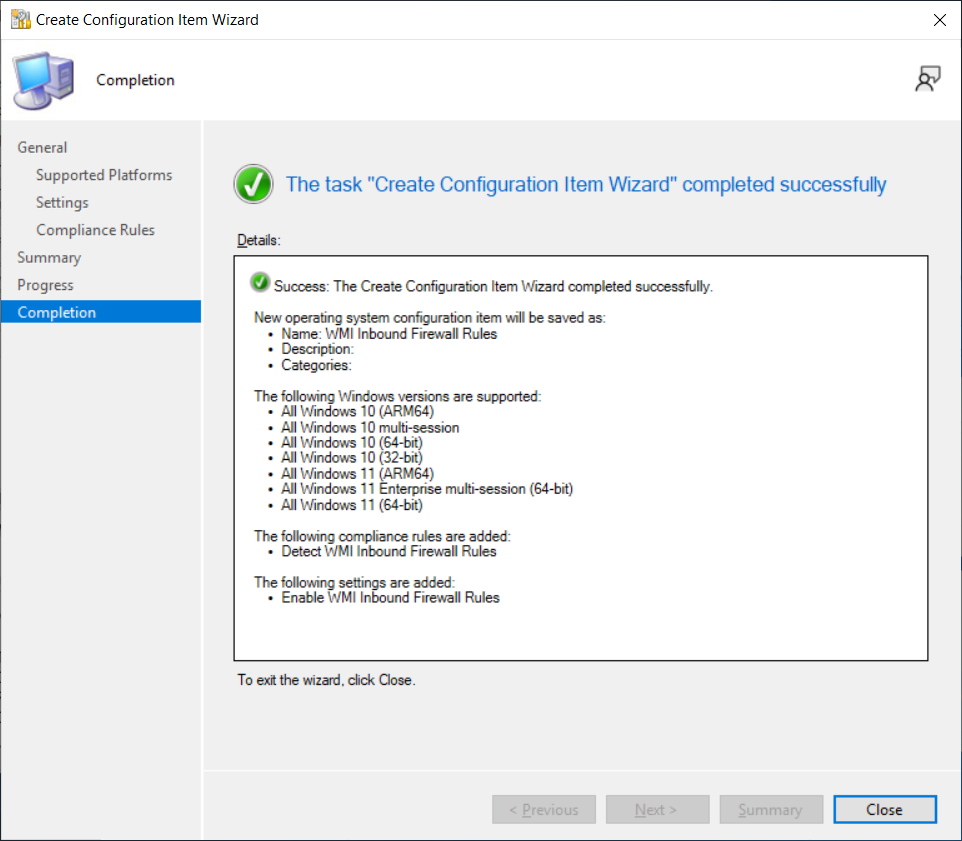
Click Close.
Creating the configuration baseline
Next, we will create the configuration baseline. In the SCCM Administrative console, navigate to Assets and ComplianceCompliance SettingsConfiguration Baselines. Click the Create Configuration Baseline button on the ribbon toolbar.
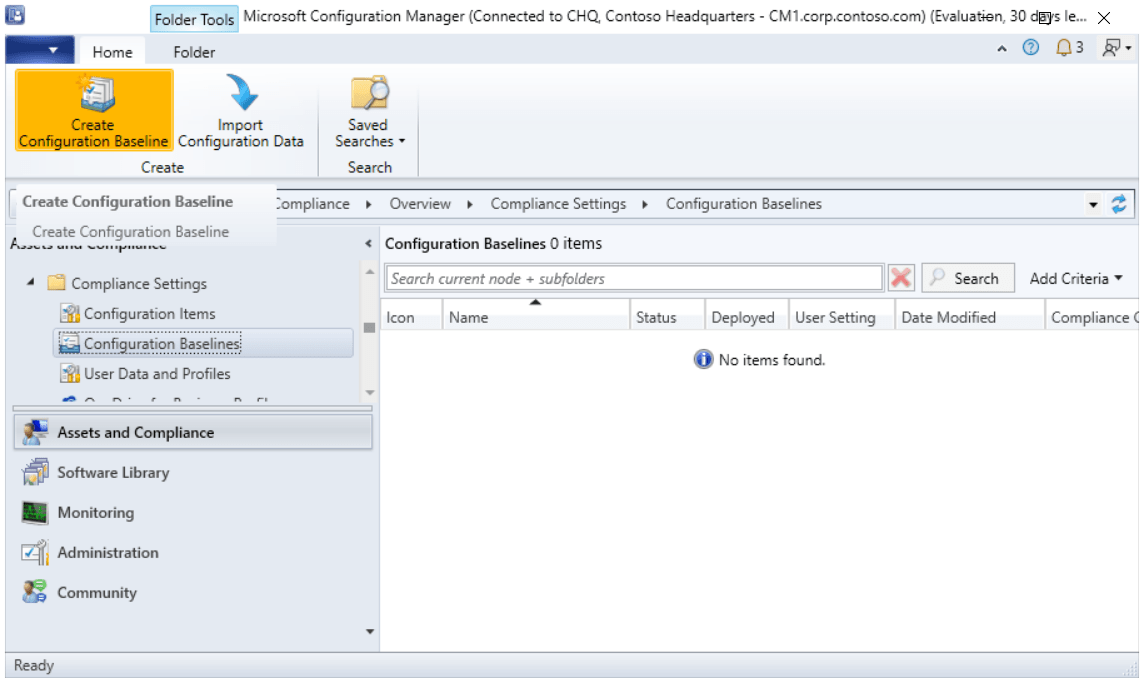
Specify a name for the configuration baseline. Click the Add button and select Configuration Items. Click OK.
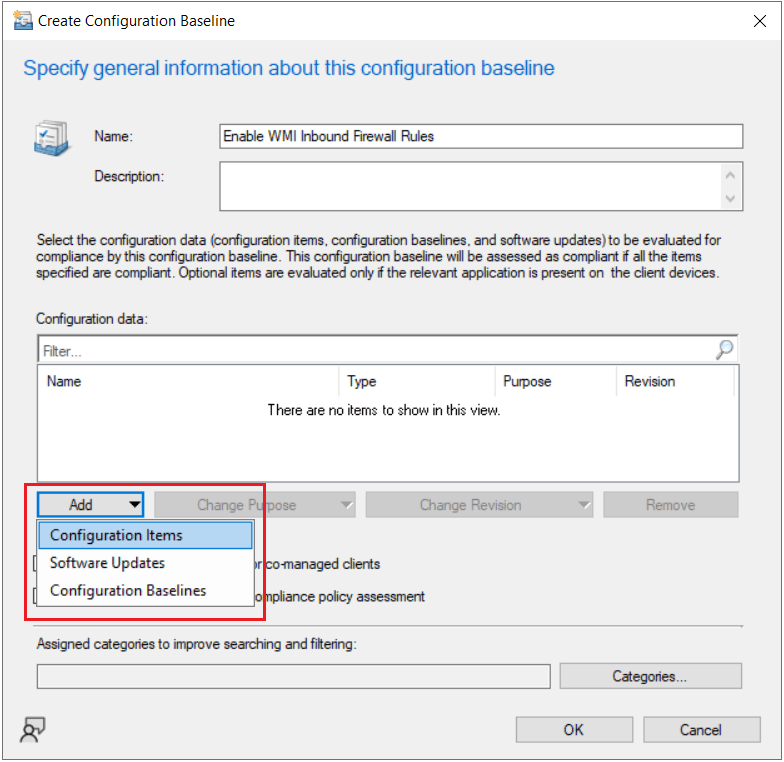
Select the configuration item that we had just created and then click the Add button.
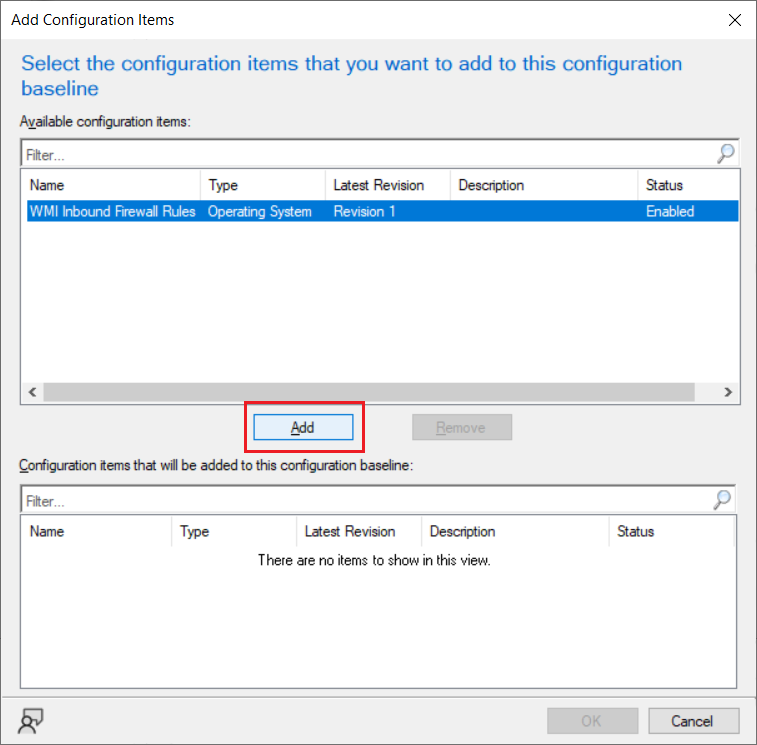
Click OK.
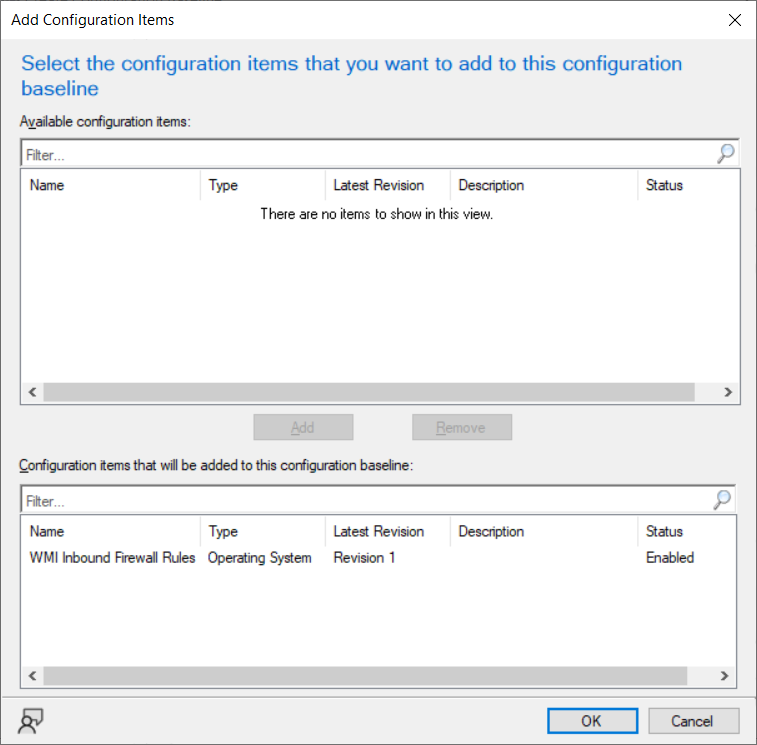
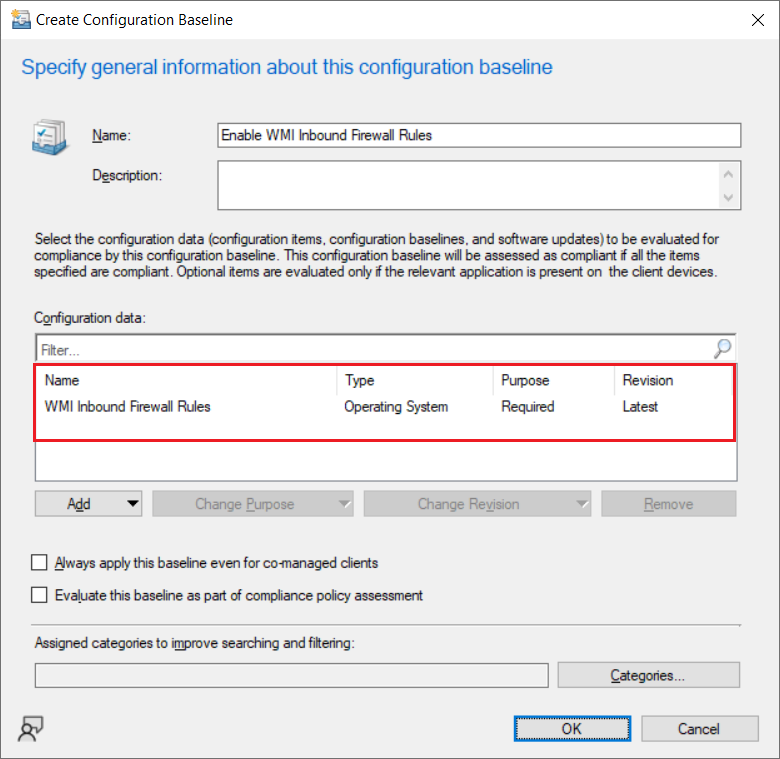
The configuration item should now appear under the configuration data list. Click OK.
Deploying the configuration baseline
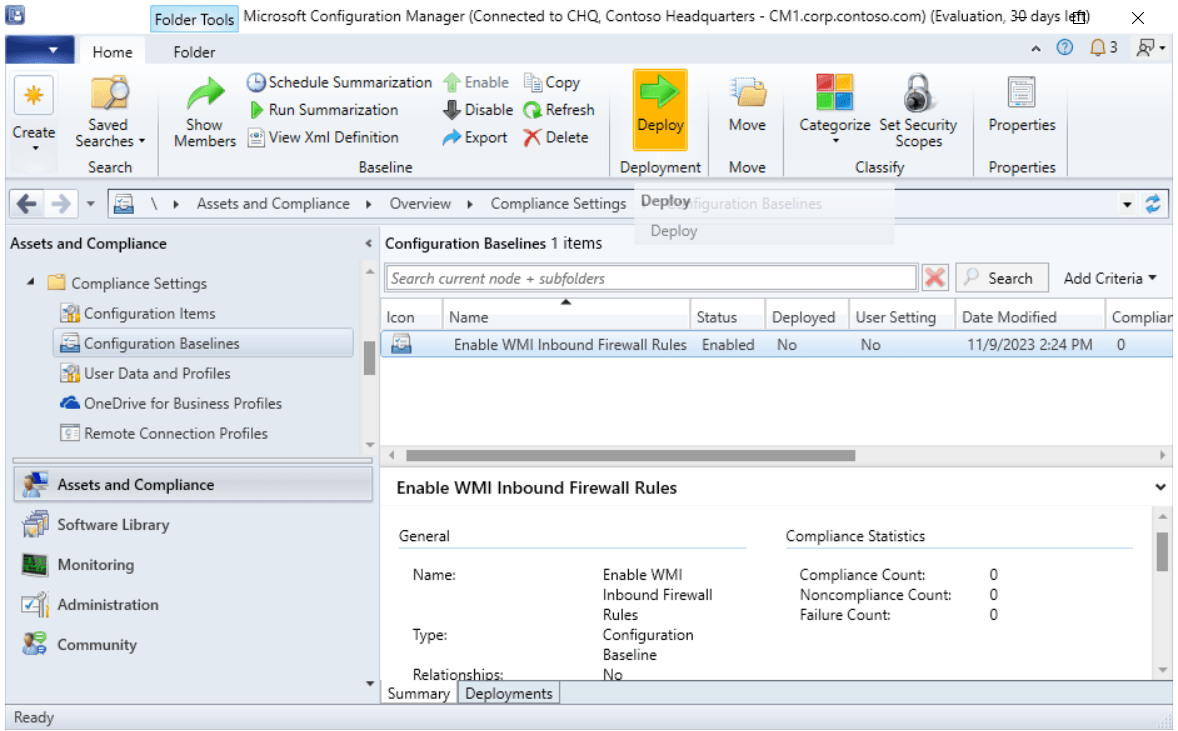
Finally, we will deploy the configuration baseline. In the SCCM Administrative console, navigate to Assets and Compliance\Compliance Settings\Configuration Baselines. Select the configuration baseline that we had just created and then click the Deploy button on the ribbon toolbar.
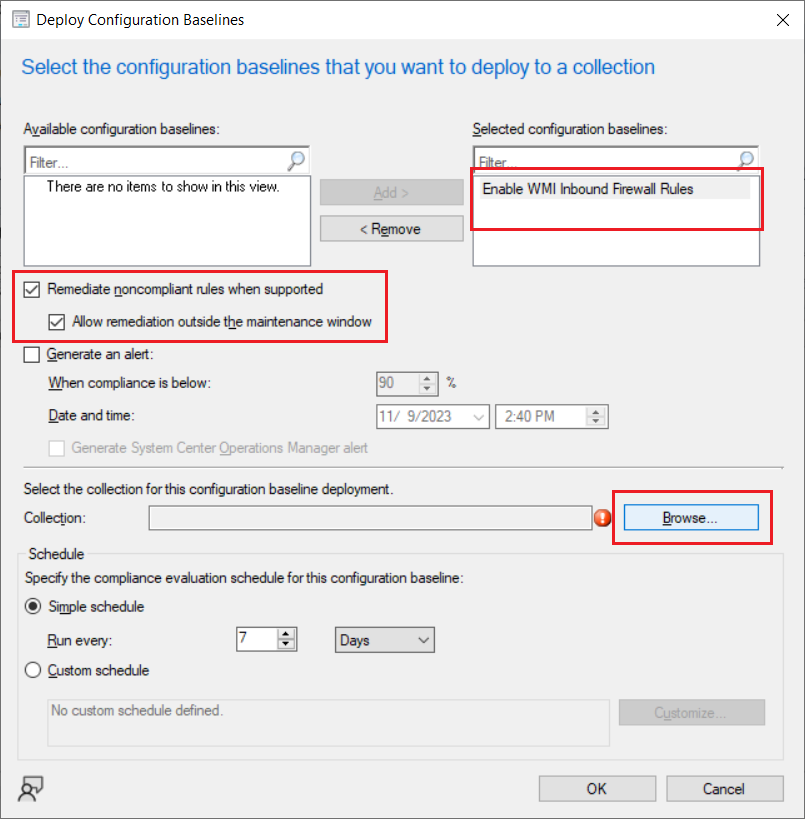
Verify that the correct configuration baseline has been selected. Then select the checkbox to remediate noncompliant rules. And then select whether the remediation can occur outside the maintenance window. Then click the Browse button.
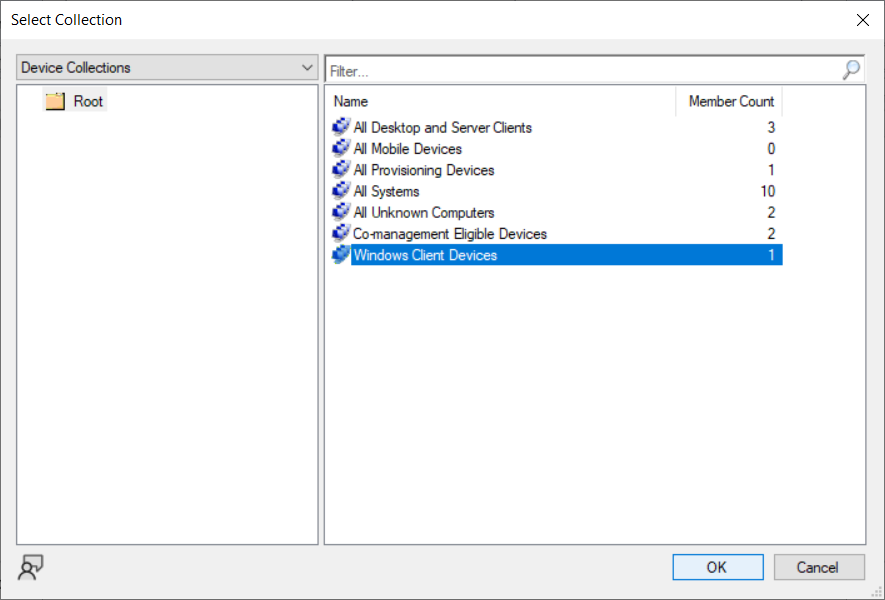
Select the relevant device collection and then click OK.
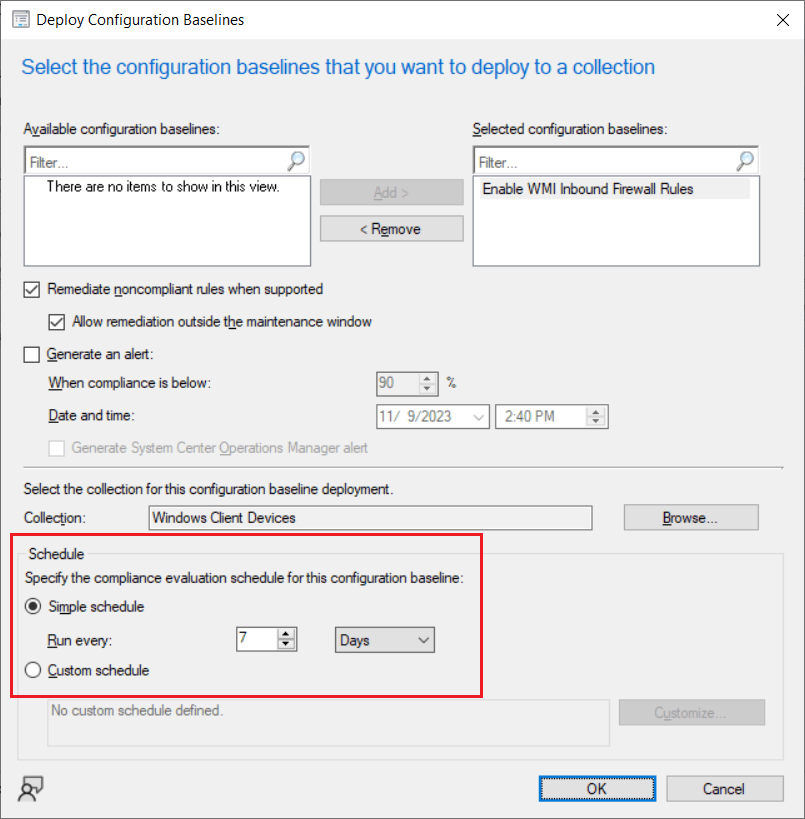
Lastly, specify the desired schedule. Then click OK.
Monitoring & testing the deployment
To track the progress of the deployment, in the SCCM Administrative console, navigate to Monitoring\Deployments. Select the deployment for the configuration baseline. You will need to allow the deployment some time to run and then report back, which can only occur after the specified scheduled time. At which point, you can click Run Summarization and then click Refresh.
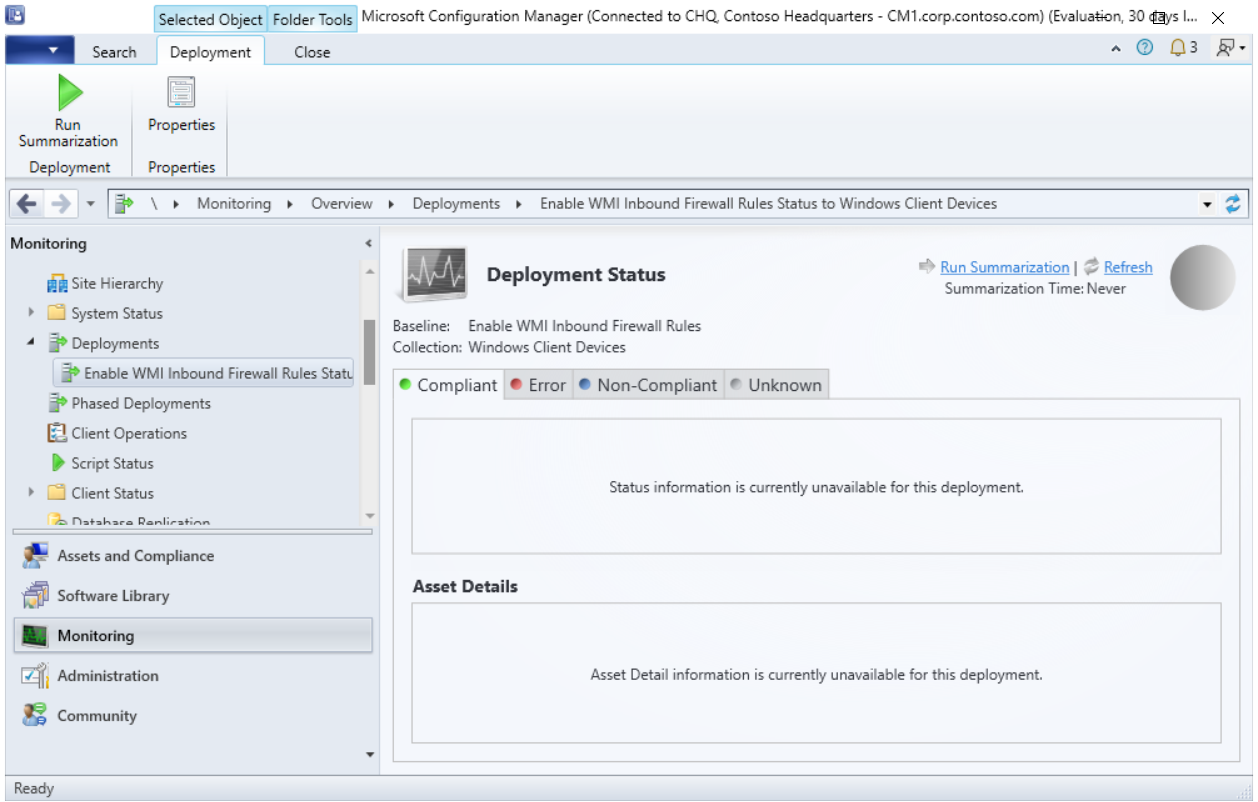
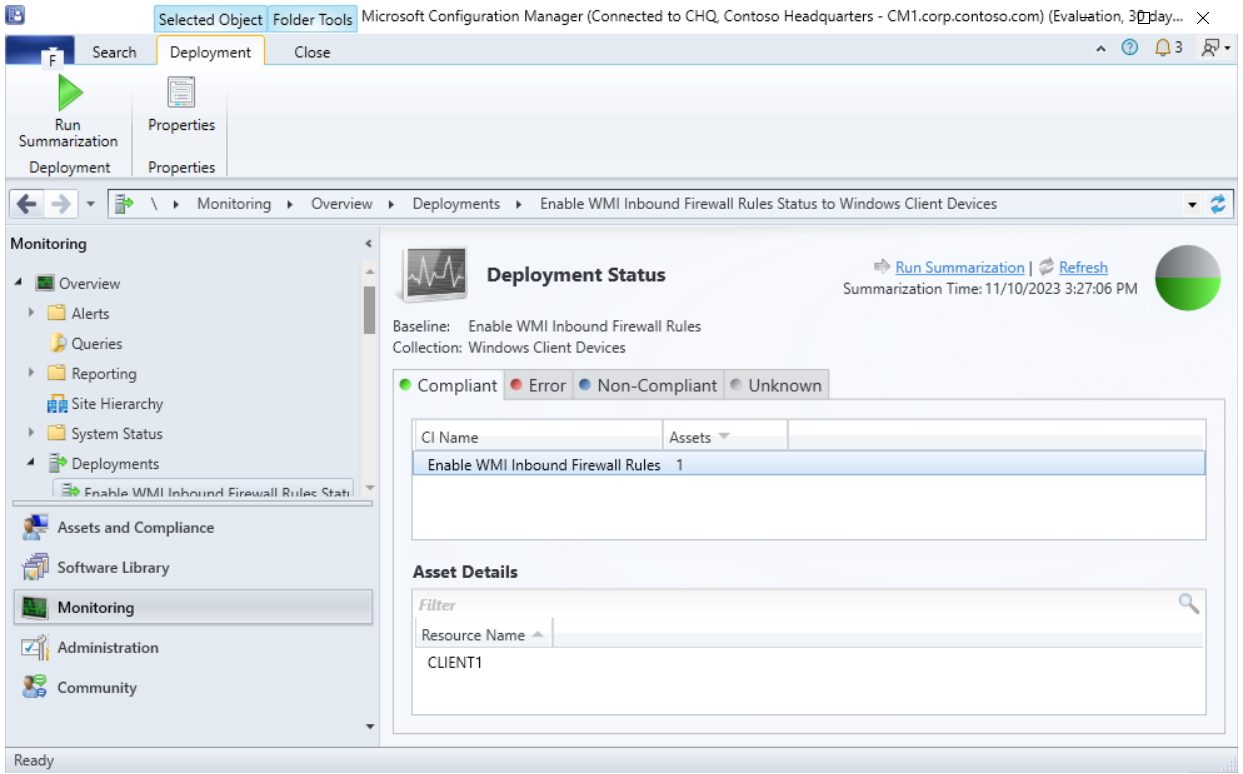
Once the configuration baseline has been executed on the relevant devices, you should see the compliance status that is returned.
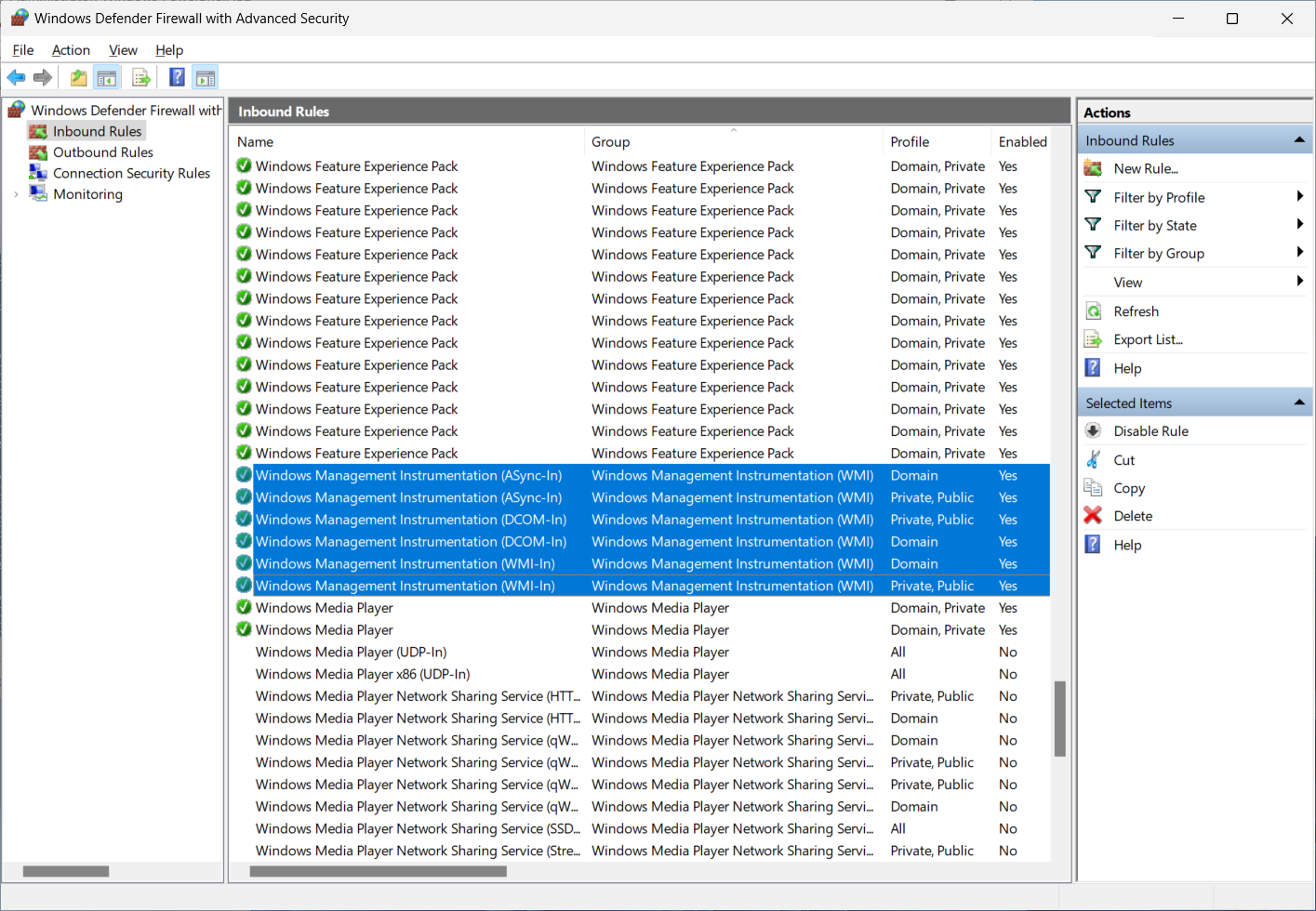
Finally, on the applicable clients, you can confirm in the Windows Defender Firewall with Advanced Security management console, that all the firewall rules within the group “Windows Management Instrumentation (WMI)" are enabled and have a green check icon next to them.
Want to enable the WMI firewall rules using Intune instead? Then have a look at thedeploying a remediation script using Intune post.
Or if you are looking to enable the WMI firewall rules using Group Policy, see theenable Windows firewall rules with Group Policy post.