Maintaining a healthySCCM (System Center Configuration Manager) client environment is crucial for seamless software deployments, updates, and overall system management. However, when SCCM clients encounter issues, it can lead to failed deployments, poor compliance, and a frustrating troubleshooting experience.
This post will explore some of the most common SCCM client issues and practical ways to fix them.
Common SCCM Client Issues and Their Impact
Before diving into troubleshooting techniques, let’s look at some typical SCCM client problems that can disrupt operations:
1. Client Installation Failures
Sometimes, SCCM clients fail to install correctly, preventing communication with the SCCM site server. This issue often stems from:
- Missing or incorrect client installation parameters
- Insufficient permissions
- Network connectivity problems
- Corrupt or incomplete installation
2. Client Communication Issues
Even if the SCCM client is installed, it might not properly communicate with the SCCM server. This can result in:
- Failed deployments
- Incomplete policy retrieval
- Inability to report compliance data
Common causes include firewall restrictions, certificate mismatches, and incorrect site assignments.
3. Client Health Degradation
Over time, SCCM clients can become unhealthy, causing erratic behavior. This often results from:
- Outdated SCCM client versions
- Incorrect registry settings or WMI corruption
- Third-party software conflicts
4. No System Restart for a Long Time
SCCM clients rely on periodic reboots to apply updates, refresh policies, and maintain stability. If a device hasn't been restarted for weeks or months, expect issues with software deployments and system performance.
5. SCCM Core Services Not Running
Several critical SCCM services must be running for the client to function correctly. If key services likeSMS Agent Host (CCMExec) orBITS stop unexpectedly, deployments and compliance checks will fail.
6. Boundary Group Issues
If a client is not assigned to the correctBoundary Group, it may struggle to retrieve policies, download content, or communicate with the right distribution point. Always check boundary configurations to ensure clients are properly assigned.
7. Stale or Missing Discovery Data Records (DDRs)
If theLast DDR (Discovery Data Record) timestamp is outdated, the SCCM server may not have accurate information about the client. This can cause deployment issues and device management inconsistencies.
8. Client Approval Issues
In some environments, SCCM clients require approval before they can fully function. If a client is stuck in an unapproved state, it may be unable to receive policies or communicate with the management point.
9. Policy or Deployment Backlogs
Clients that struggle to download and process policies may take an unusually long time to receive software deployments, making SCCM seem unresponsive. CheckingPolicyAgent.log andCcmMessaging.log can help diagnose these issues.
10. Corrupt or Misconfigured WMI
TheWindows Management Instrumentation (WMI) service plays a key role in SCCM client functionality. If WMI is corrupt, the SCCM client may fail to retrieve policies, report inventory, or install applications.
Simplifying Troubleshooting with MPA Tools:
To streamline the troubleshooting process and simplify client health management, you can leverageMPA Tools. MPA Tools provides a user-friendly interface that eliminates the need for complex scripts and manual interventions. Let's explore how MPA Tools can effortlessly help troubleshoot common SCCM client issues.
Resolving Common SCCM Client Issues with MPA Tools:
Here are some troubleshooting techniques utilizing MPA Tools to address common SCCM client issues:
Step 1: Assess Client Status:
Launch MPA Tools and connect it to your SCCM site.
Navigate to the “SCCM Client Properties" section and check the status of clients.
MPA Tools provides a clear overview of client health, allowing you to identify any failures.
Let's start with the basics: as a picture above, first, let us see if the client is reporting back and healthy; also, what is the client version? Does the client have the proper boundary assigned to it?
These questions are the first that come to the administrator's mind when he/she troubleshoots an issue. What is really good is to have the ability to see all that in one place.
What's also unique about MPA Tools that should be mentioned here is that MPA Tools will highlight potential issues based on the Site configurations. For example, it will highlight if the clients in not approved or not receiving policy updates, or are not part of a boundary group.
Step 2: Verify Client Activity and Client status:
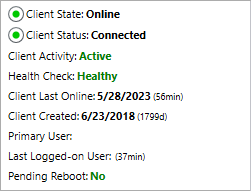
“SCCM client properties" section and examine the client communication status.
“Client State" shows if the client communicates with the SCCM site server.
“Client Status" shows if you from your device can connect to the client's wmi repository. If the client wmi repository is broken or corrupted, the MPA Tools will indicate that with the error code that will help to solve the problem.
This way, you can quickly check for any communication errors or failures between clients and the SCCM server.
MPA Tools simplifies the process by providing a consolidated view of the client's communication status.
Step 3: Address Client Health Degradation:
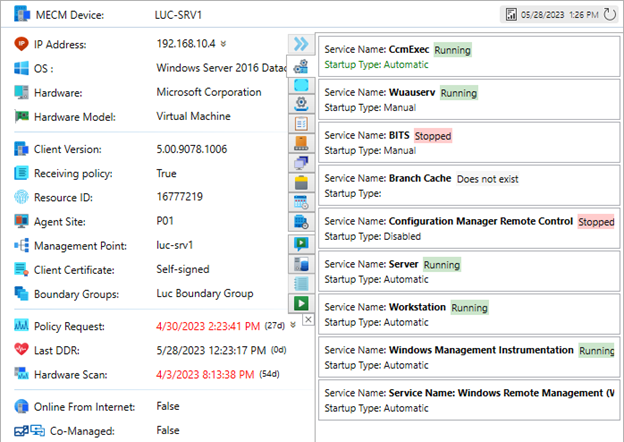
If you are new to SCCM or already an experienced guru in everything SCCM, you would appreciate a complete view of the critical components that make up good client health.
As the Core SCCM services that the client depends on OR client cache or maybe clients settings?
Use MPA Tools to diagnose client health issues, such as outdated client versions or misconfigurations.
The tool offers automated repair options for common client health problems, simplifying the resolution process.
Step 4: Perform Remediation Actions:
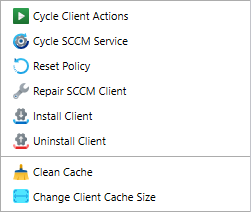
MPA Tools allows you to initiate remediation actions to resolve client health issues.
These actions may include repairing the SCCM client installation, resetting client configurations, or restarting related services.
Simple and straight-forward list of actions to help remediate any client issue.
Step 5: Monitor Client Health:
After applying remediation actions, monitor the client's health status using MPA Tools.
The tool provides real-time visibility into client health and can alert you to any persistent issues requiring further attention.
MPA Tools will pool the status of the SCCM client properties every minute by default as long as the Client properties page is open, or you can quickly refresh the data yourself.
Step 6: Client health on multiple computers:
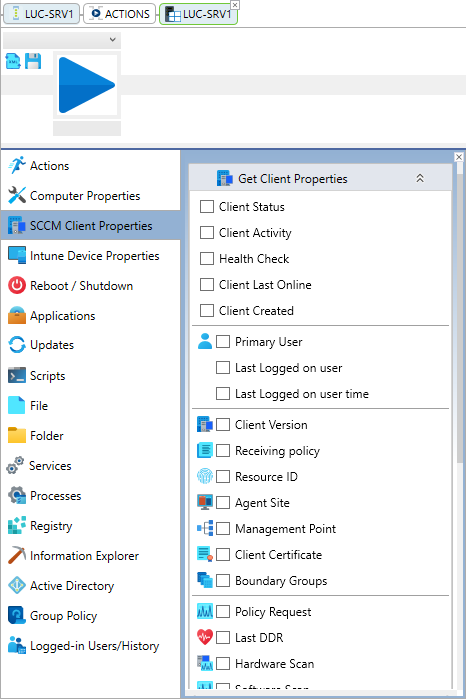
Is it possible to do everything we revied in this blog on Multiple computers?
With MPA Tools, you can troubleshoot, perform maintenance and run tasks on multiple SCCM clients simultaneously!
Simply Display OR Ping multiple computers from Collection, OU, Or personal folder. Click on the ACTIONS tab and select everything you want to check from the SCCM Client properties blade. Remember that you can combine actions with Intune and other blades.
The easiest way to support your MECM environment!
Unlocking the Benefits:
By utilizing MPA Tools for troubleshooting SCCM client health, you unlock numerous benefits:
Streamlined Troubleshooting: MPA Tools simplifies the troubleshooting process, allowing you to quickly identify and resolve common SCCM client issues without the need for complex scripting or manual interventions.
Improved Client Health: By addressing client health problems promptly, you ensure that clients operate at their optimal capacity, enhancing the efficiency of software deployments and updates.
Time and Effort Savings: MPA Tools automates many troubleshooting tasks, saving valuable time and effort for your IT team.
Conclusion:
Troubleshooting SCCM client health is essential for maintaining a robust and efficient environment. With MPA Tools, you can simplify the troubleshooting process and resolve common client issues effortlessly. By utilizing the tool's user-friendly interface and automated remediation actions, you can enhance client health, optimize software deployments, and improve overall.
A quick reference to the Microsoft client health guide(here)