In a previous post, we talked about5 Reasons why your corporate computers need regular reboots. However, since it's an important topic, we will discuss it again, but this time, we will look at how you can useMPA Tools to help manage regular computer reboots. As mentioned, frequent computer restarts are one of the easiest yet most neglected aspects of computer maintenance. If you have ever been advised to “turn it off and on again” when dealing with a computer issue, it's because most issues can be resolved by simply restarting the computer.
Pending Reboots
Windows computers can often have pending restarts, which can occur when a crucial file or system change requires the system to be restarted for the changes to be completed. This usually happens because the services and/or system processes have to be stopped in order for the changes to take place. These system changes will remain pending in the background until the computer is restarted, and until then, there may be an impact on system performance and functionality. Also, if a restart is pending for system updates/patches to be applied, then this could leave the computer exposed to vulnerabilities until the computer is restarted.
High Uptime / Windows Check Uptime
Uptime refers to how long a system has been up and running since its last startup or restart. The longer a computer has been running, the more susceptible it can be to performance issues or unwanted behavior. Beyond pending restarts, Windows computers require frequent restarts also to address the following potential problems:
- Address memory leakage
- Address zombie / orphaned process threads
- Flush unhandled code errors
- Flush RAM, running process, as well as file / folder locks and temporary folders
- Restart services that may have crashed with no automatic restart
How this affects the SCCM client
Some of the above issues can affect the SCCM client both directly and indirectly through system processes in Windows. We have observed, through active monitoring of SCCM client health, that the client requires a system restart at a minimum of every 30 days before it starts to experience difficulties with processing software deployments. Most often this can occur with the deployment of software updates, which is problematic since this can leave computers exposed to security vulnerabilities.
How to quickly address high uptime and pending reboots with MPA Tools
In the examples below, we walk through how to restart computers in the following scenarios:
- Single computer
- Multiple computers
- Repeatable action sequence for either single or multiple computers
Restart a single computer with MPA Tools
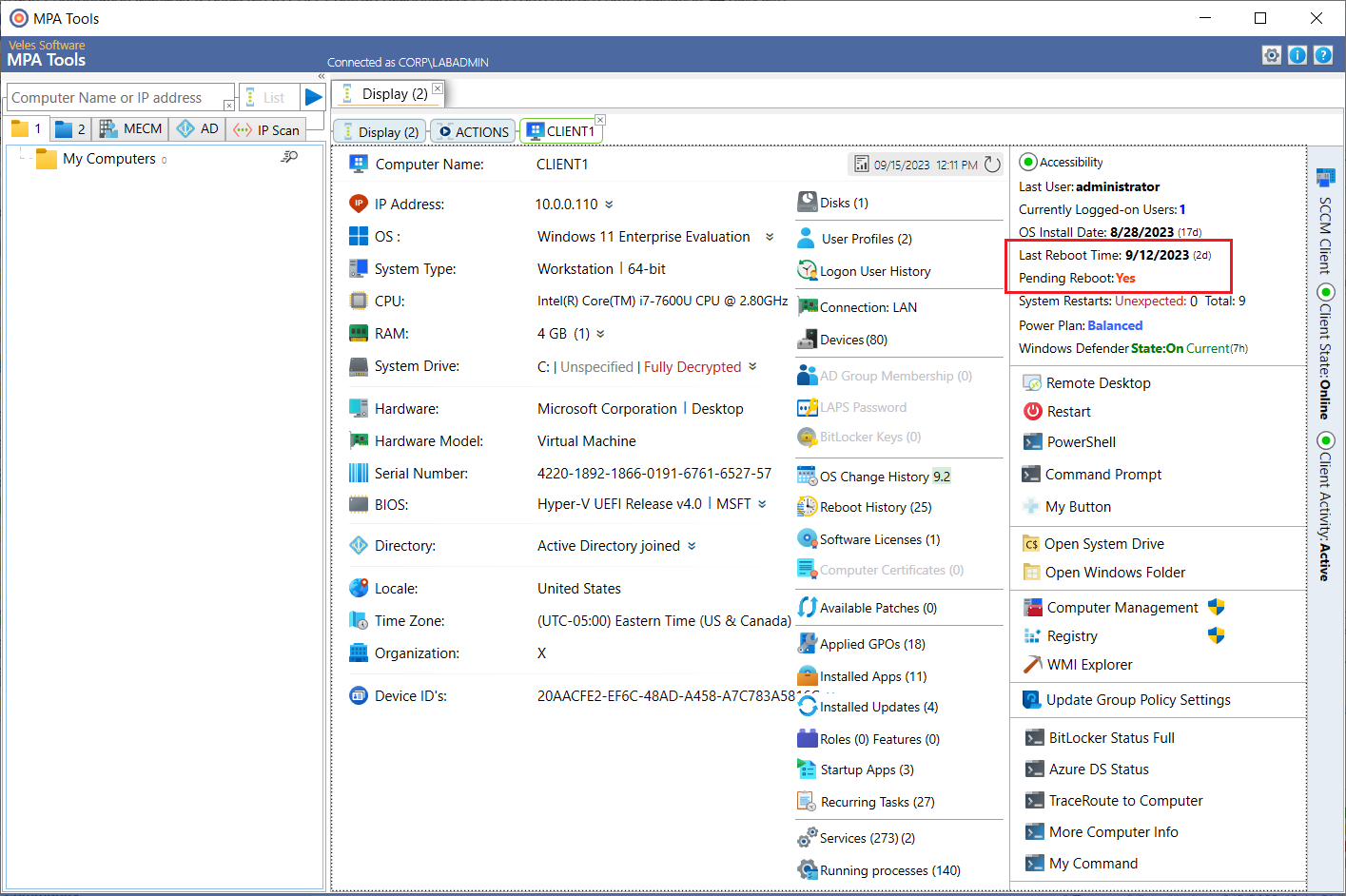
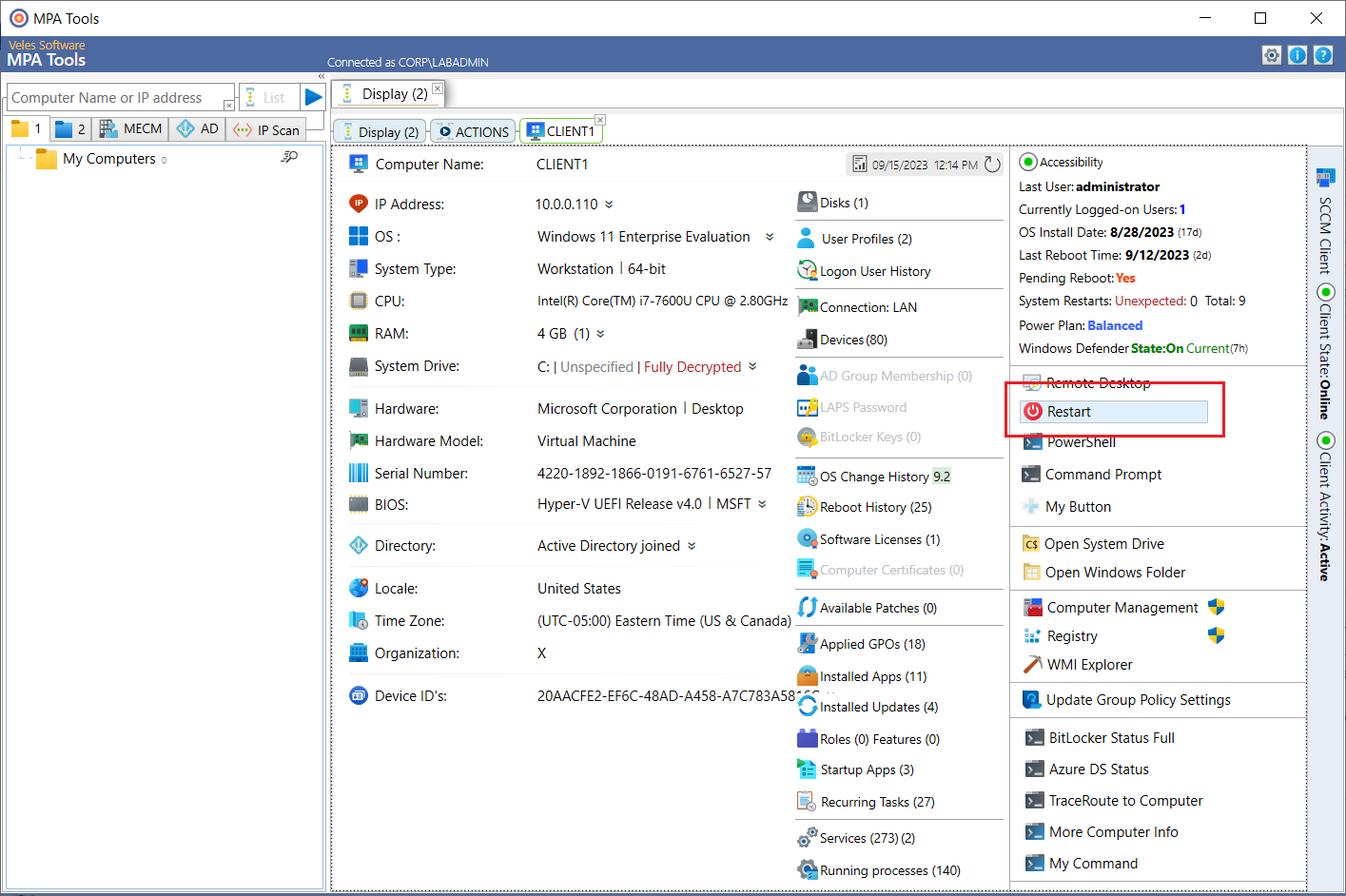
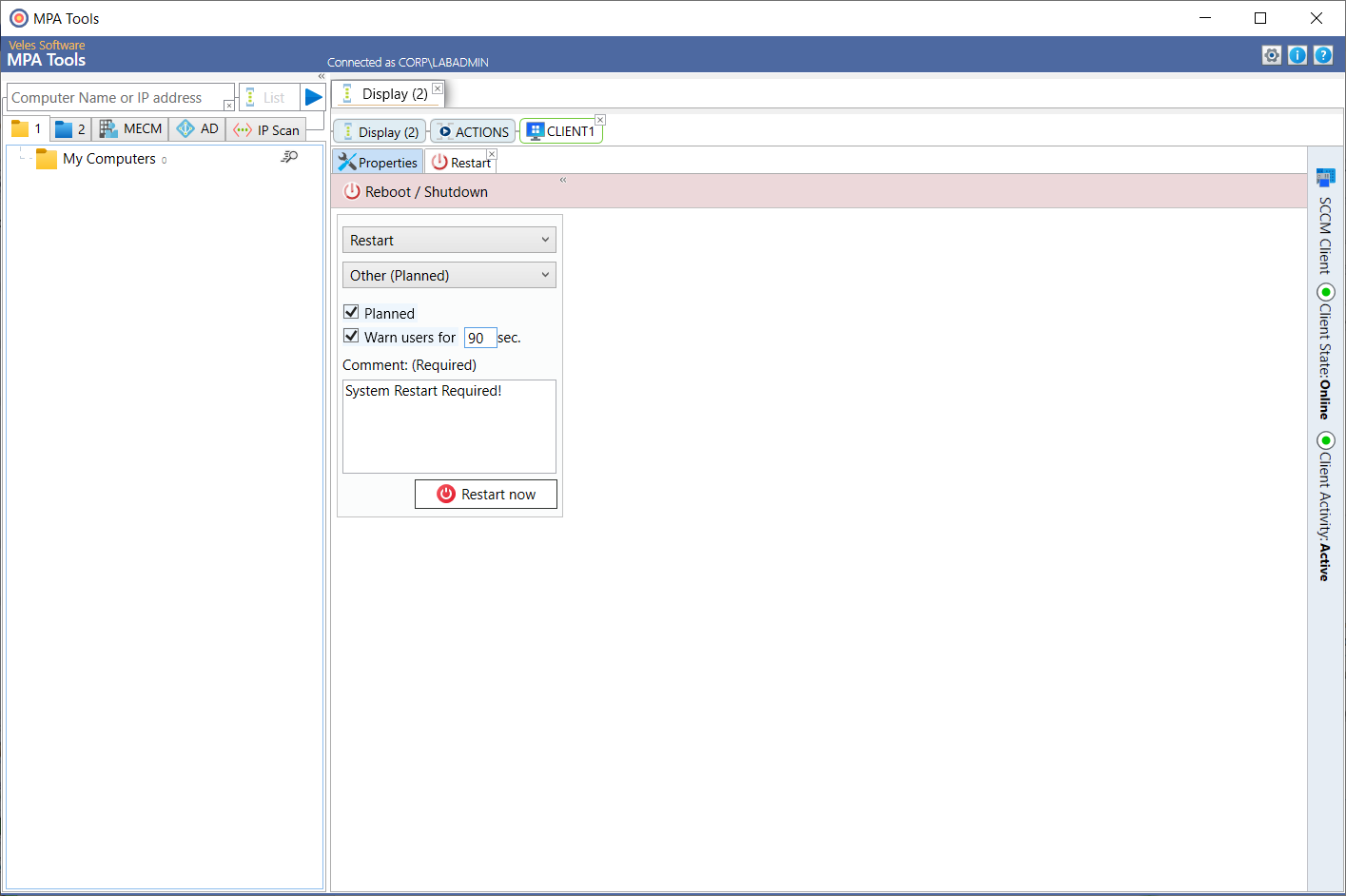
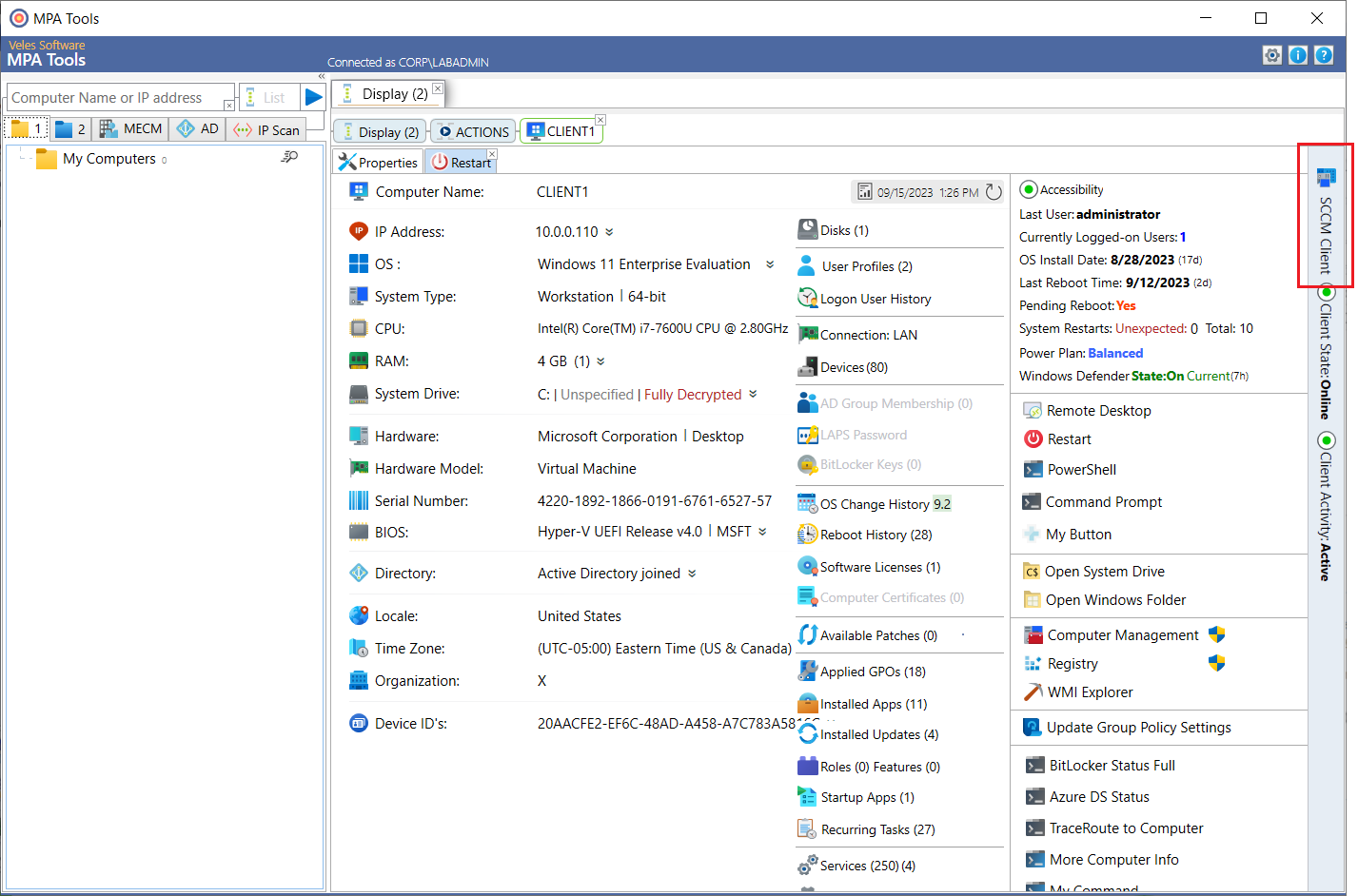
In MPA Tools, select a single client and then check if the last reboot time is greater than 30 days or if the pending reboot status says Yes (as shown below). To restart the computer, click the Restart button. This will present the Restart dialog. Enter the amount of time to warn the end-user before restarting the device, for example enter 90 seconds. Enter the comment, this is the message that will be displayed to the end-user. Then click the Restart now button.
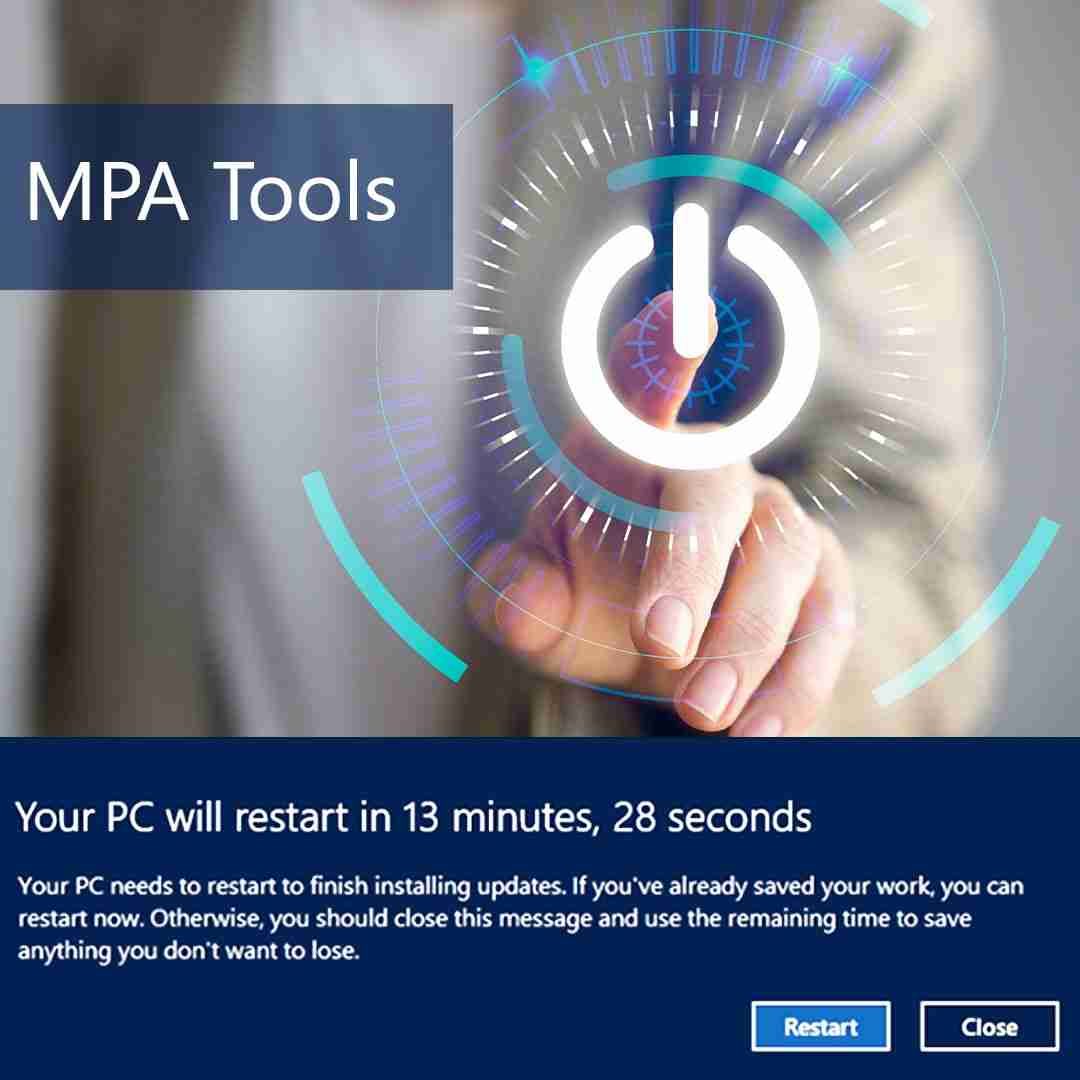
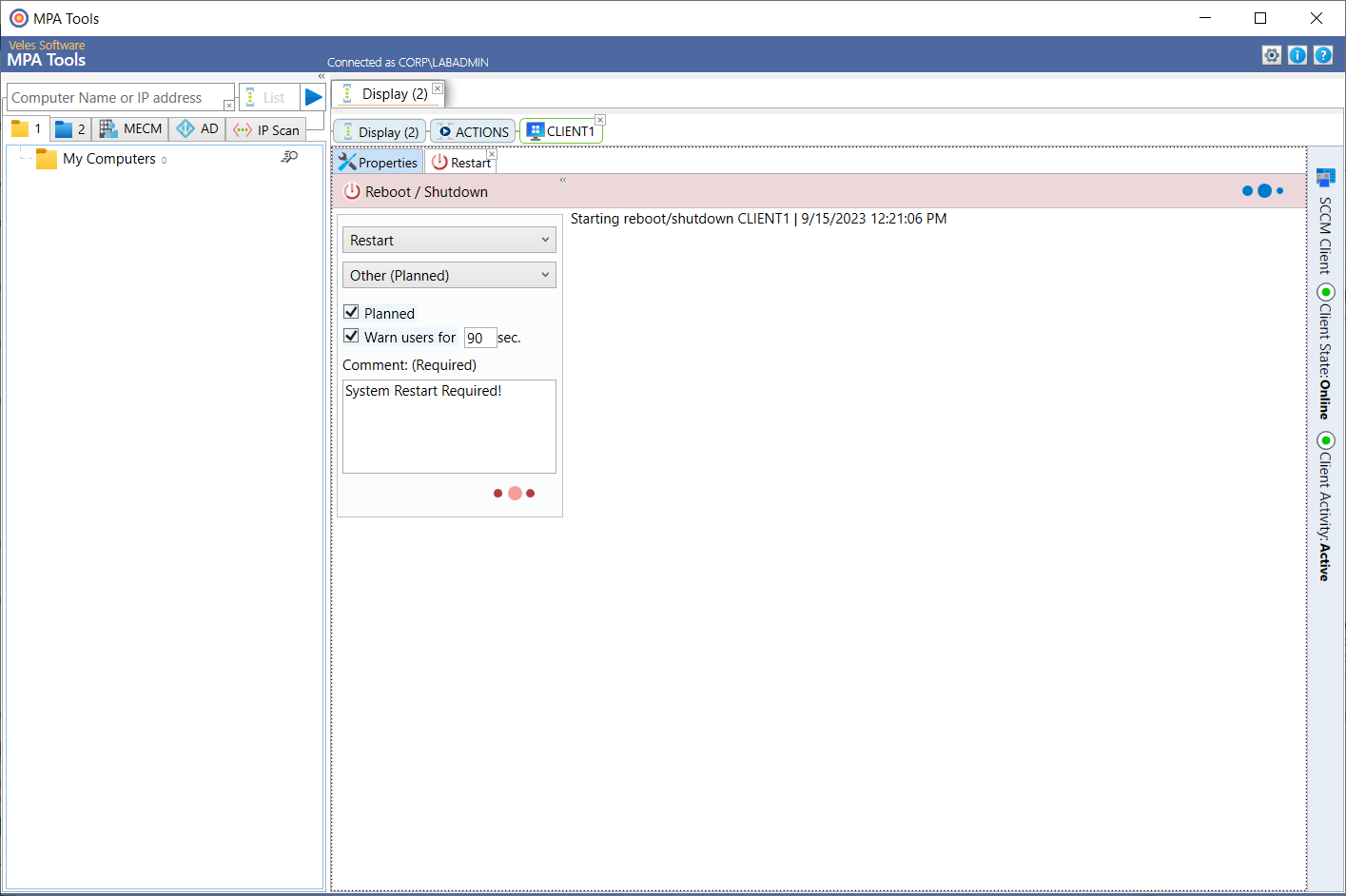
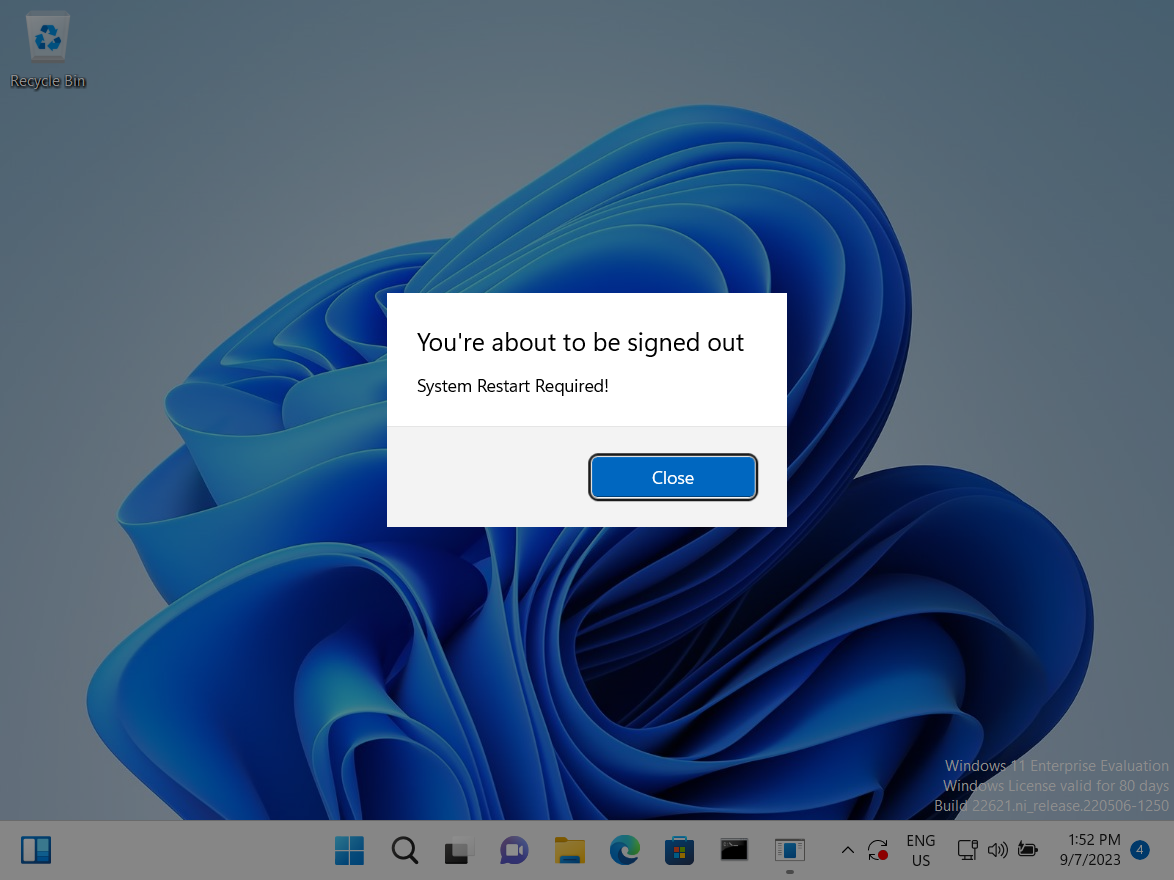
Note: This action will use the built-in Windows shutdown.exe command to perform the restart. The following notice is displayed showing the status of the restart. The end-user will see the following restart notice. The computer will then automatically restart once the timeout has been reached. If you would prefer to use the SCCM restart notification, then instead click the SCCM client button from the vertical toolbar on the right and then click the Restart Notification button. After which, click Yes to the confirmation prompt (as shown below).
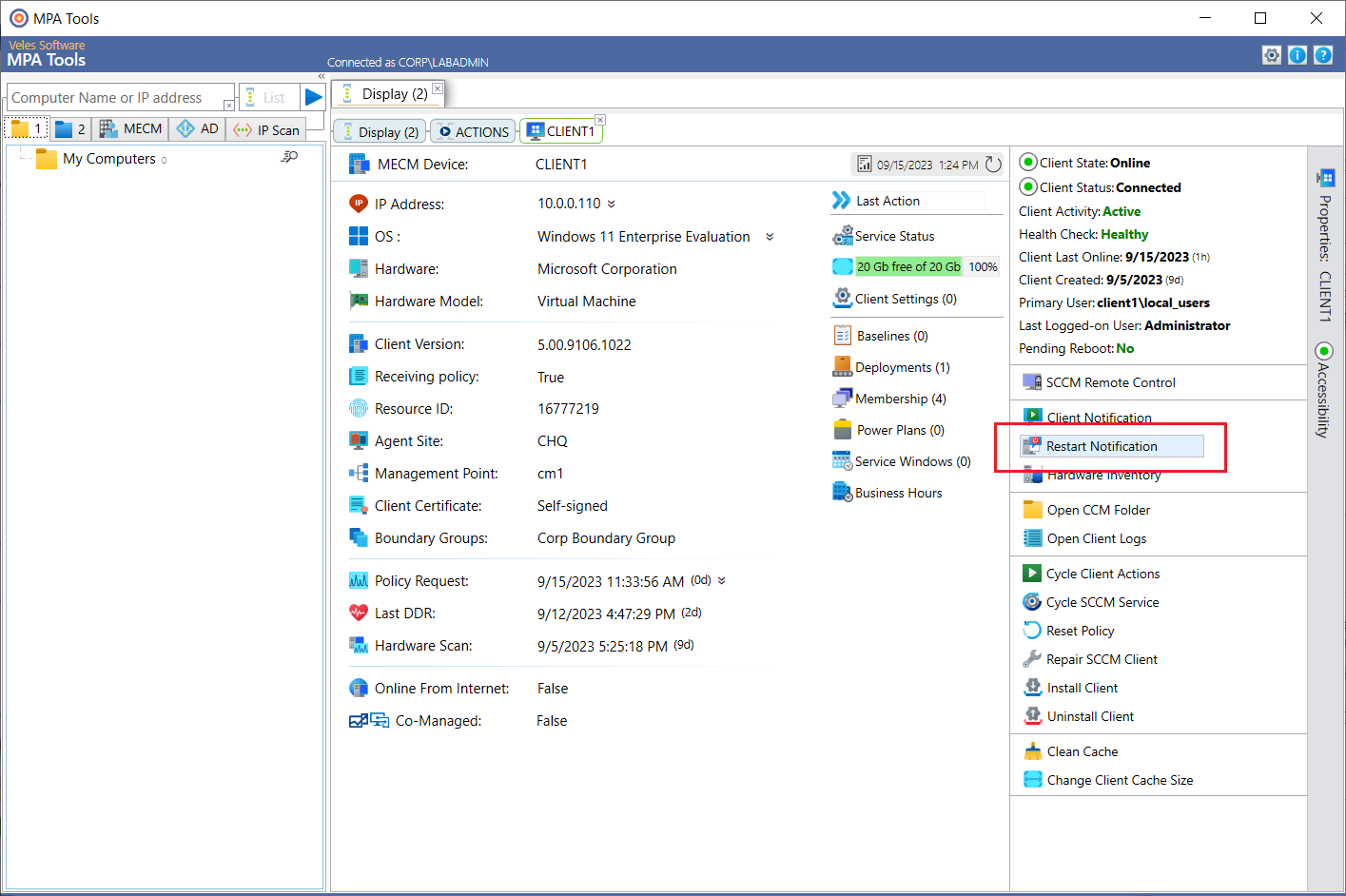
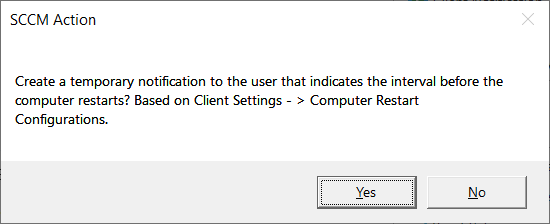
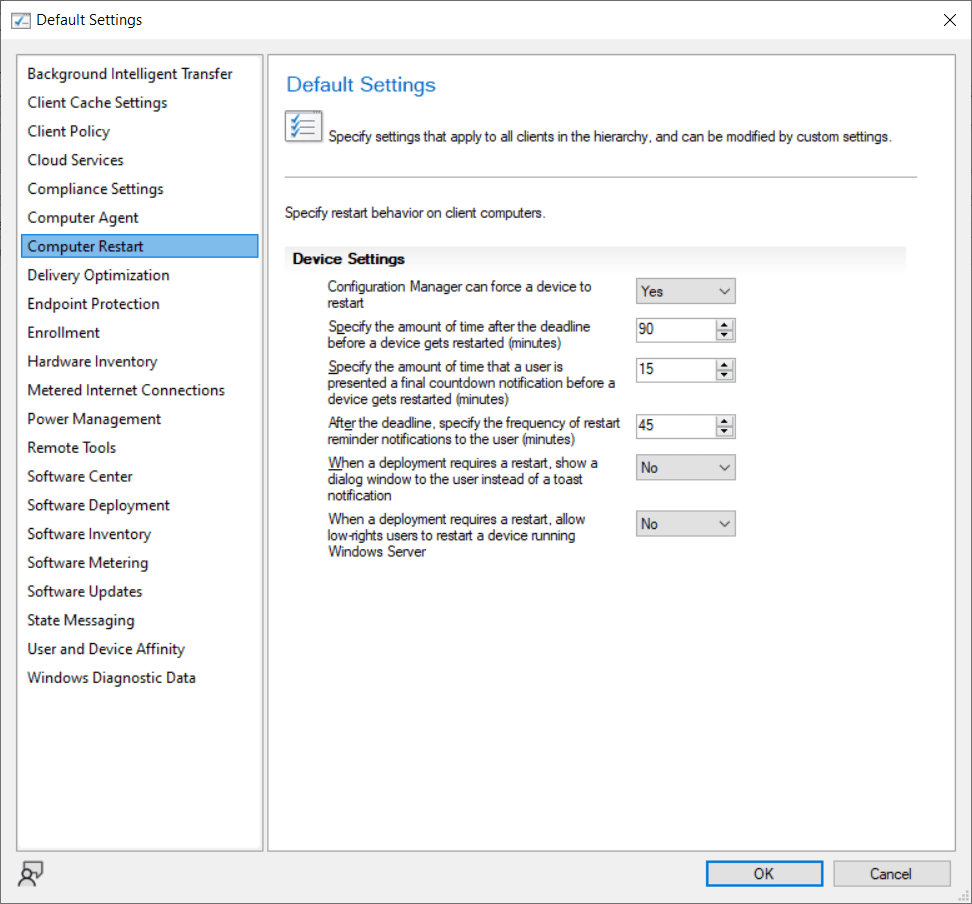
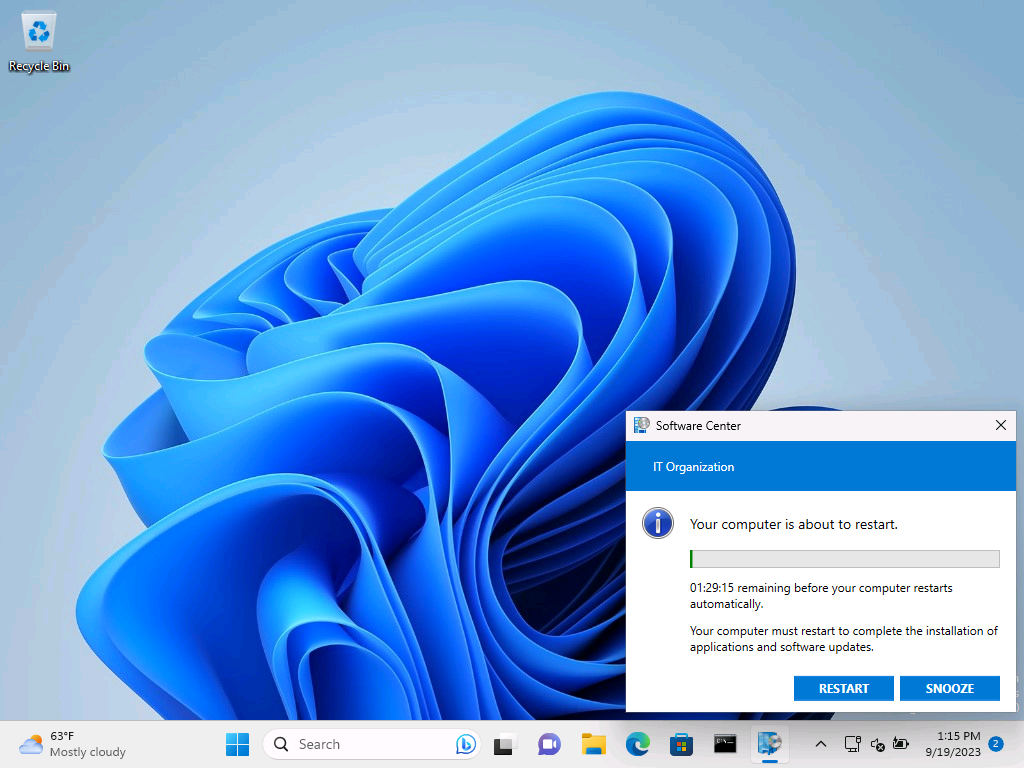
This will use the standard SCCM client restart notification, which will use the restart timeout defined in the SCCM client settings (see below). It will also provide the end-user with the ability to snooze the notification until nearer to the end of the timeout.Note: The configuration for the SCCM computer restart is defined in the relevant client settings under the Administration node in the Configuration Manager console (as shown below with the default settings).
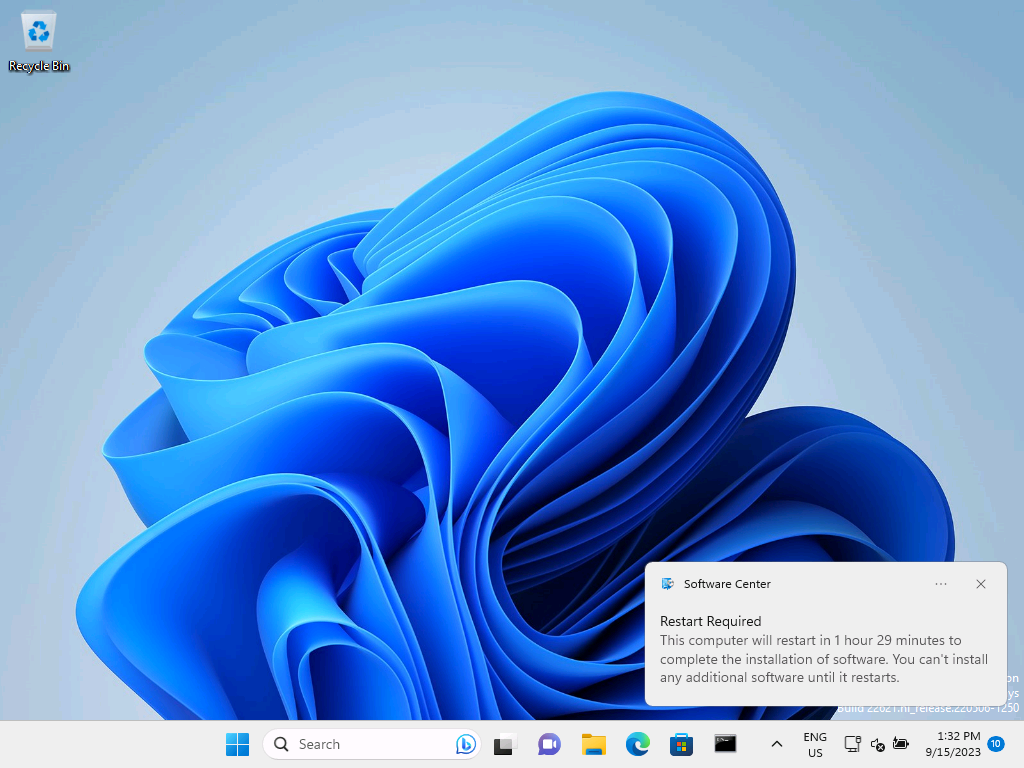
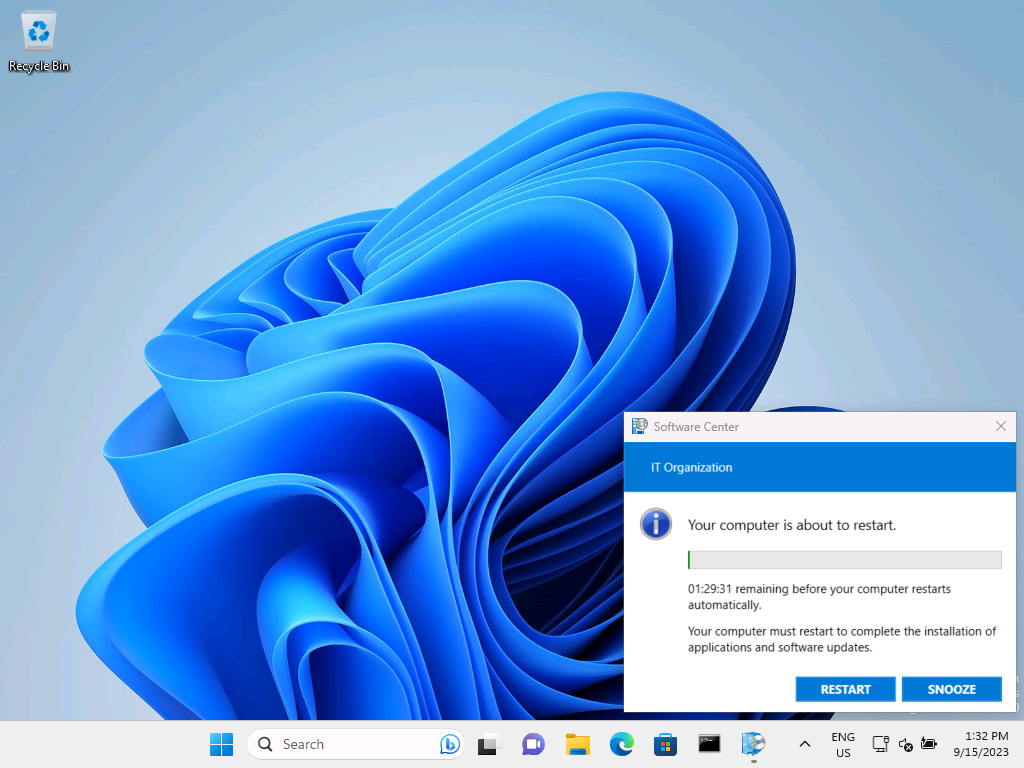
Restart multiple computers with MPA Tools
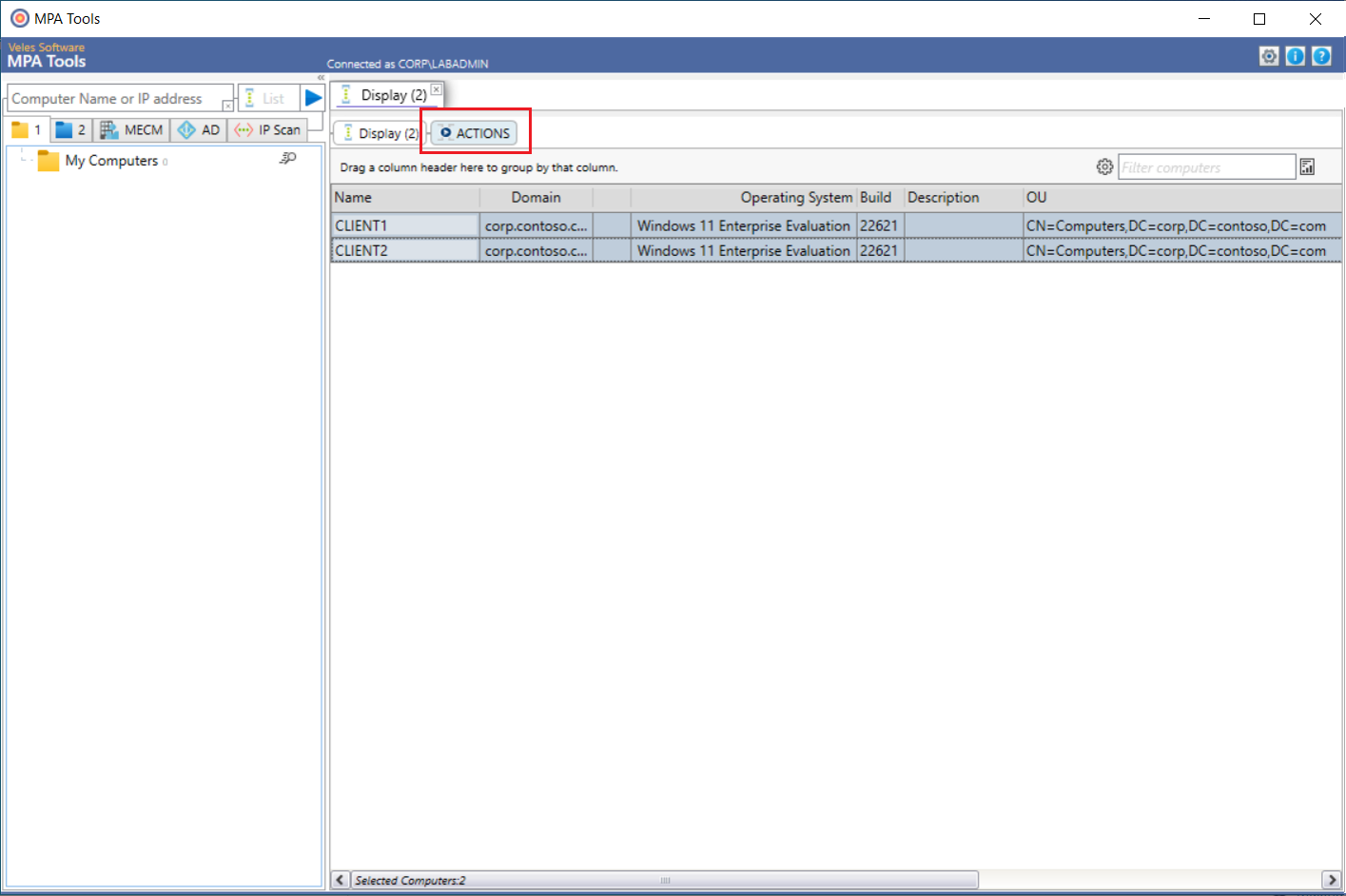
In MPA Tools, select the various clients that you would like to restart and then click the Actions button. If you would like first to check if the last reboot time and for pending reboots, then select Computer Properties and then check the following checkboxes:
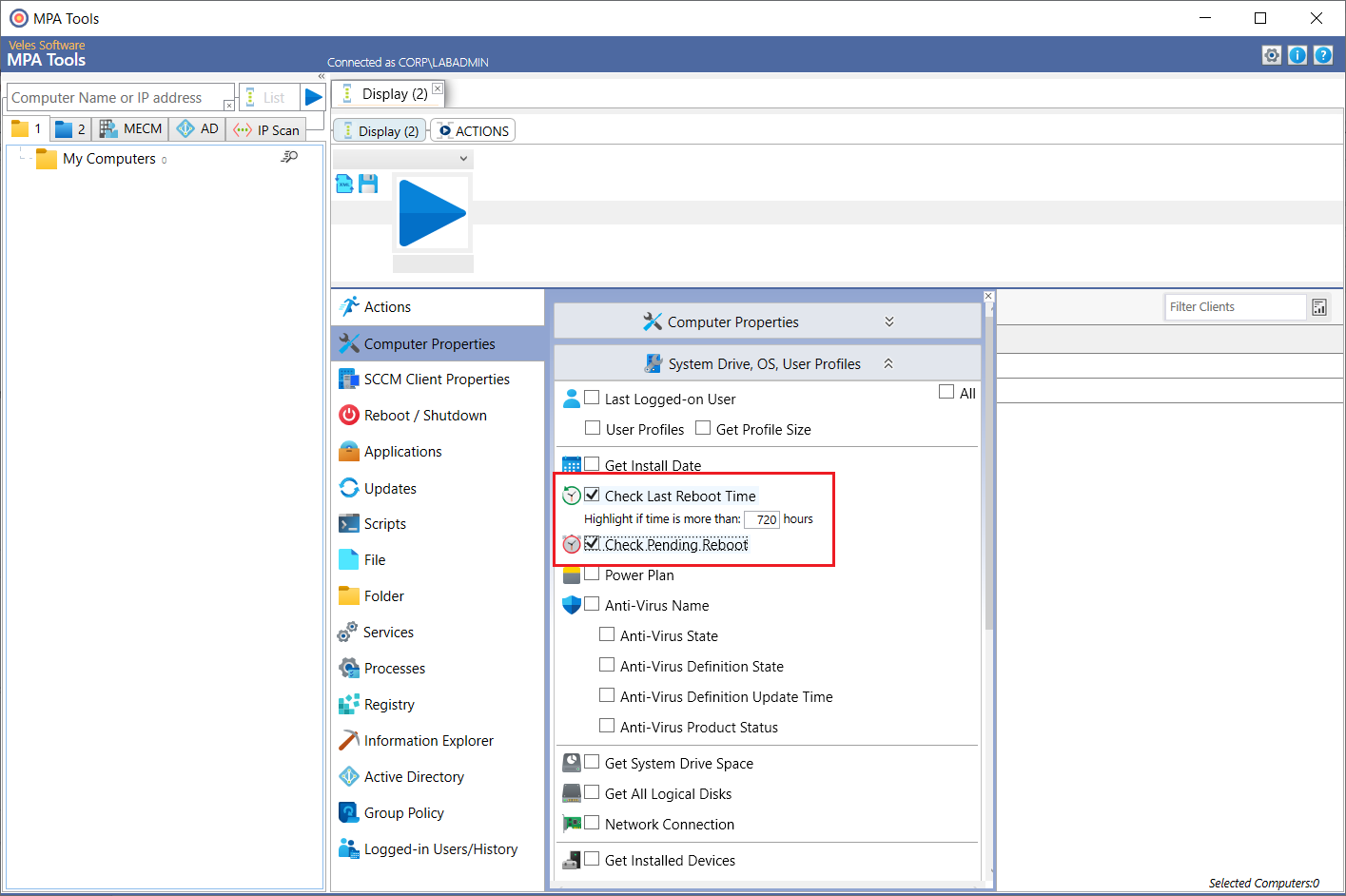
- Check the Last Reboot TimeSet the time to more than 720 hours if you would like to check if the system is up longer than 30 days.
- Check Pending Reboot
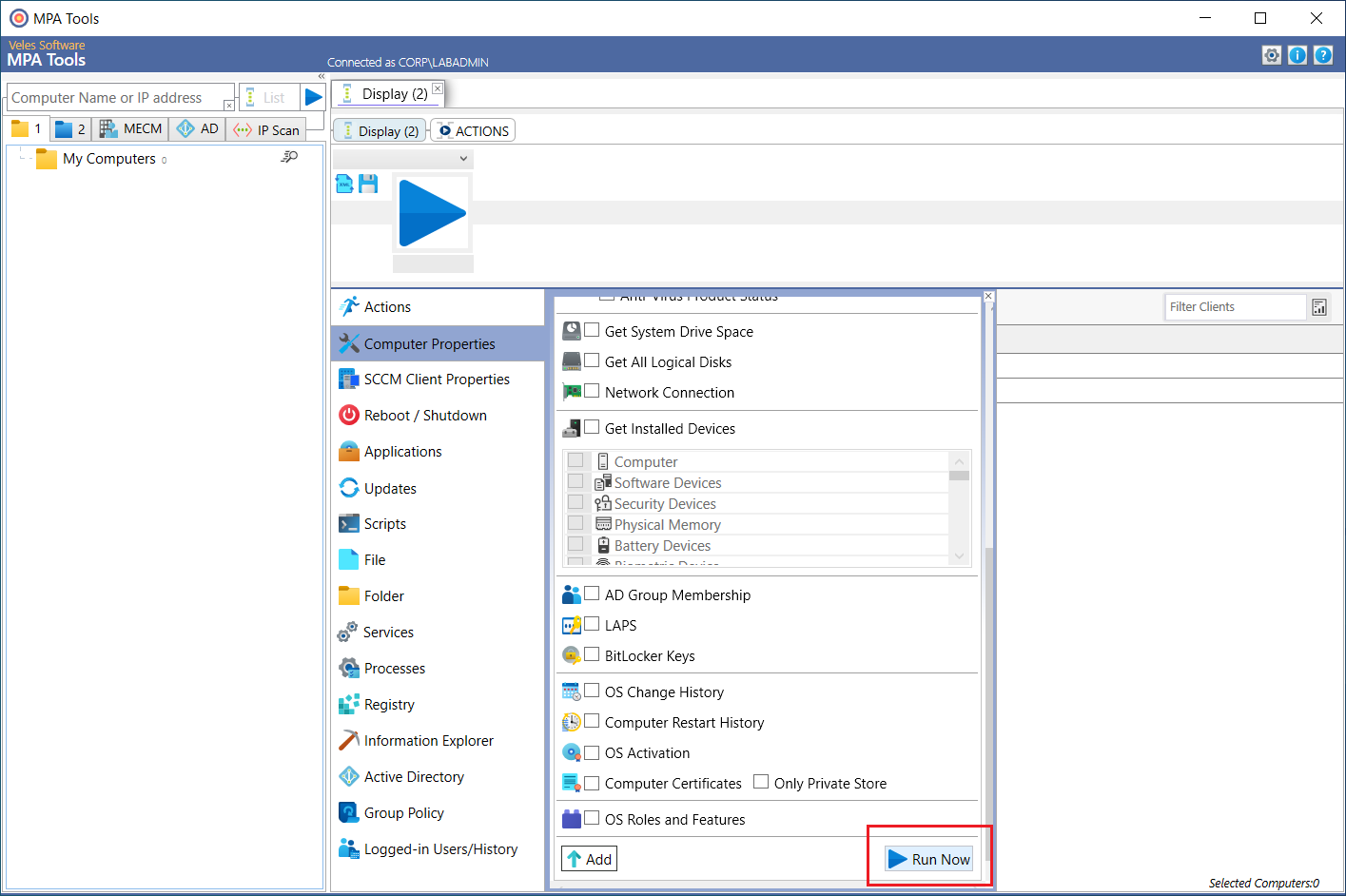
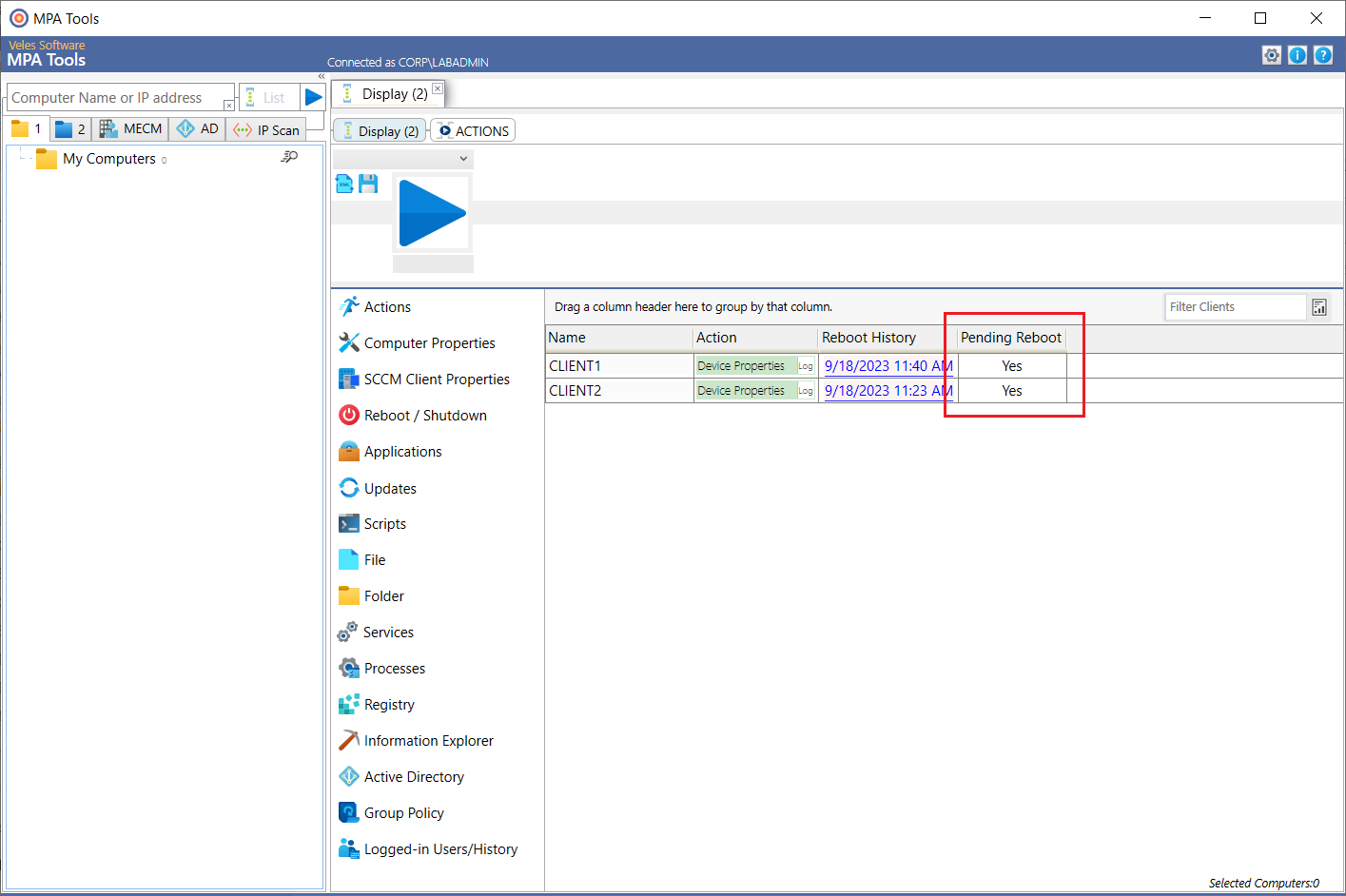
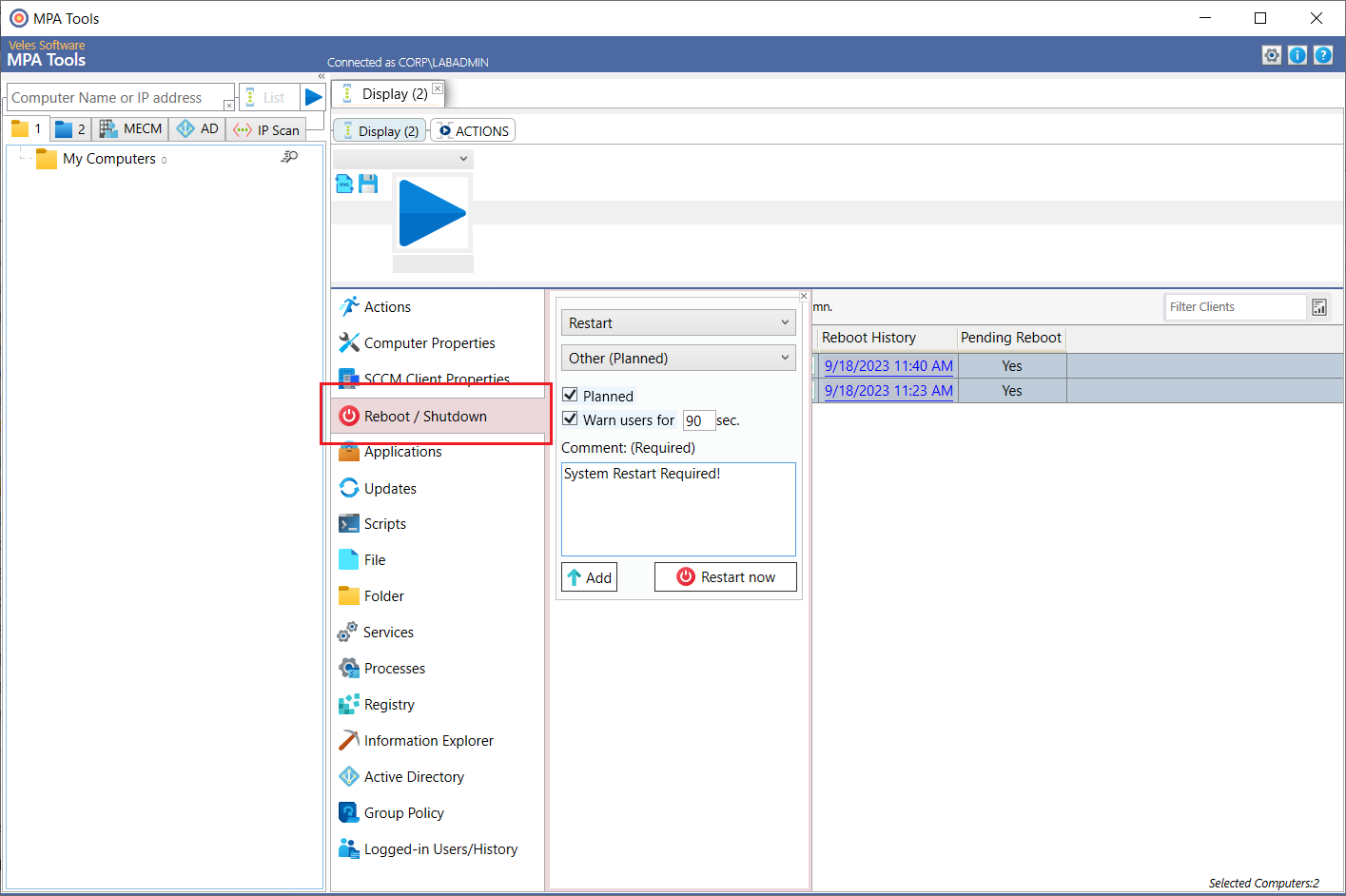
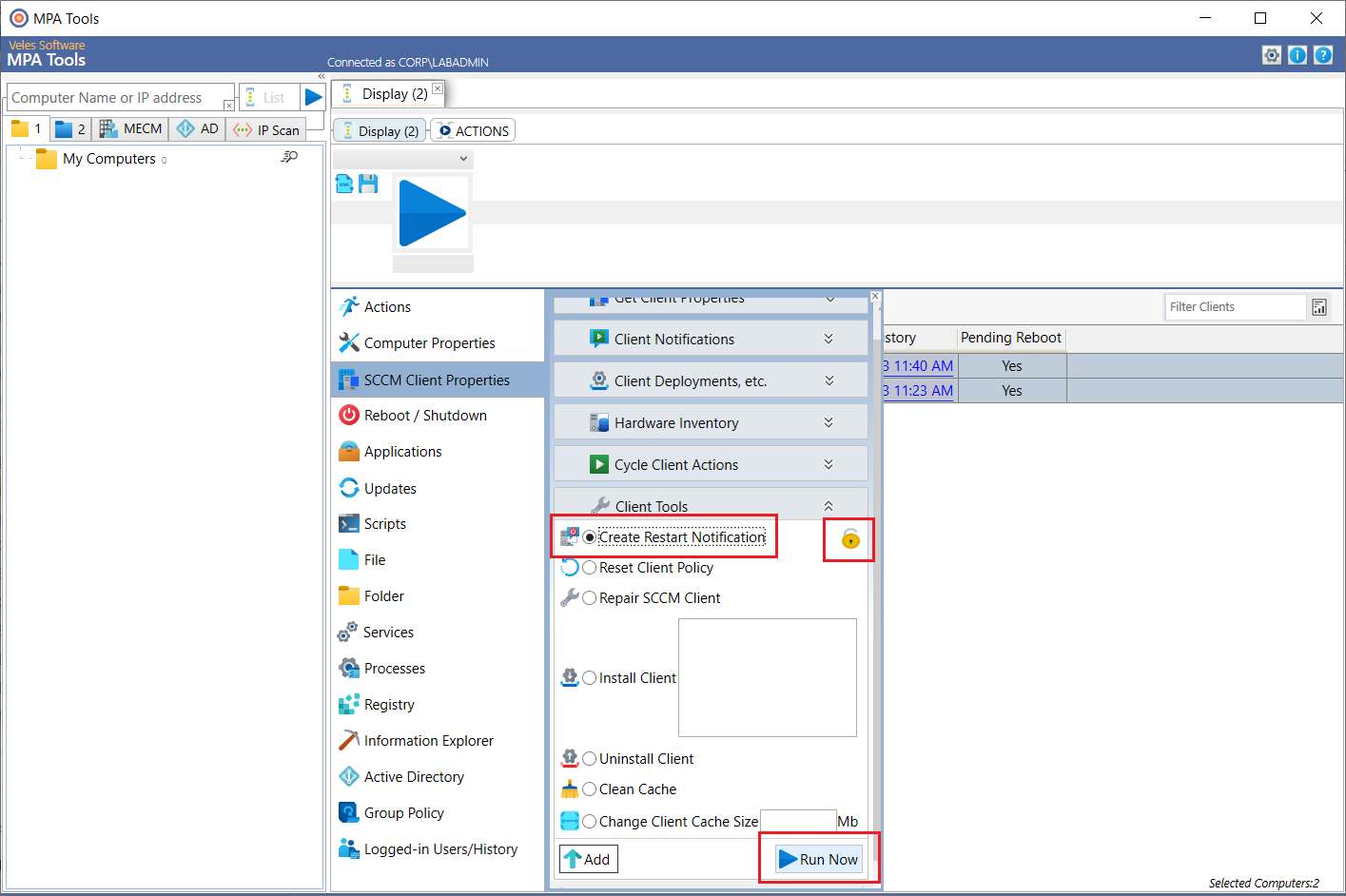
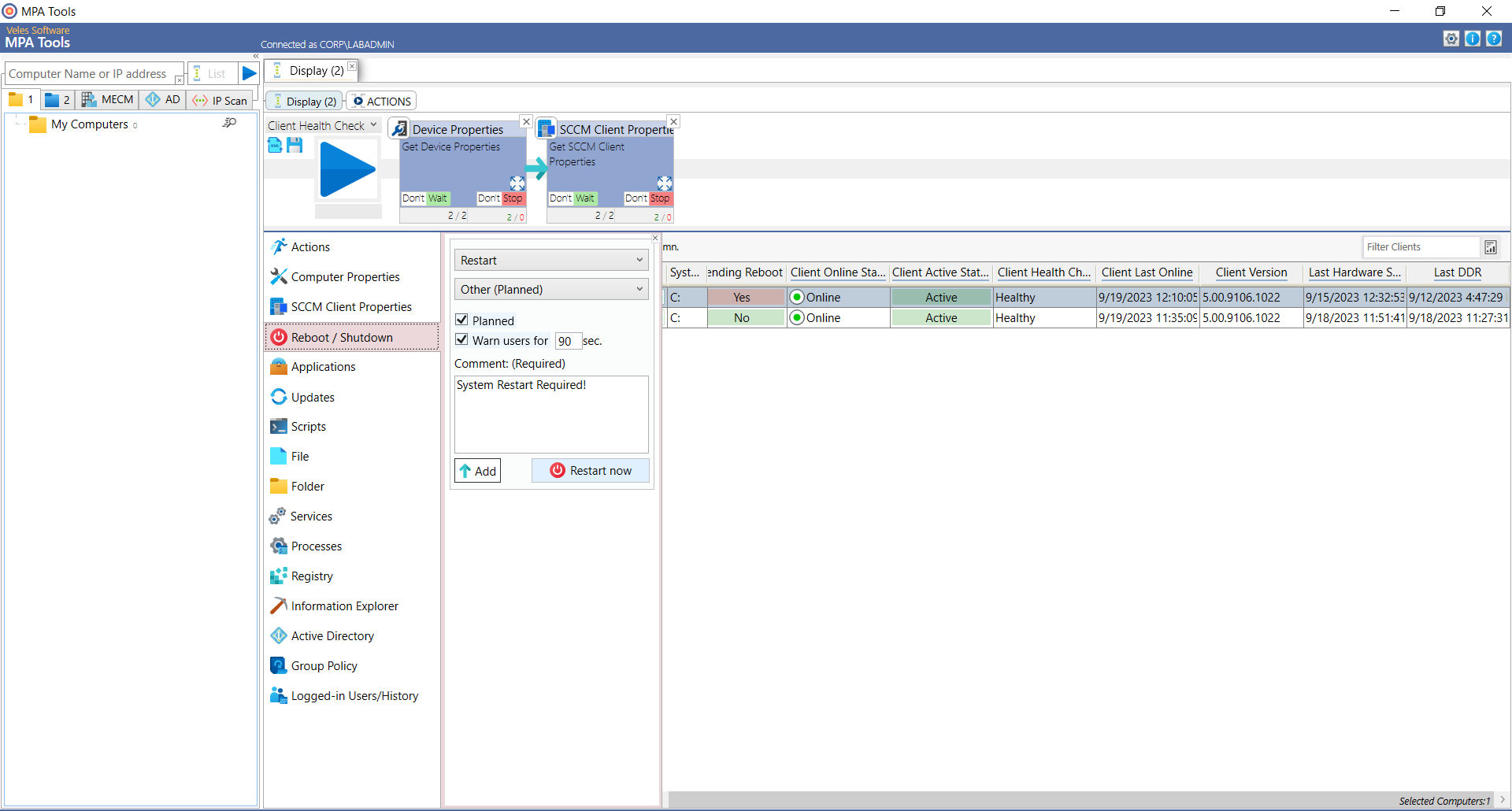
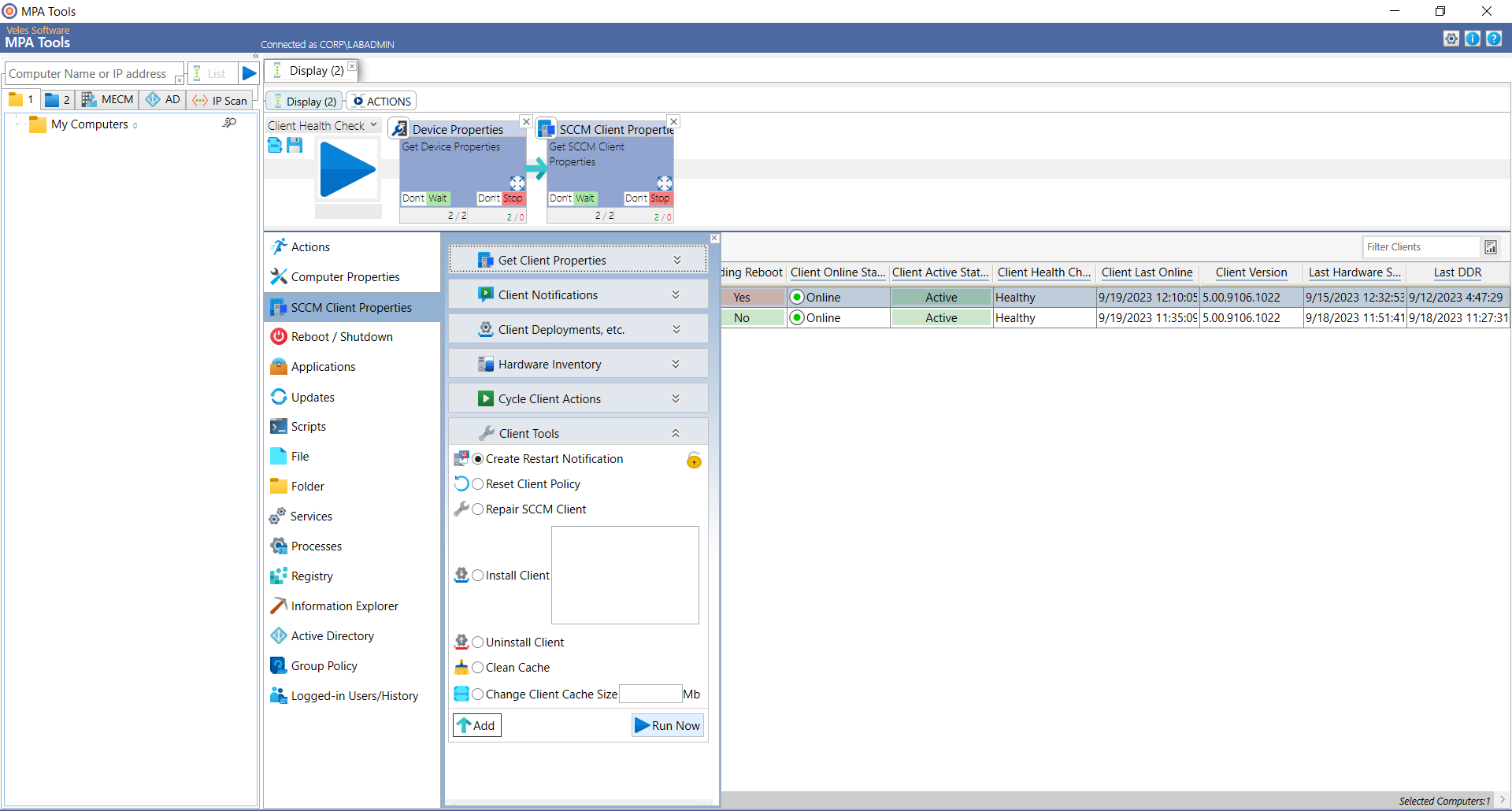
Then click Run Now. The results will be returned in tabular format. In the example below, we can see both clients have pending reboots. To restart the selected clients, select Reboot / Shutdown from the actions menu. Select Restart and set the reason (for example, Other (Planned). Select the Planned and Warn Users checkboxes, and set the time out in seconds, for example, enter 90. Enter the comment, and this is the message that will be displayed to the end user. Then click the Restart Now button. Alternatively, if you would prefer to use theSCCM restart notification… Select SCCM Client Properties from the actions menu. Scroll down to Client Tools and expand the options. Click the lock button to unlock the options, select the Create Restart Notification radio button, and click Run Now. As mentioned above, restarting the single computer will use the standard SCCM client restart notification, with the restart timeout defined in the SCCM client settings (see above). It will also allow the end-user to snooze the notification until nearer to the end of the timeout.
Tip: If an SCCM client is present, then this would be the preferred method for restarting end-users computers. If it is a lab computer, a test computer or a computer on a build bench then the standard restart method above is likely more suitable.
Restart multiple computers with MPA Tools using the Action Workflow
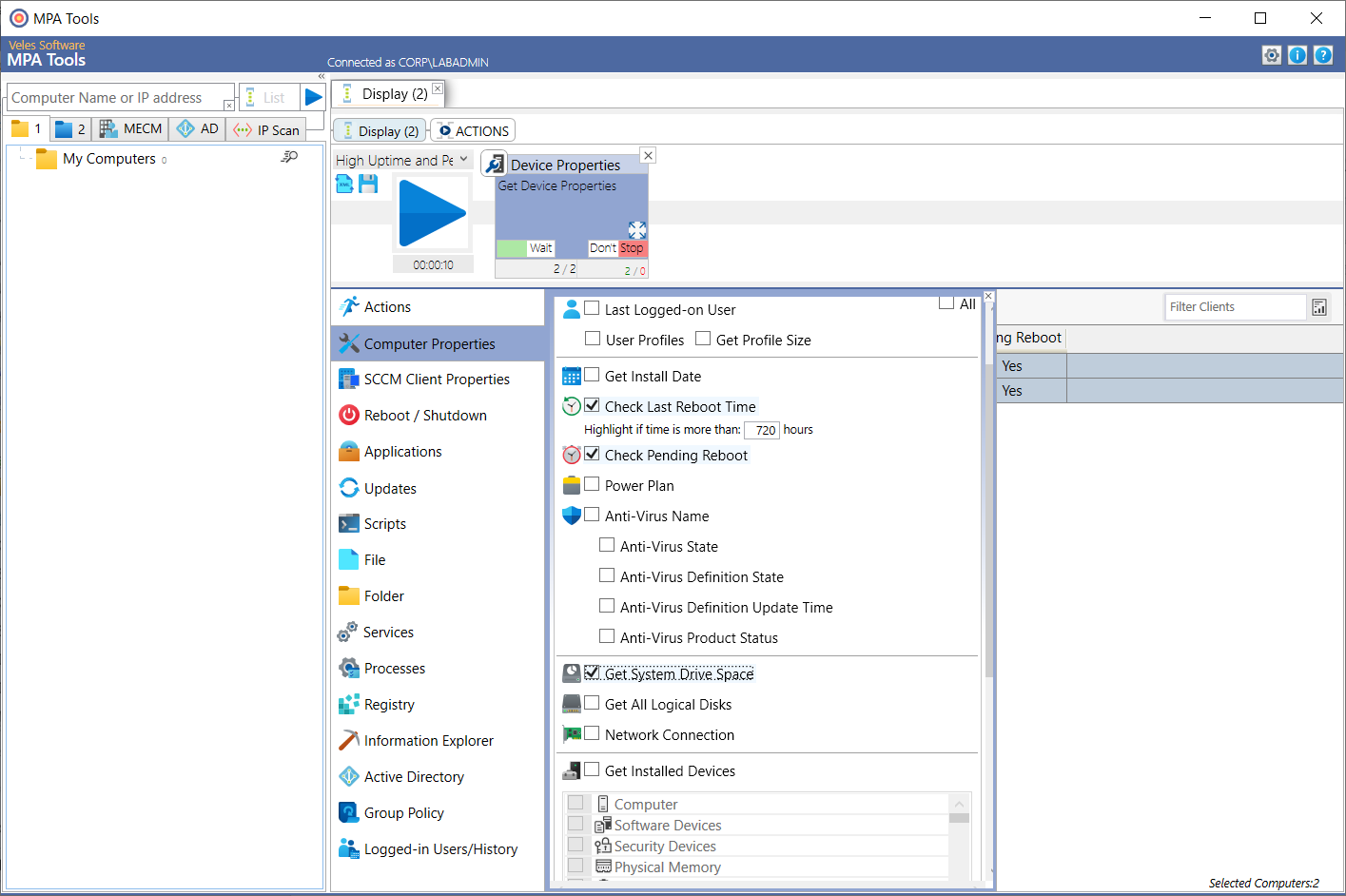
In MPA Tools, select the multiple clients and then click the Actions button. Select Computer Properties and then check the following checkboxes:
- Check Last Reboot TimeSet the time to more than 720 hours if you would like to check if the system is up longer than 30 days.
- Check Pending Reboot
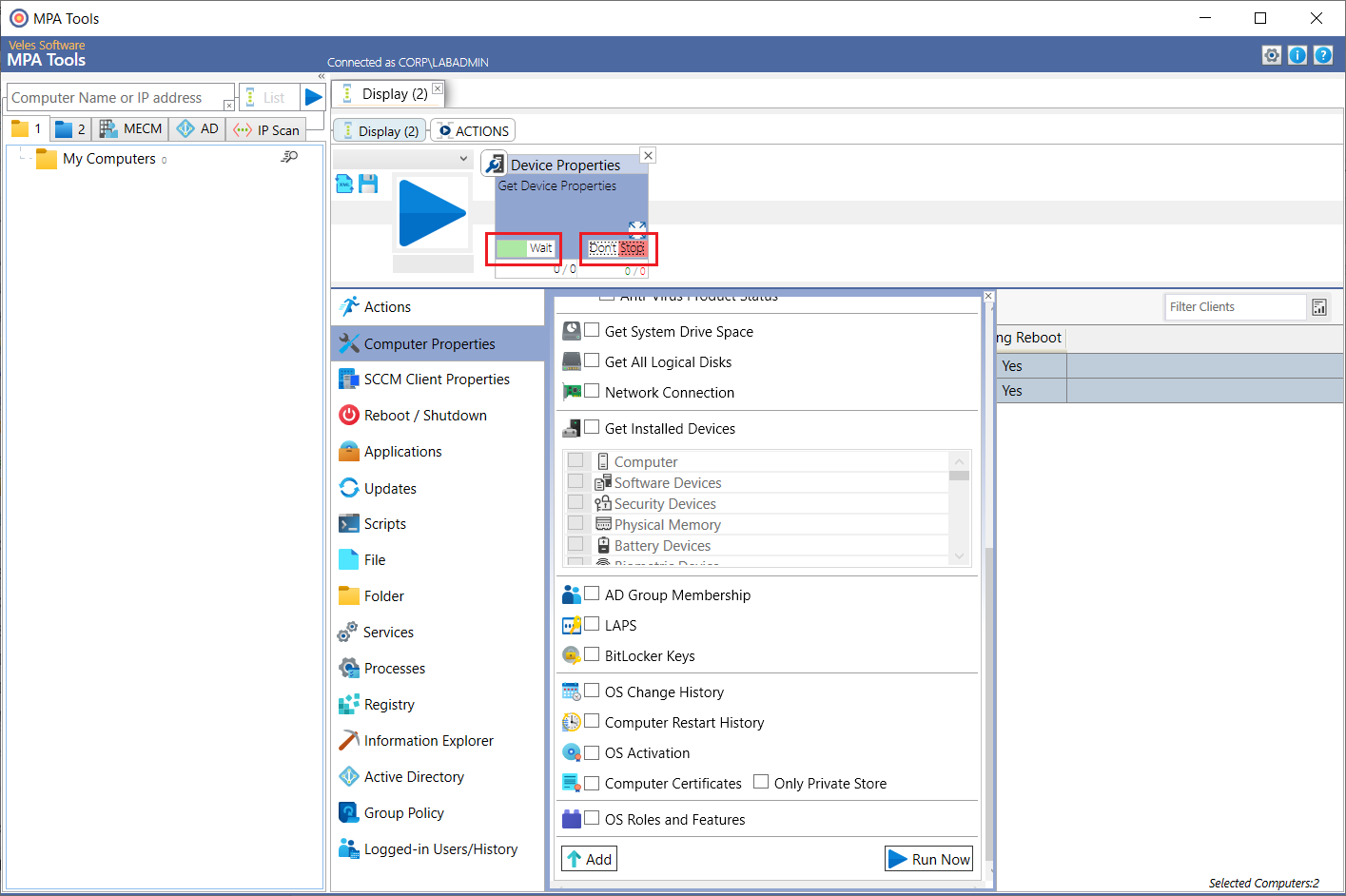
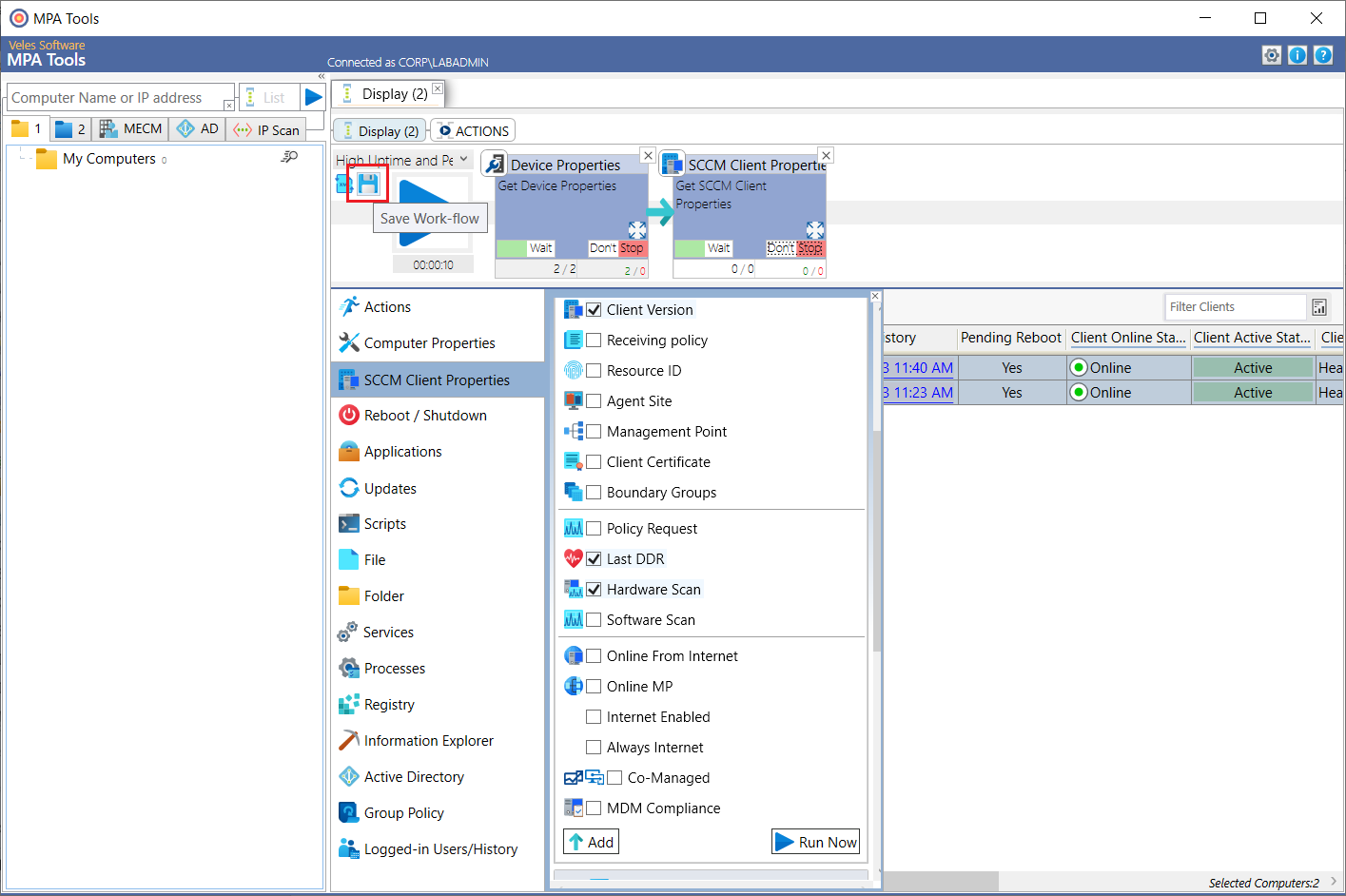
Scroll down to the bottom of the options and then click the Add button. This will add the action to the sequence workflow. From here you will have the options to configure the action to wait for the task to finish before moving on to the next task and/or configure the action to stop the sequence if the task fails (as shown below).
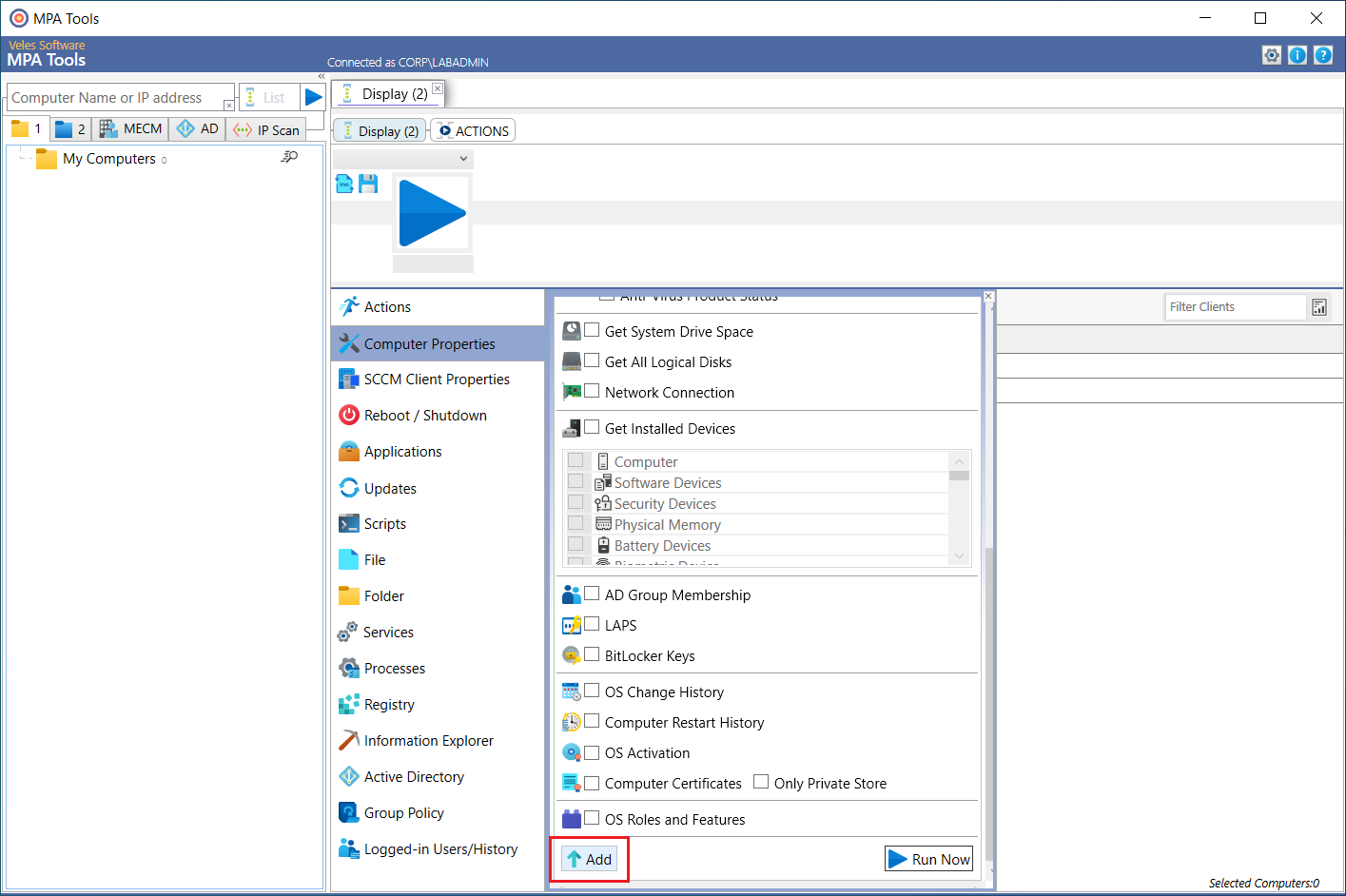
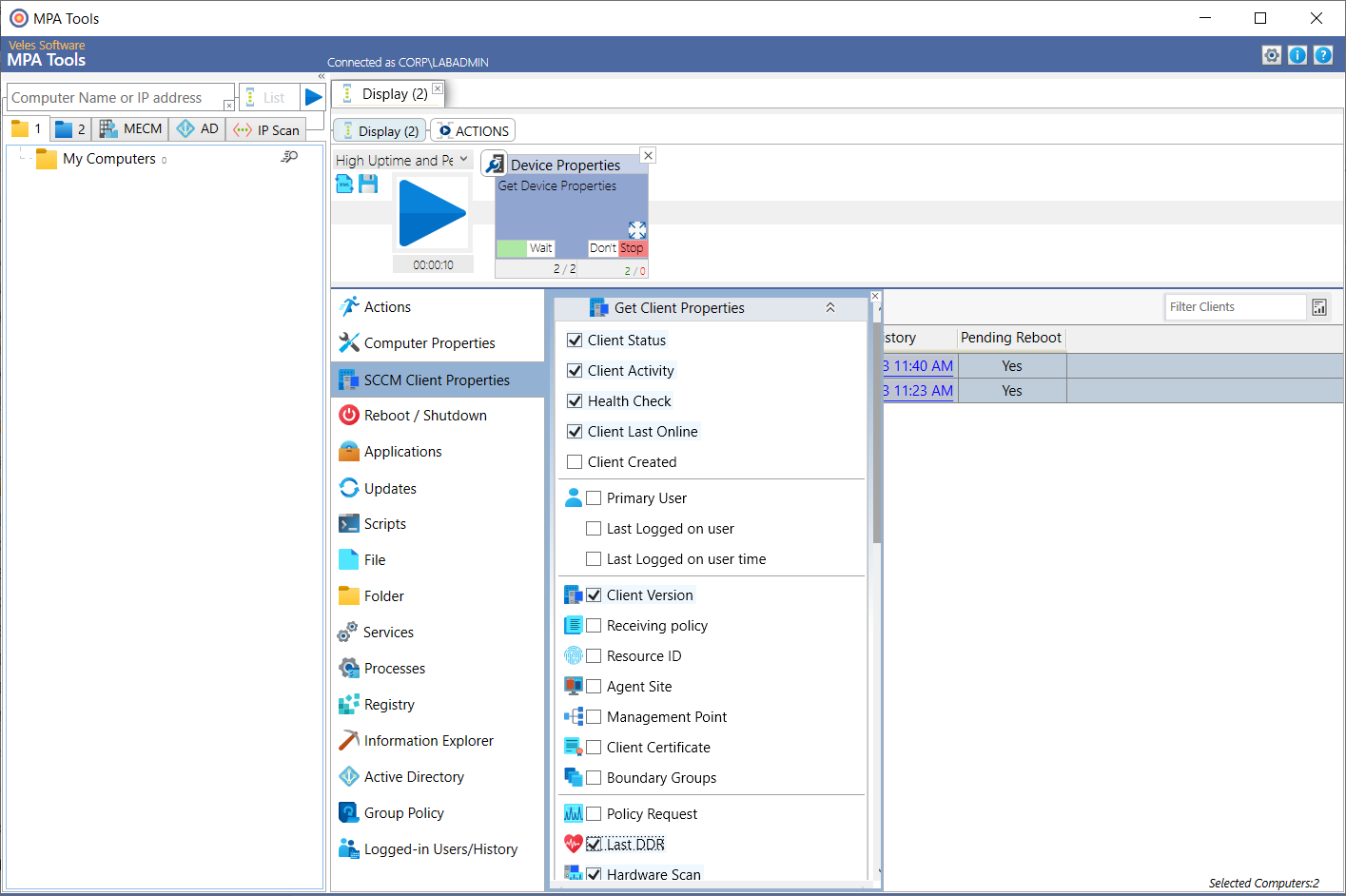
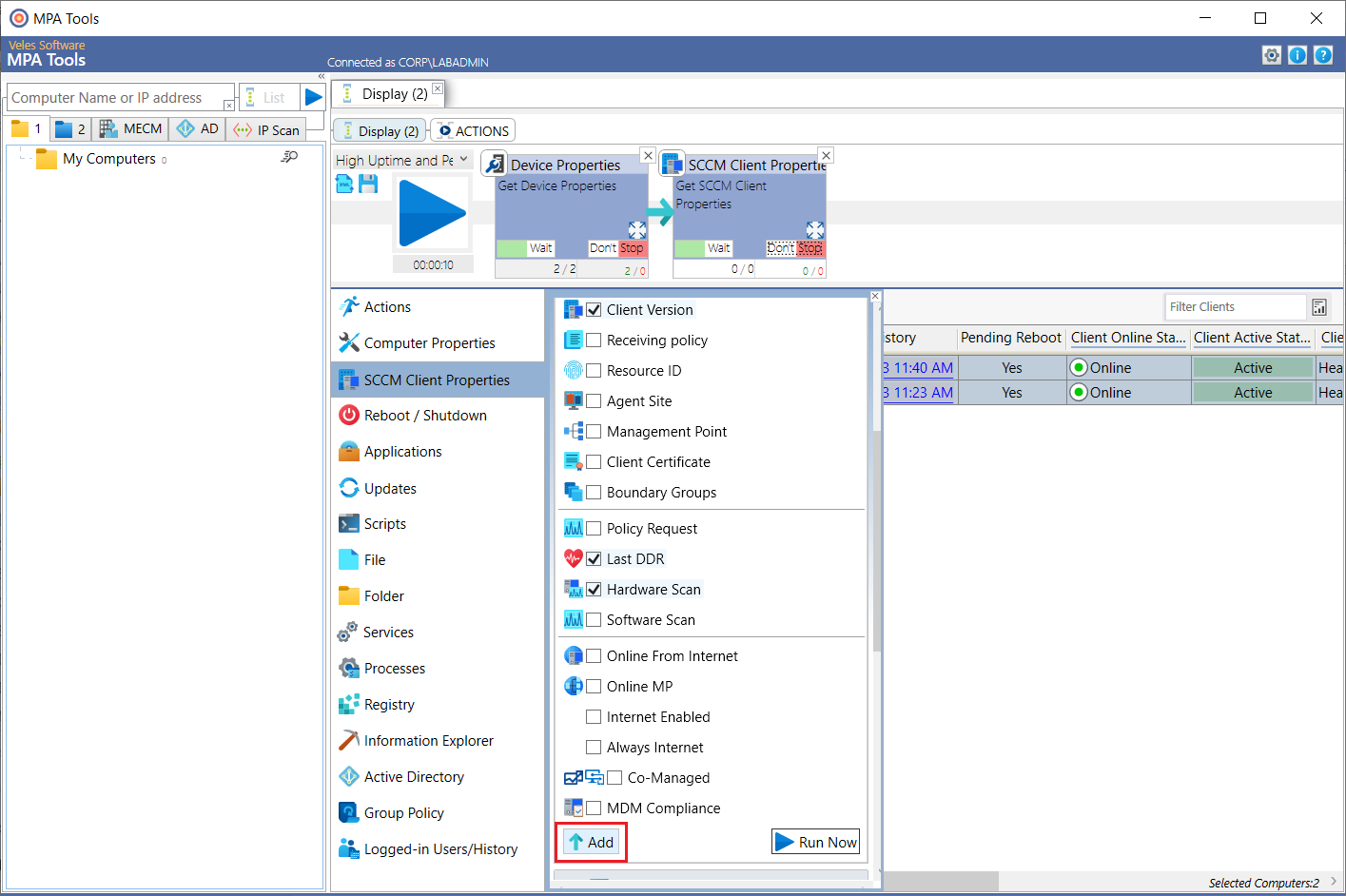
While checking the last reboot time and the pending reboot status, we may as well also check for other system information to get a full view of the clients' health. In which case, we should add Get system Drive Space as well as the SCCM client status, client health, activity and client version (as shown below). We should also include the hardware scan and last DDR.
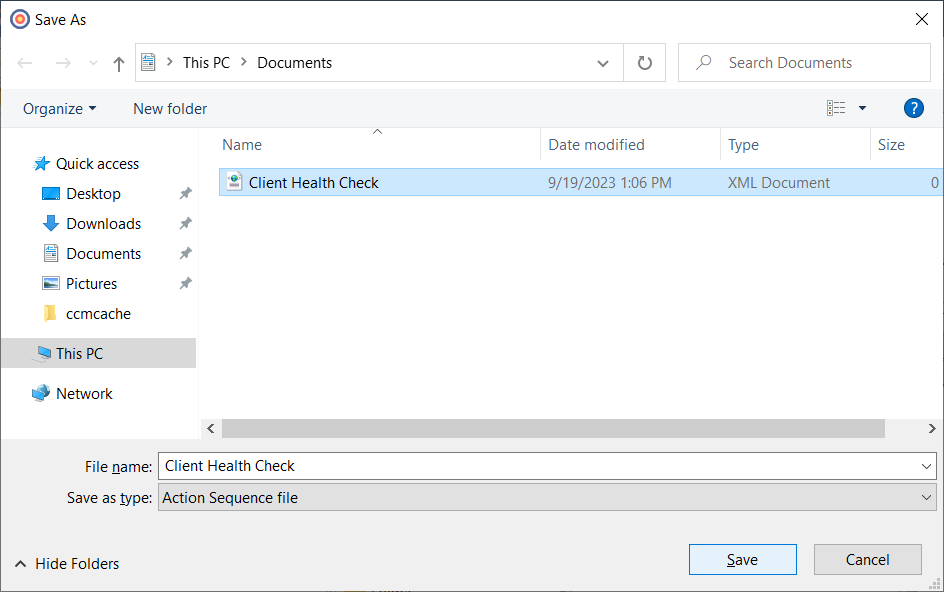
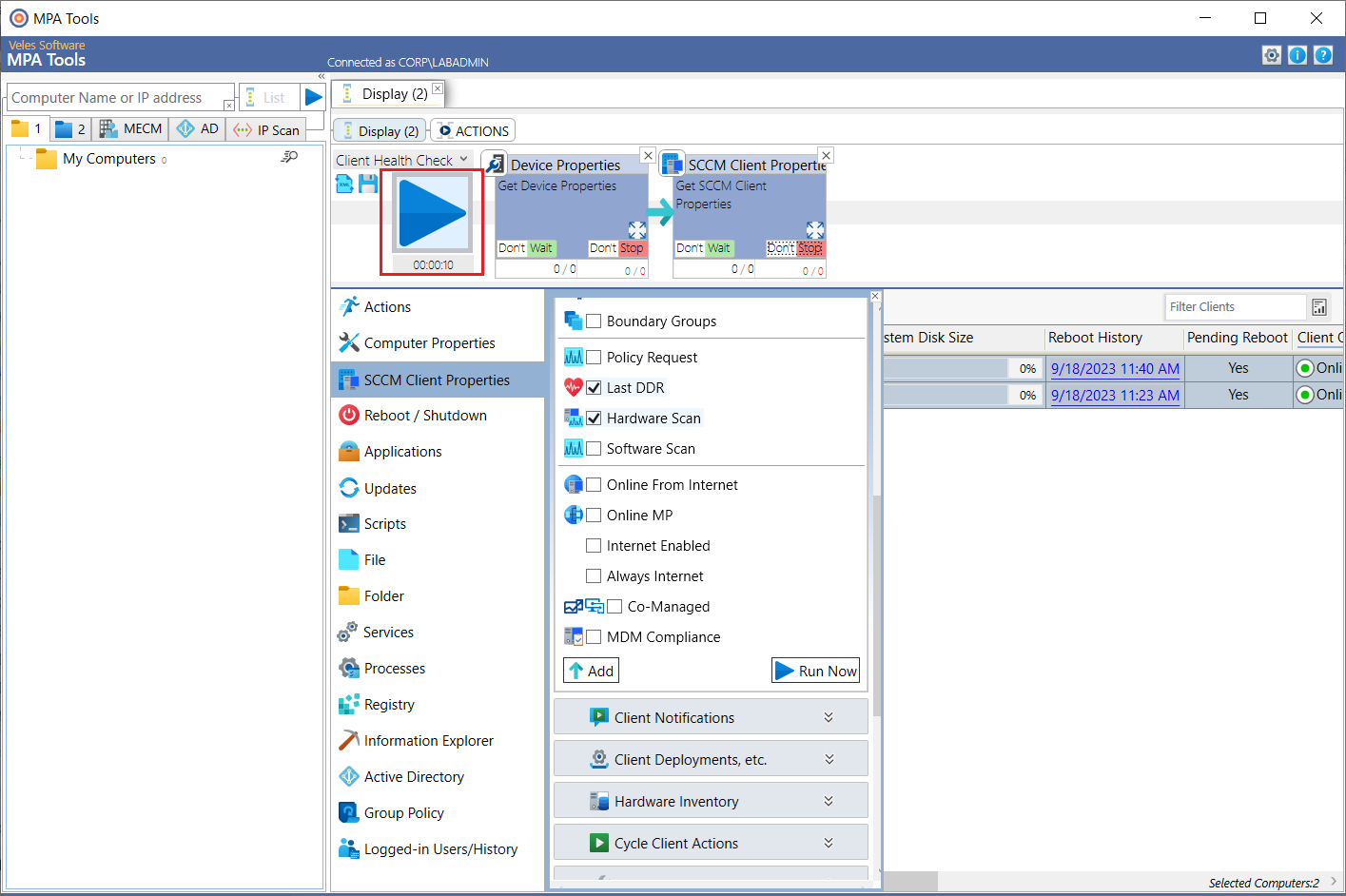
Once you have clicked the Add button, you will see both the Device Properties and SCCM Client Properties added to the sequence workflow. Click the save button to save the action workflow. Navigate to the folder path where you would like to save the action sequence file and then click the Save button. The action sequence file will appear in the action workflow drop-down list.
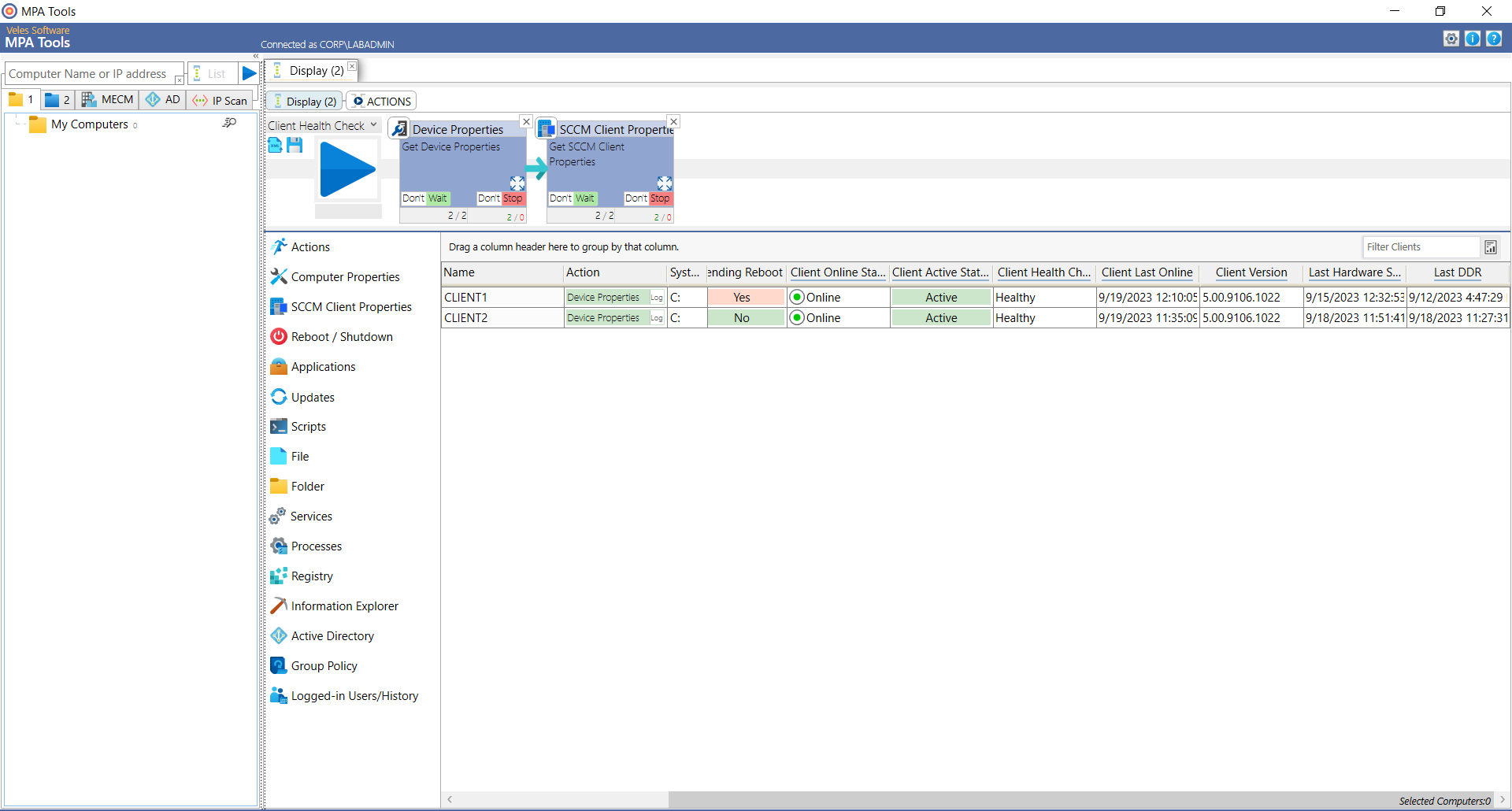
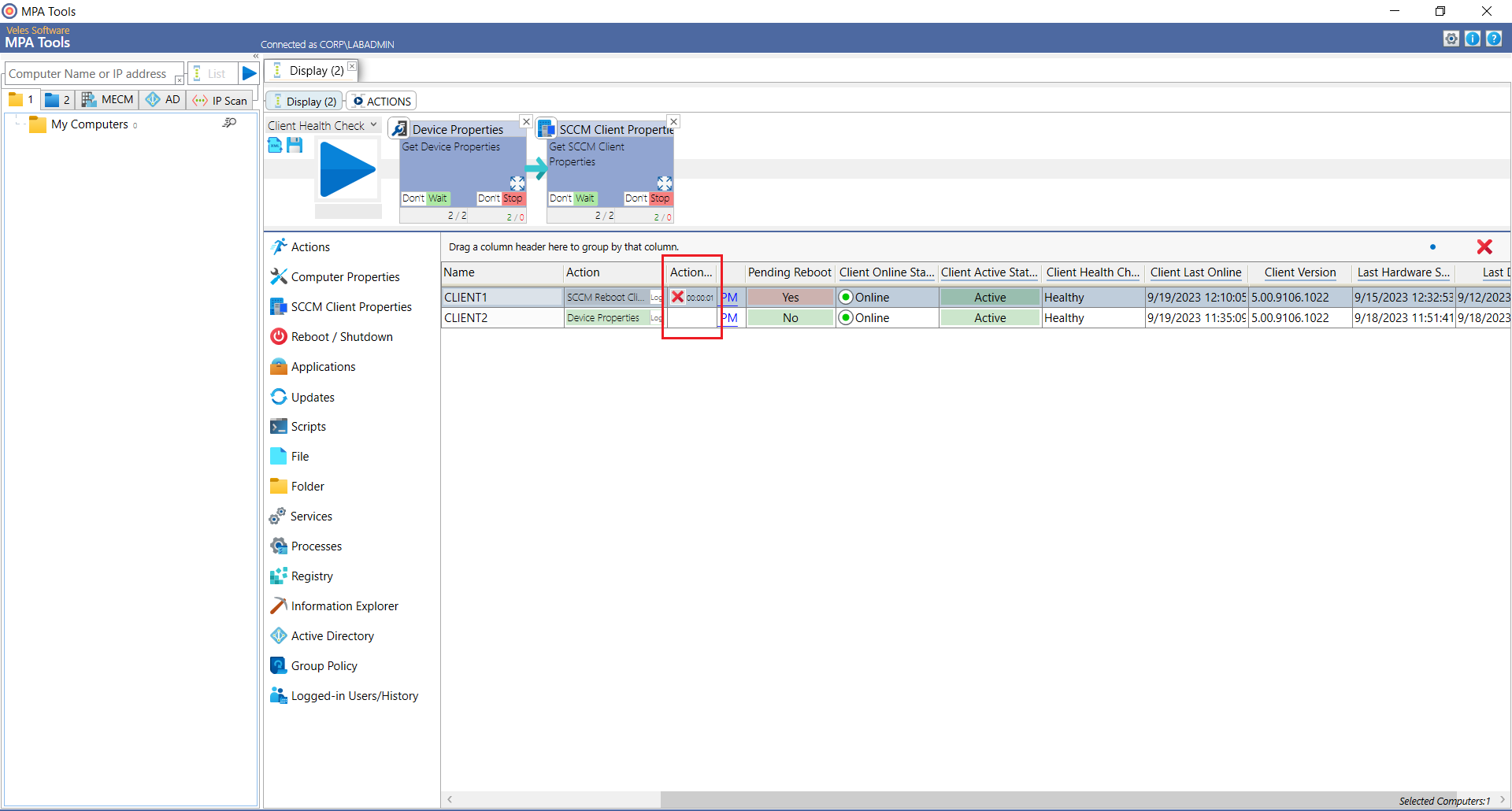
Note: The action workflow drop-down list will be cleared when MPA Tools is closed. However, the action workflows can be re-loaded by clicking on the Load button. The action workflow can then be executed by clicking the triangle Play button. The results will then be displayed in tabular format. From here, we can easily identify any client issues that should be addressed. Here, we can see that CLIENT1 has a pending reboot. We can then select CLIENT1 and the select Reboot / Shutdown from the menu in order to restart the client. However in this example, we are going to use our preferred method of sending an SCCM restart notification instead. We can do this by selecting the SCCM Client Properties from the actions menu, then scroll down to Client Tools and expand the options. We ensure that the options lock button is unlocked, and then we select the Create Restart Notification radio button and then click Run Now. Now we will see the SCCM reboot notification action status in the Action column (as shown below).
The standard SCCM restart notification will then appear on CLIENT1.
In conclusion, ensuring that client computers are restarted regularly is a crucial part of managing devices in the enterprise. MPA Tools can help your organization stay on top of it!