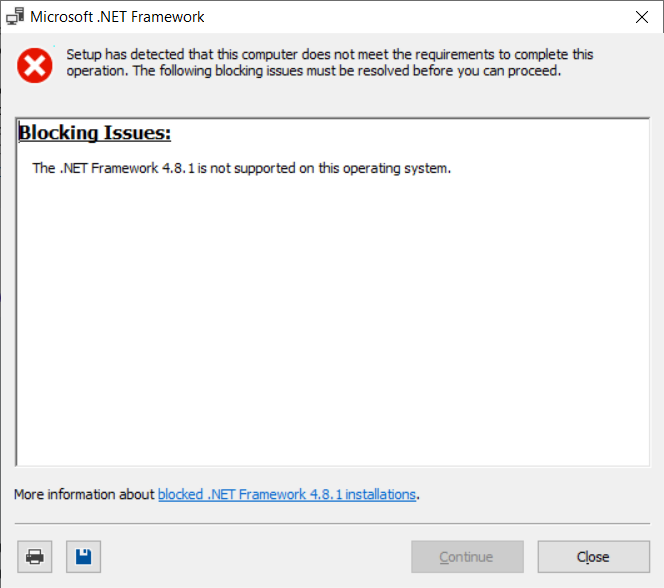
In this post, we will walk through installingMPA Tools on Microsoft Windows Server 2019. MPA Tools requires . NET Framework 4.8 or above; however, we have noticed that the latest 4.8.1 installer does not work on Server 2019, so we will explain how to get around this issue.
Download and run the MPA Tools installer
Download the latest MPA Tools installer fromhttps://www.velessoftware.com/download
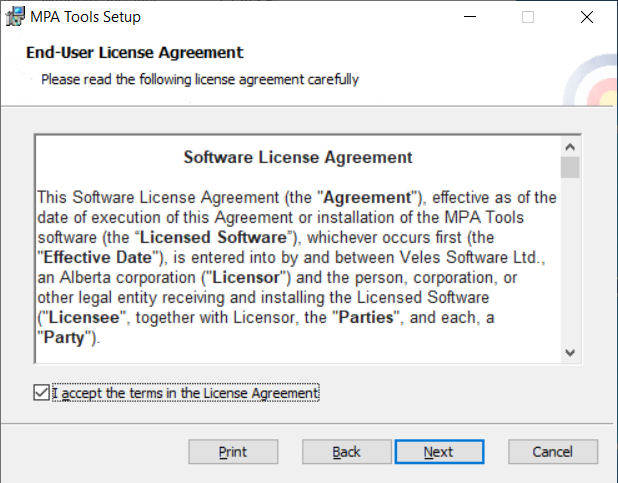
On the Windows 2019 Server, run the installer.
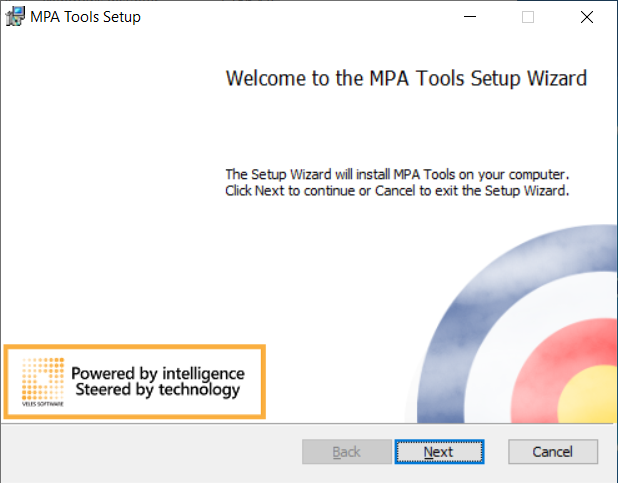
Check the checkbox to agree to the license agreement, and then click Next.
Set the install path (the default is C:\Program Files\Veles Software Ltd\MPA Tools) and then click Next.
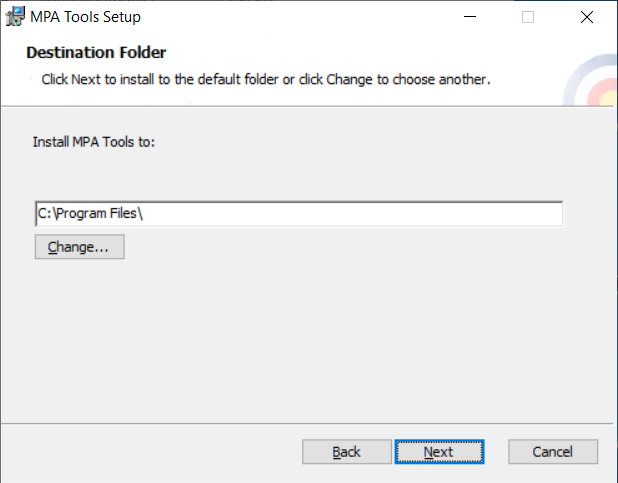
Click Install.
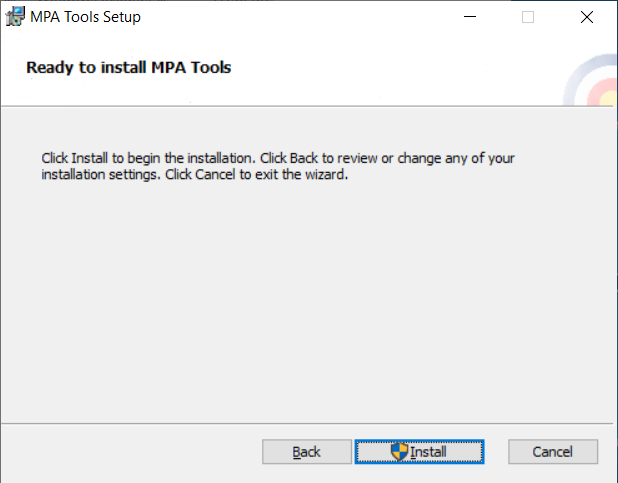
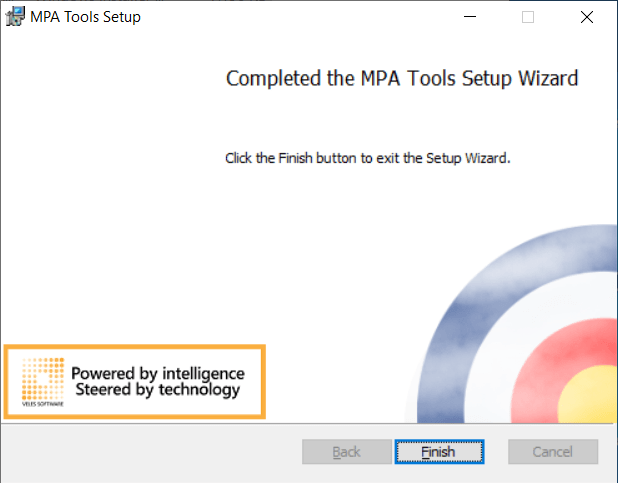
Click Finish.
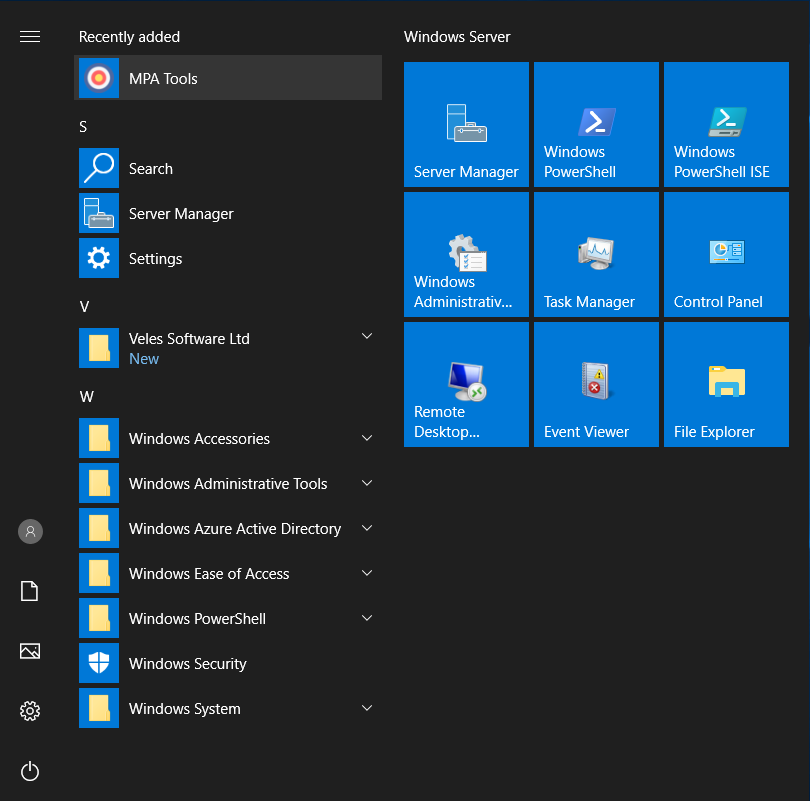
Launch MPA Tools on the Windows 2019 Server
Launch MPA Tools from the Start menu.
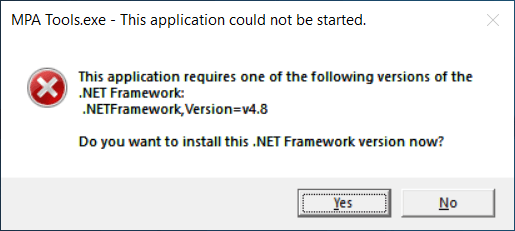
If . NET Framework 4.8 is not installed, the following message will appear. Click Yes to be automatically redirected to the download page.
Download and run the . NET Framework 4.8 installer
Do not download the . NET Framework 4.8.1 installer. For some reason, the latest installer does not work on Windows Server 2019 (as shown below).
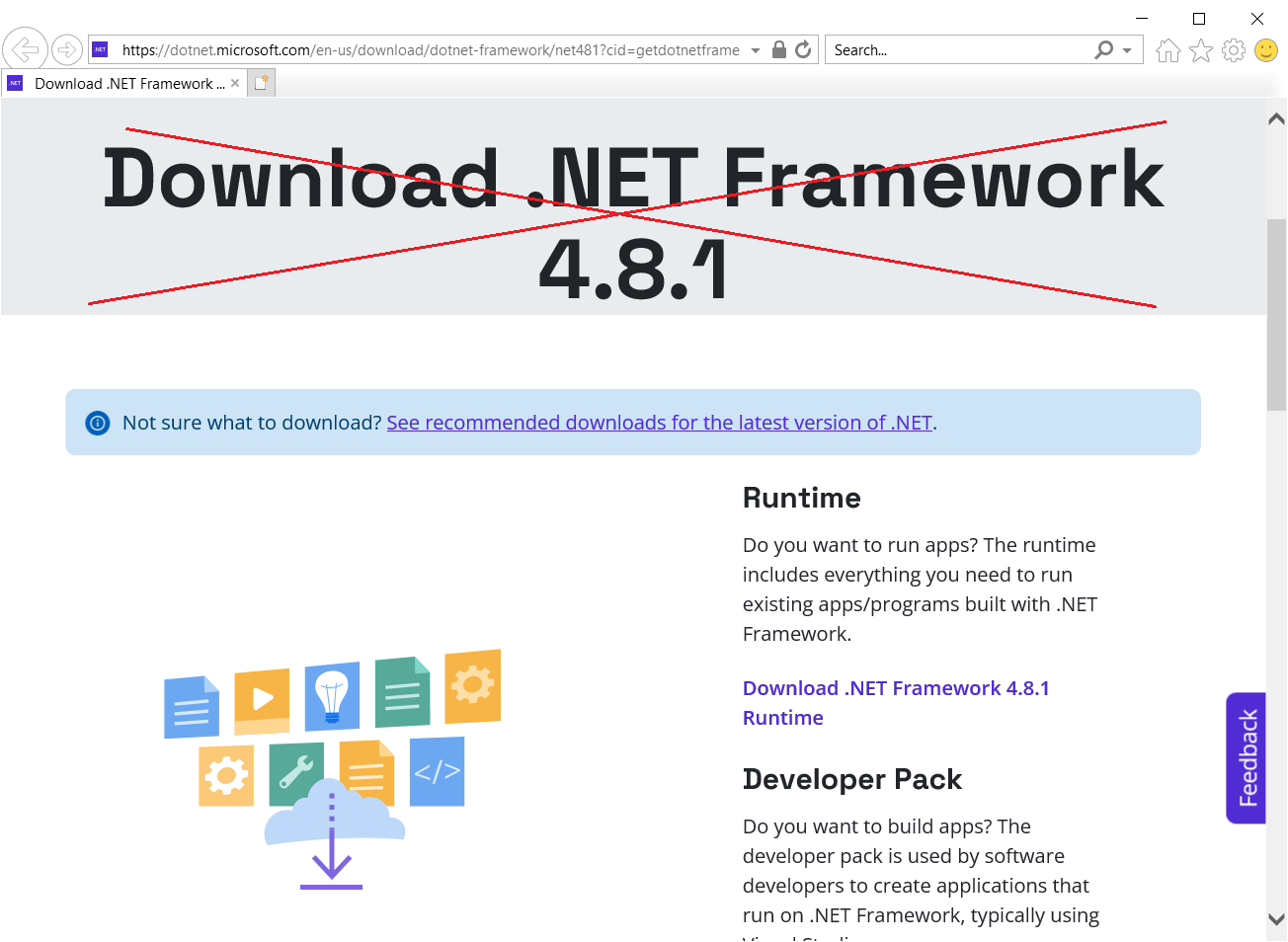
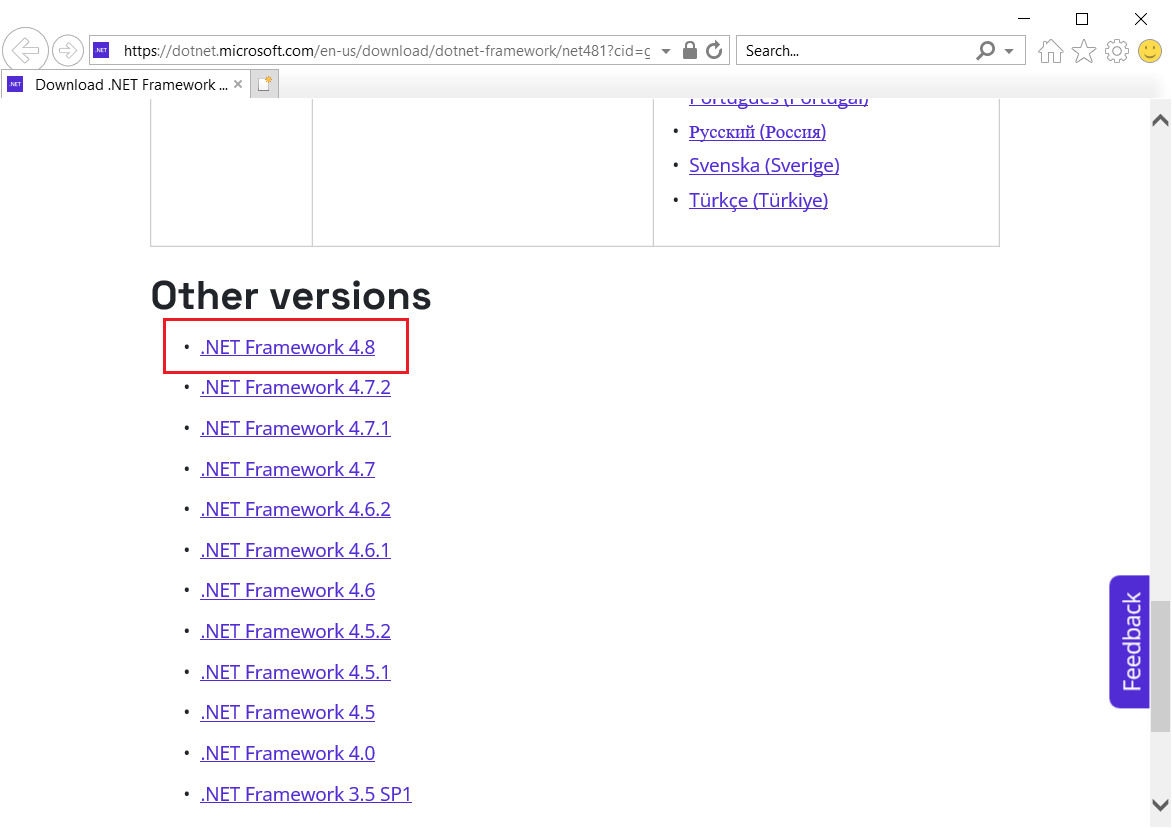
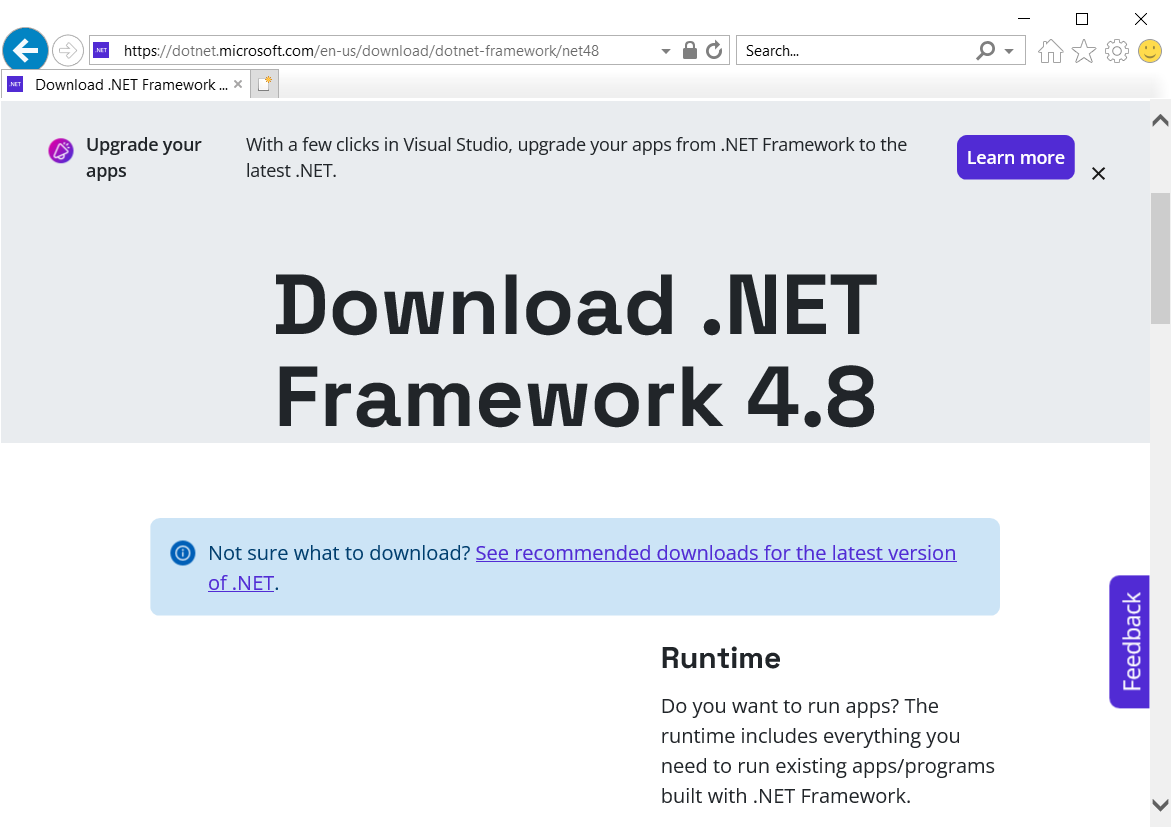
Instead, scroll further down the page until you see the Other versions section and then select . NET Framework 4.8 or click on this link to navigate to the 4.8 download page.
Download . NET Framework 4.8 | Free official downloads (microsoft.com)
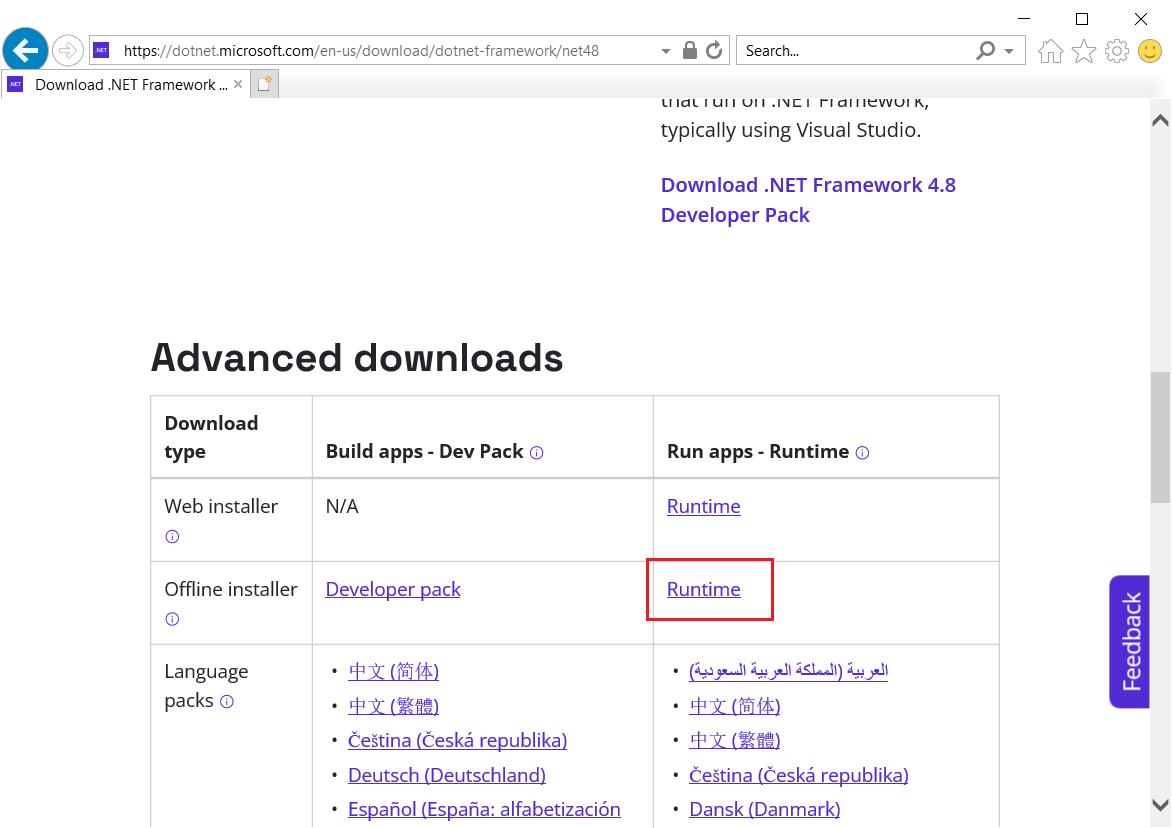
Under Advanced downloads, on the row for Offline installer, select Runtime or click on this linkhttps://dotnet.microsoft.com/en-us/download/dotnet-framework/thank-you/net48-offline-installer
Select the option to Run the installer.

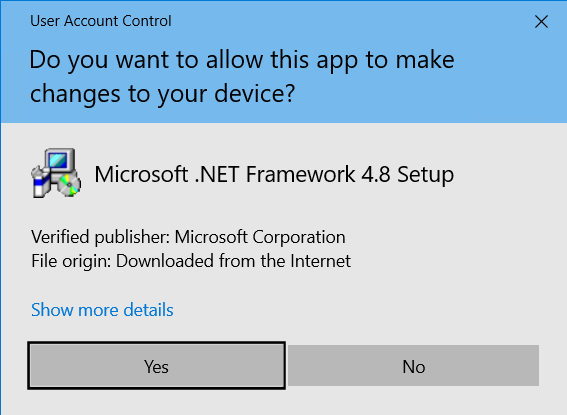
Click Yes to the User Account Control prompt.
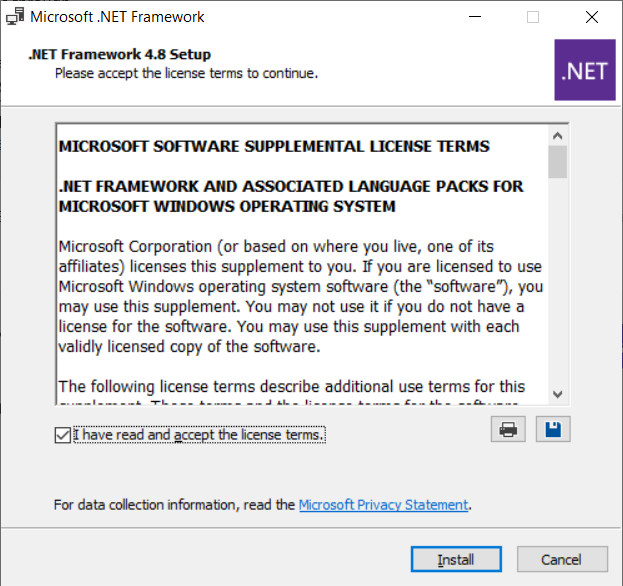
Check the checkbox to agree to the license agreement and then click Install. After which, the installation will begin (as shown below).
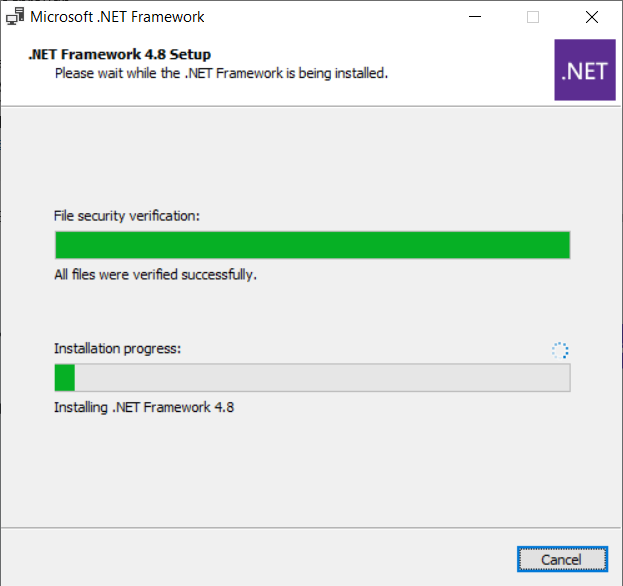
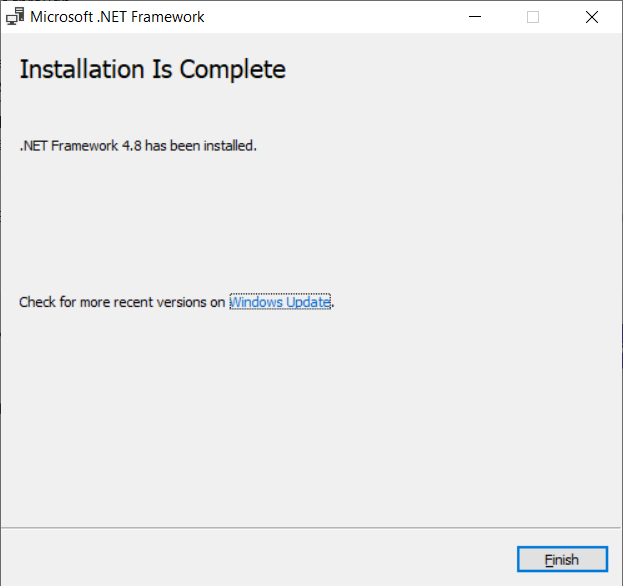
Click Finish.
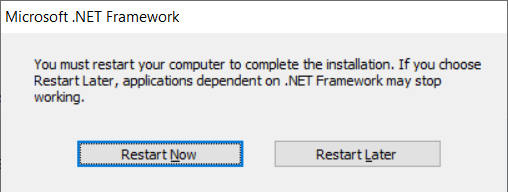
Click Restart now.
Update . NET Framework 4.8
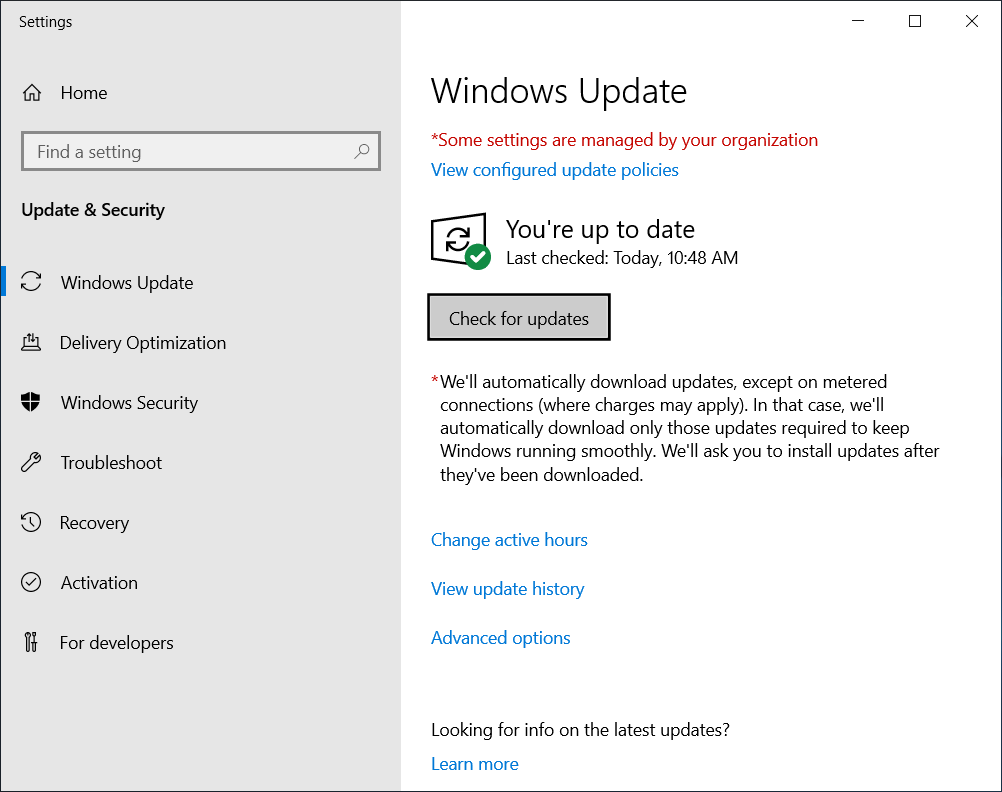
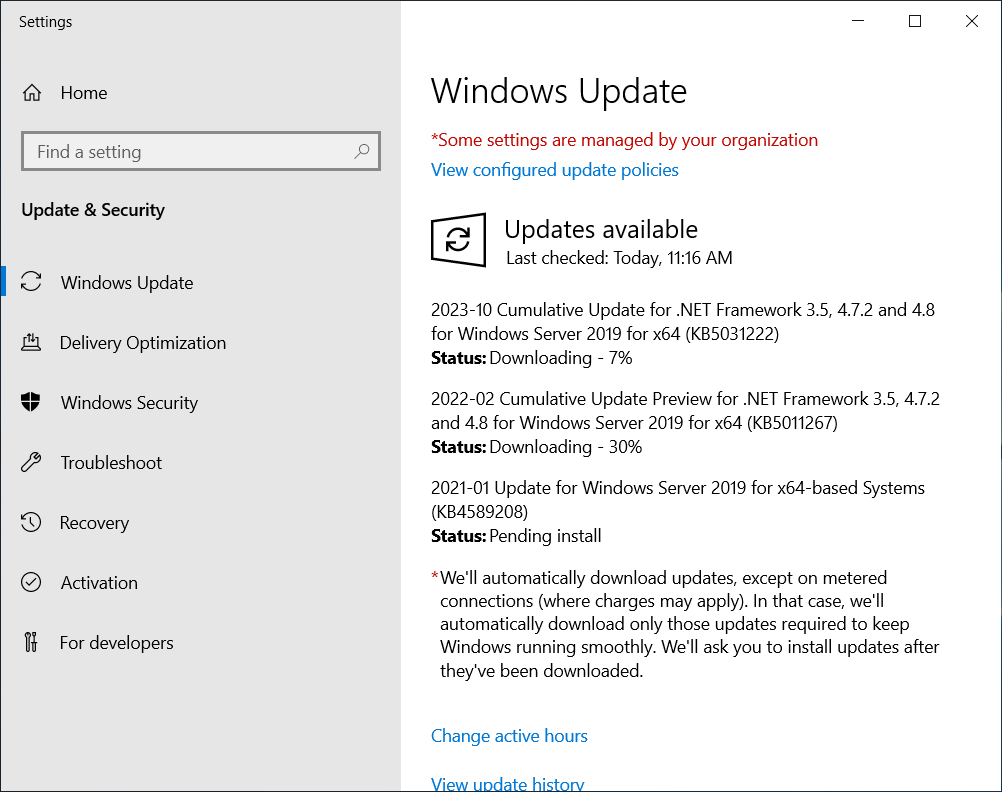
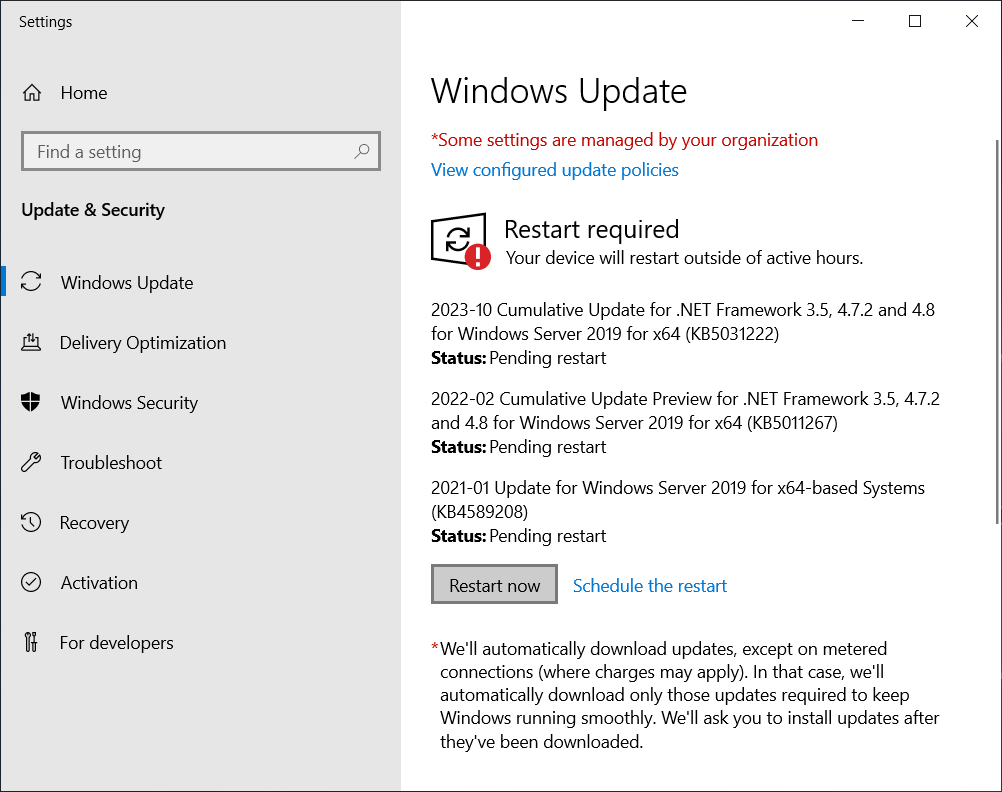
Once the system has completed the restart, log back in. Then check for Windows updates to install the latest . NET Framework updates and restart when prompted (as shown below).
Finally, launch MPA Tools
Once the system has completed the restart, log back in. Then, select MPA Tools from the Start menu.
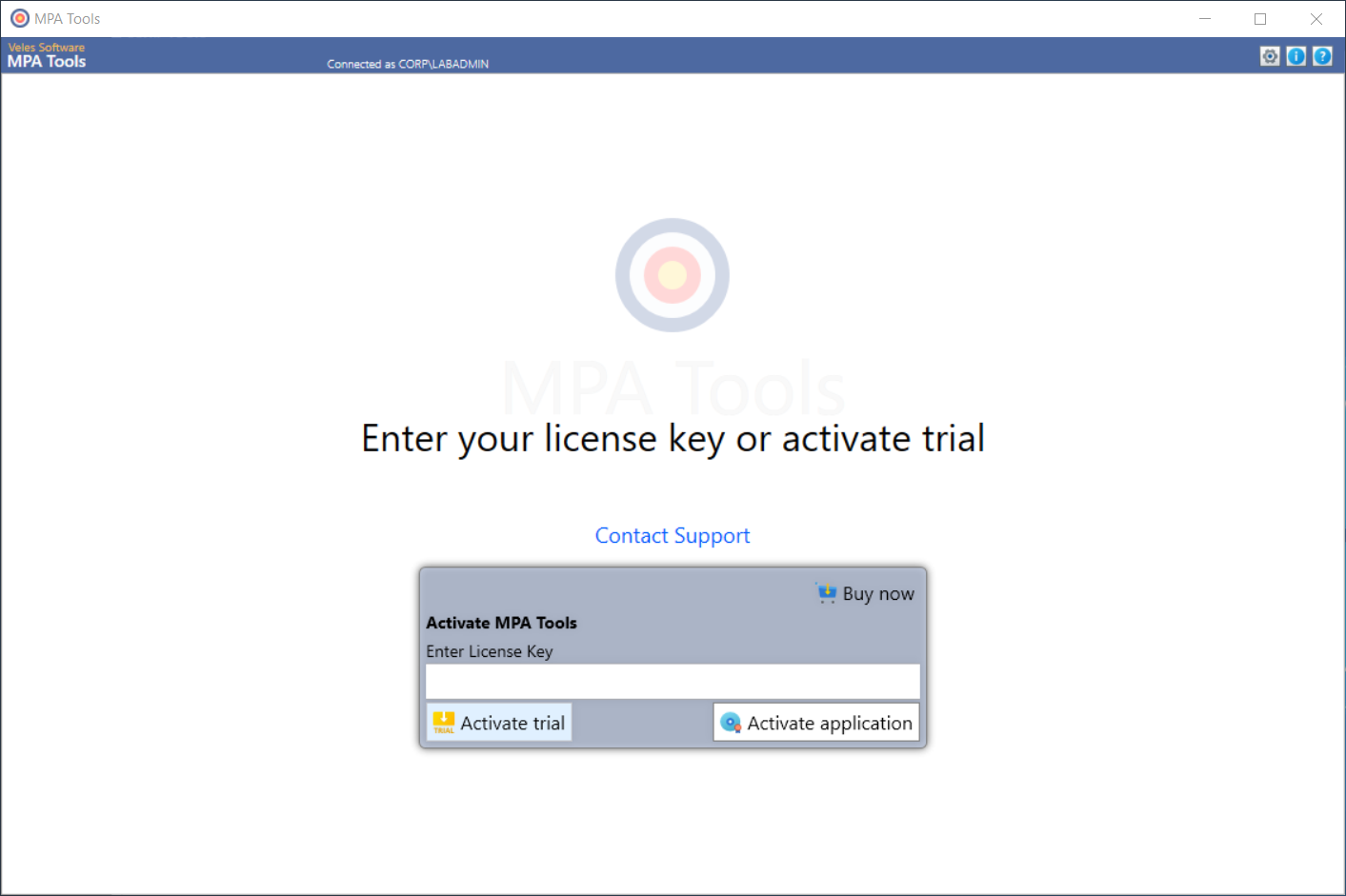
The MPA Tools splash screen should appear and then MPA Tools should load with a prompt to either activate the application or to activate the trial.
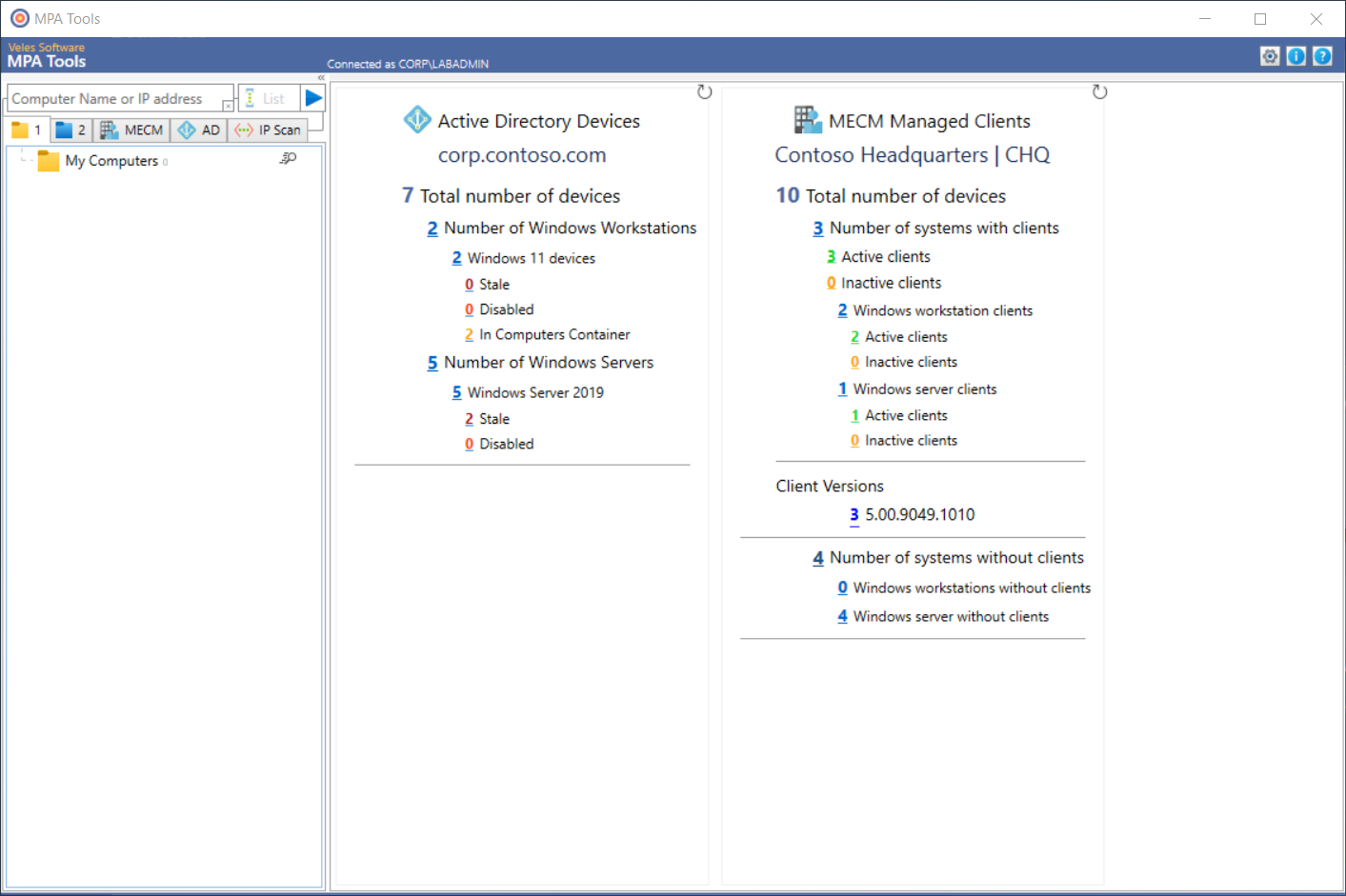
After which, MPA Tools will fully load.
I hope this helps anyone who has experienced any challenges with installing MPA Tools on Windows Server 2019. Remember if you encounter any issues, please reach out to us for support.